WarpNet
Overview
Aligning projectors from a control room can by complicated: you have to see the picture on the wall while you move the points. WarpNet is made for that. It is a deformation tool that Producer serves to a browser, so you can carry a laptop or a tablet on stage, deform outputs and cues with your eyes on the real image, and let the Producer operator keep working on the rest of the show.
WarpNet only does one thing : It deforms outputs and 2D cues. It cannot edit the show in any other way.
Info
If you need full control on the show from another machine (timelines, media, 3D), consider using Multi-Producer, not WarpNet.
Opening WarpNet
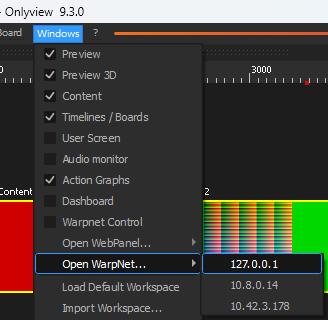
In Producer, open the Windows menu → Open WarpNet.... The submenu lists
the IP addresses of the Producer machine; pick the one on the show network. A
window opens with the address and a QR code:
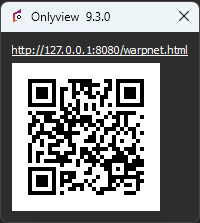
Scan the QR code with the tablet, or type the address into any browser. Consider bookmarking the page on the machines you use regularly.
Warning
WarpNet is only served while Producer is running and a show is open. It is not available when the show runs without a Producer.
Choosing what to deform
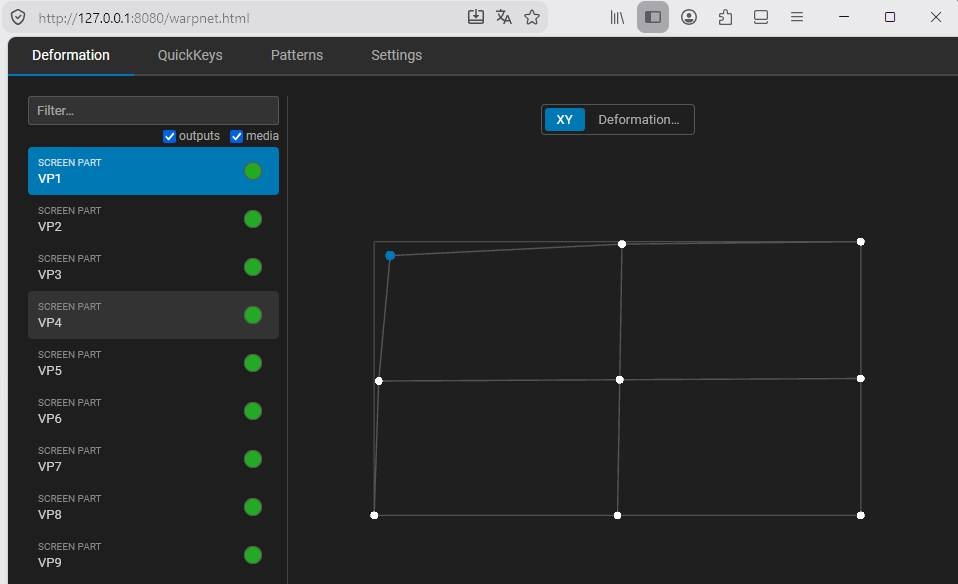
The left column lists all the surfaces that Warpnet can deform.
The two checkboxes at the top filter the list, and the search box above them filters by name.
- Outputs are always deformable
- Media cues have to be handed over explicitly, so that an operator on stage
only sees the handful of cues that concern them. In Producer, right-click the
cue and choose
Send to WarpNet:
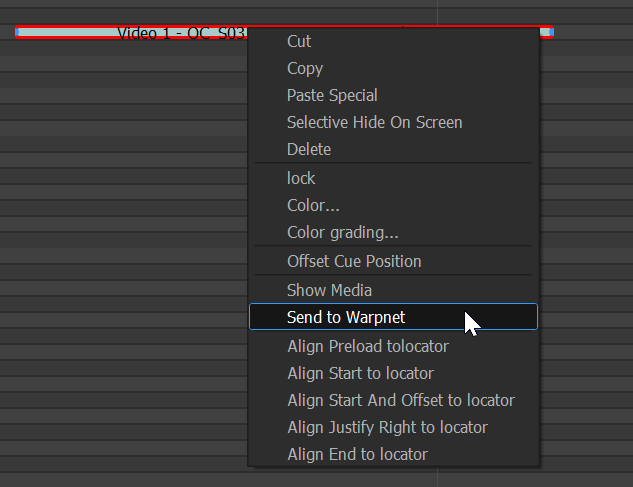
The cue then appears in WarpNet's list, and can be deformed.
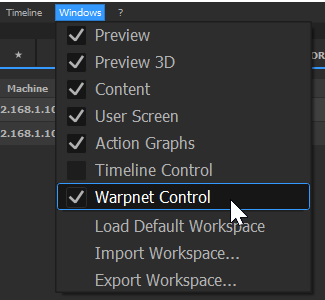
The Warpnet Control window in Producer lists all the cues currently shared.
To take one back, right-click it there and choose Remove.
Deforming
Select an item in the list; it opens in the editing area on the right.
WarpNet shows the deformation geometry of the surface: the deformation grid, its points and the outline of the item.
Click a point to select it, drag it to move it, or drag a rectangle around several points to take them all at once. The arrow keys move the selection. The full list of mouse and keyboard controls is in the Full Reference.
The toolbar above the editing area holds the four modes:
- XY — the normal mode. You move the points of the deformation on stage.
- UV — you move the texture coordinates instead: the geometry stays put, and the content slides inside it. This allows to select an excerpt/slice of the content. Only available for media cues.
- Soft edges — adjust the soft edges of the output, in the same view.
- Deformation... — create, change or reset the deformation itself: none, keystone, curve or bezier, and for the last two, the number of rows and columns of the grid.
Warning
Changing the deformation type, or ticking Reset grid, throws away the point positions of the current deformation. There is currently no undo in WarpNet.
QuickKeys
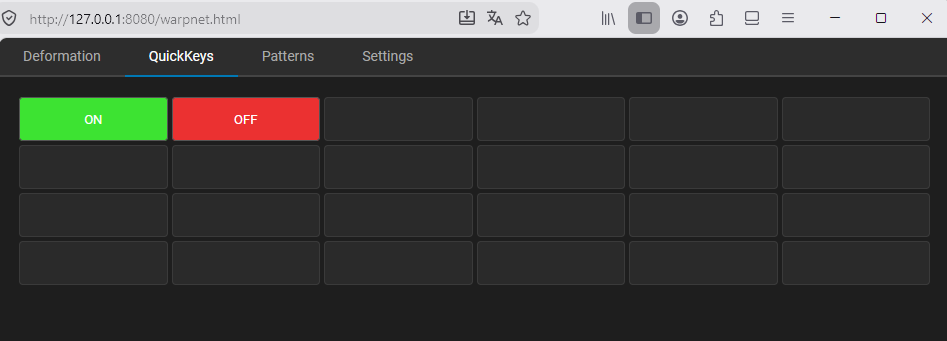
The QuickKeys tab shows a grid of buttons, mirroring a QuickKey panel of the
show, so that an operator on stage can trigger a sequence without walking back
to Producer.
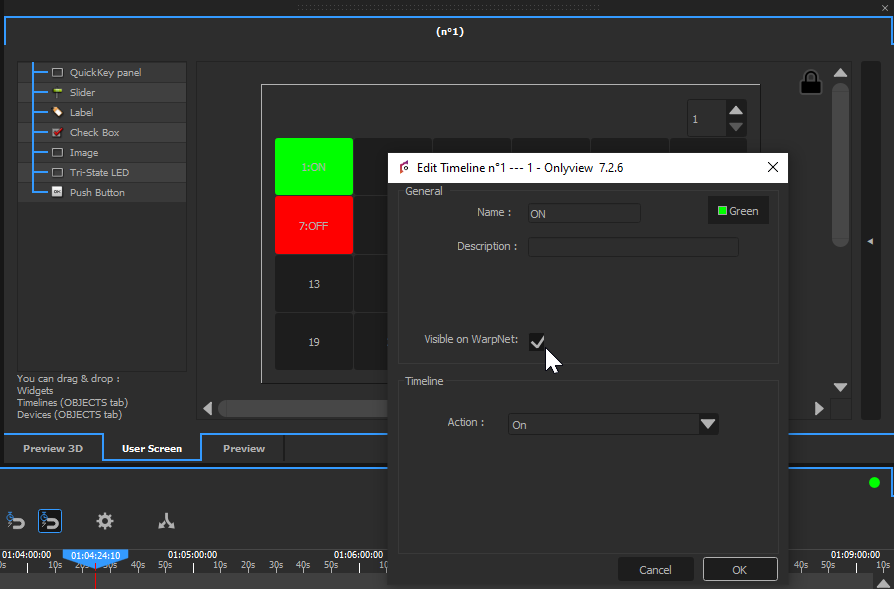
A QuickKey only appears here if it has been made visible. In Producer,
right-click the QuickKey, choose Edit, and check Visible on WarpNet:
Test patterns
The Patterns tab sends a test pattern to the Media Servers, the same ones as
the MEDIA SERVERS tab of Producer — see
Patterns.
The pattern is a property of the show, so choosing one here changes it for everybody, including Producer.
Settings
Onlyview can draw the points you have selected on-stage, projected on the real screen, which is far easier to work with than looking back and forth between the tablet and the wall.
The Settings tab lets you set the shape (none, point, cross, circle, square) and the
colour of these markers. Both are per-client: when several operators work at the
same time, each one can select a unique color.