Outputs
Decklink setup
Introduction
Blackmagic Decklink cards are configured with Blackmagic Desktop Video Setup. This configuration decides which Card IDs Onlyview sees. It applies to Decklink inputs and to Decklink outputs.
The Desktop Video Setup interface can be misleading. This page shows the normal setting. It uses a DeckLink 8K Pro as an example.
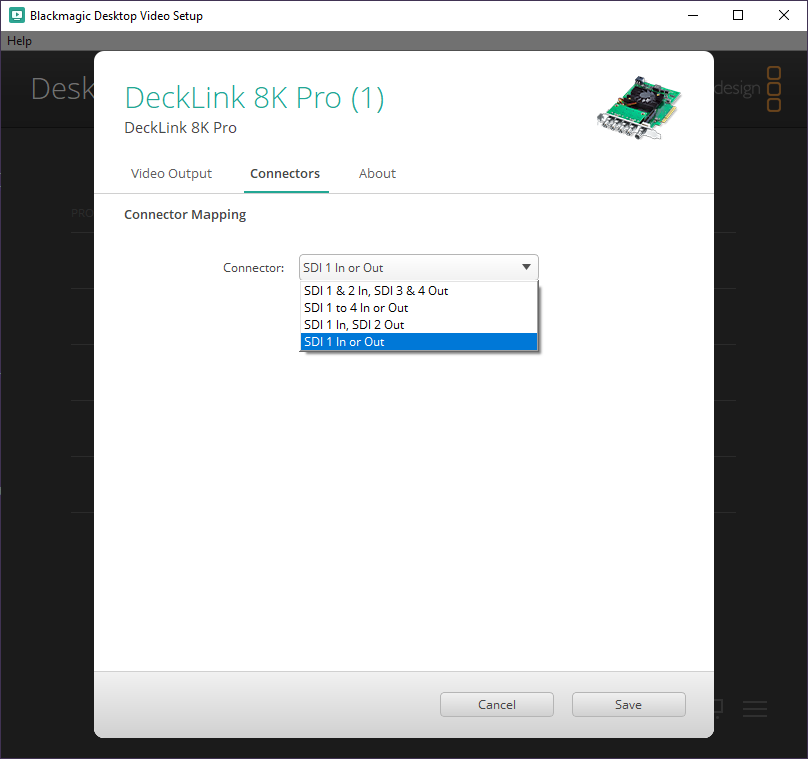
In most cases, the right connector mapping is "SDI 1 In or Out".
Card ID
One physical card exposes one or more devices. Each device has its own row in Desktop Video Setup.
The server Card Id is the row number in this list, starting at 1. Without a patch, the media Card Id equals the server Card Id. Decklink outputs have no patch: their Card ID is always the server Card Id.
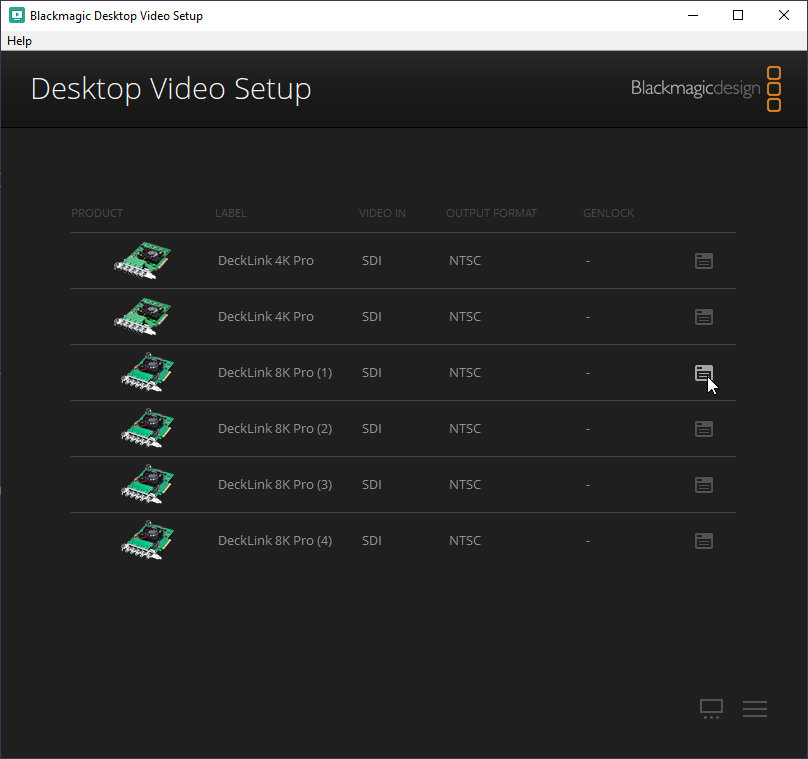
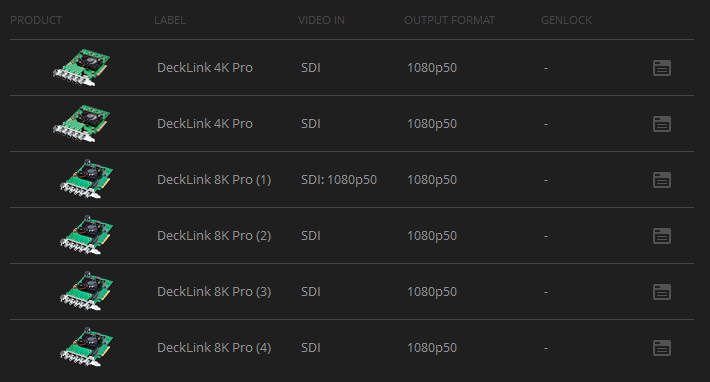
In this example, the Media Server has 3 physical cards: 2 DeckLink 4K Pro and 1 DeckLink 8K Pro. This gives 6 server Card Ids:
| Server Card Id | Device |
|---|---|
| 1 | DeckLink 4K Pro |
| 2 | DeckLink 4K Pro |
| 3 | DeckLink 8K Pro (1) |
| 4 | DeckLink 8K Pro (2) |
| 5 | DeckLink 8K Pro (3) |
| 6 | DeckLink 8K Pro (4) |
Connector mapping
Some cards, like the DeckLink 8K Pro, offer several connector mappings. The mapping decides how the connectors are grouped into devices. It applies to inputs and to outputs.
To change it, click on the settings icon of the card's first device (here, "DeckLink 8K Pro (1)"). Then open the "Connectors" tab.
Recommended setting
Use "SDI 1 In or Out". This is the right setting in most cases.
Normal setting: "SDI 1 In or Out". Each connector is an independent single-link 12G-SDI device. Each device works as an input or as an output.
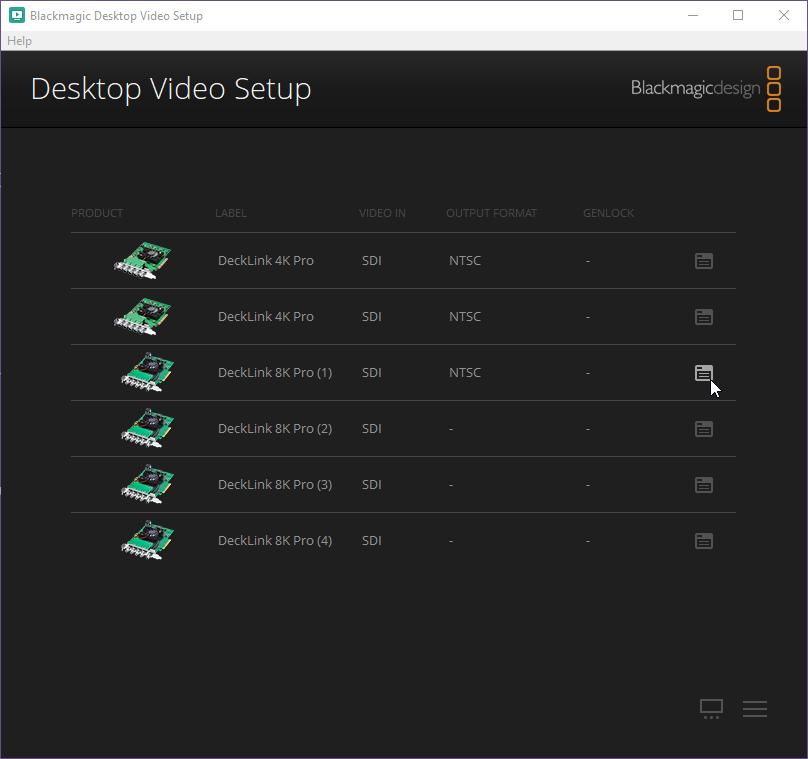
Quad link: "SDI 1 to 4 In or Out". The 4 connectors work together as one device, in or out. Use it only if the signal needs 4 cables, for instance 8K. In this mode, devices (2) to (4) are unusable, but Desktop Video Setup still lists them. Their "Output Format" column shows "-":
The other mappings are not described here.
After a change of connector mapping, go Online again (Ctrl-O). The other cards keep working during the change.
Physical connector order (DeckLink 8K Pro)
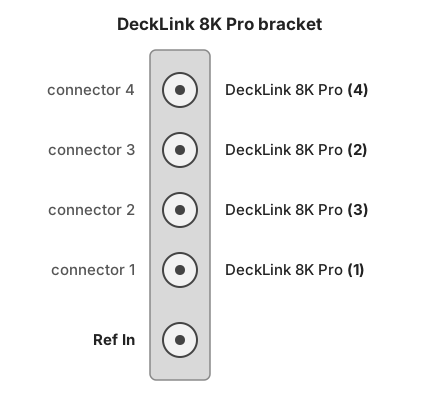
The connectors are not in the device order. Starting from the "Ref In" connector, the order is:
- DeckLink 8K Pro (1)
- DeckLink 8K Pro (3)
- DeckLink 8K Pro (2)
- DeckLink 8K Pro (4)
Finding which Card ID receives a signal
Two tools show the incoming signals.
In Desktop Video Setup, the "Video In" column shows the detected format, for instance "SDI: 1080p50". It shows only "SDI" when there is no signal.
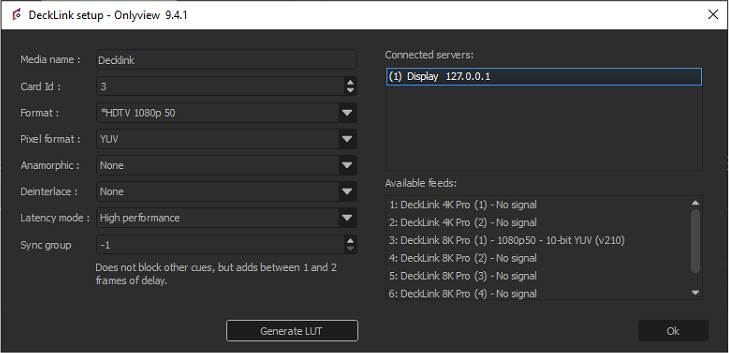
In Producer, open the setup window of a Decklink media. Select a Media Server in "Connected servers". The "Available feeds" list shows each media Card Id and its signal. It refreshes every second. It takes the per-server patch into account.
For outputs, there is no such list. But you can change the Card ID of an output while the Media Server runs: the change applies at once.
When the Card IDs change
The device order can change when a card is added, removed, or moved to another PCIe slot. The server Card Ids then change too.
For inputs, the per-server patch fixes this. It is available in DisplaySetup, and in Producer: Edit Media Server window, "DisplaySetup" tab. See Card patching per Media Server.
Warning
There is no patch for outputs. After such a change, check the Card ID of each Decklink output.