Skip to content

Media Cues

Media cues

Common parameters

Commonly-used parameters are directly accessible in the timeline: opacity, position, rotation, scale, color, etc.

There are two tabs of parameters, which can be switched by clicking on the first line
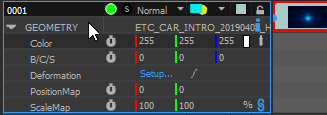
The F1...F11 keys give a direct access to each of these parameters in a compact mode:

  • F1: Opacity (also called Fade)

  • F2: Cue position on the stage

  • F3: Cue scale. Can be set in % or in pixels.

  • F4: Cue rotation, in degrees + full turns

  • F5: Cue anchor, the rotation center of the cue

  • F6: Cue color

  • F7: Brightness/Contrast/Saturation, for quick color adjustments

  • F8: Cue deformation

  • F9: Texture coordinates offset

  • F10: Texture coordinates scaling

  • F11: Texture coordinates rotation

Opacity has quick-access keys: Numpad0 forces the opacity to 0, Numpad1/ Numpad2/... Numpad9 to 10%/20%/... 90% respectively, and Ctrl-Numpad0 forces the opacity to 100%.

Once in compact mode, click on the left part to return to expanded mode:

Cue setup dialog

Double-clicking on a cue opens the Cue setup dialog.

Editable parameters are:

  • Start time: the timecode at which the cue starts. Changing this value is equivalent to dragging the cue on the timeline.

  • Duration: how long will the cue last. Changing this value is equivalent to dragging one of the extremity of the cue on the timeline.

  • End time: the timecode at which the cue starts. When editing this value, the duration will remain constant, so the start time will be adjusted.

  • Preload: How long in advance the media will be loaded in memory, ready to be played. By default, there is an invisible 10 second preload on all cues, so that hitting a new cue does not create a performance hiccup. This can be extended using this setting.

  • Name: The name of the cue shown in the timeline. Can be anything, but by default, contains the name of the media.

  • Anamorphic: Extra scaling factor to compensate for media with built-in vertical scaling.

  • Rewind: Allows to play back the movie in reverse. Only available with image sequences.

  • Loop and freerun: see the dedicated section below

  • In/Out: cuts parts of the cue at the start and the end of the media.

  • Speed: Playback speed factor. By default, plays at 1x the media speed.

  • Border: an extra border on the media

  • Drop shadow: like the border, but only on one side

  • Crop: crops the edges of the cue

  • Vector Masks: Allows creating complex animated masks using Bézier curves for precise control over which parts of the cue are visible. Each cue can have multiple vector masks that can be animated over time. Vector masks support keyframe animation, allowing shapes to change position, size, and form throughout the duration of the cue. This is particularly useful for rotoscoping work or creating complex reveals and transitions.

  • Hide On Screen: This feature is similar to the Selective Upload for media, but on a cue-by-cue basis and with different functionality. "Force Hide" completely disables the cue on specific Media Servers. "Force Show" forces the decoding of the media, even if the cue is not visible. While this is usually not needed, it can prevent performance hiccups if a cue suddenly moves on a new Media Server, for instance due to tracking.

    Note: This is different from media-level Selective Upload, which controls whether media files are downloaded to Media Servers, while cue-level Hide On Screen controls whether individual cues are rendered on specific Media Servers.

Some media types have extra parameters:

  • On audio cues, tracks of the input media can be routed to different output channels.

  • Notch media can be given TextureAreas as inputs, so that they can be procedurally edited.

  • TouchEngine media parameters can be driven at runtime using the TouchEngine ActionGraph node.

  • 3D scenes (.ov3d files), when put in Flat mode, handle the cue resolution here.

Loop & freerun

The Loop option makes the media go back at the start when reaching the end.

This is not useful in itself, because reaching the end of the media means that we will leave the cue:

However, the cue can be extended to be longer than the media:

A black vertical mark will show when the media wraps around.

  • If the cue is not in loop mode (the default), the last frame of the media will be kept. A looping cue will have a small loop indicator on the right

  • If the cue is in loop mode, the media will wrap.

Looping takes in/out into account: if you crop 1 second of a 10-second movie, then the media will loop every 9 seconds.

Freerun makes the cue handle time by itself. As soon as the cue starts playing, the cue will entirely ignore the timeline's timecode. In particular, this means that pausing the timeline will not impact freerun cues, which will continue playing:

Freerun is often used in conjunction with Loop; otherwise, the freerun cue will continue playing the last frame of the media.

The only way to stop showing the cue is to move the locator outside of the cue. This will also reinitialize the internal timecode, so exiting and re-entering the cue starts playing the media at the expected timecode.

Animations

Most cue parameters can be animated on the timeline. This is done by clicking on the stopwatch icon:

Changing an animated value will automatically create a new keyframe.

To delete a keyframe, select it and press Suppr.

Animations can be used to create transitions between cues. In this case, it is particularly handy to know common keyboard shortcuts:

  • Select the cue, the press O (go to end of selection; opposite key is I)

  • Press T to jump back 1 sec before (opposite key is Y; there are also Ctrl and Alt variants).

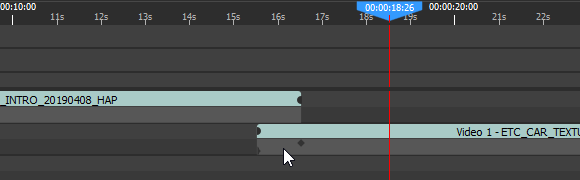
  • Drop the new media on layer 2. It will then start one second before the end of the other cue.

  • Press Shift-F1. This will add an opacity keyframe -- and thus create an animation.

  • Press 0 to set this keyframe to full transparency

  • Press Y to jump to the end of the crossfade

  • Press Ctrl-0 to set this keyframe to full opacity

This will give you a 1 second crossfade:
Cue view

Ctrl+double-clicking (or right-click -> Edit all cues parameters) on a cue gives access to a new panel, on which more cue parameters can be edited. In particular, it shows the Effects options.

To exit the cue view, close it in the top-right corner, or ctrl-double click on an empty area of the timeline.

While the cue view is active, some actions are locked, like deleting the cue.

Vector Masks

Vector Masks provide advanced masking capabilities using animated Bézier curves. This can be used for precise compositing work, rotoscoping, and creating animated reveals.

Overview

Each media cue can have multiple vector masks that define which parts of the content are visible. Unlike simple crop operations, vector masks use smooth Bézier curves that can create organic, flowing shapes. These masks can be animated over time.

Creating Vector Masks

To add the first vector mask to a cue:

  1. Select the desired cue in the timeline
  2. In the 2D preview, in the right panel, click on the "Vector masks" icon to switch to vector mask editing
  3. Just below, select the "add points" tool
  4. Start tracing

The full list of masks can be accessed in the list of all cue parameters:

  1. Select the desired cue in the timeline
  2. Right click -> Edit all cue parameters (or : Ctrl-double-click on the cue)
  3. In the bottom panel that opens, navigate to the Vector Masks section
  4. Click "Add Shape" to create a new mask

Working with Shapes

Each vector mask is defined by a series of control points that form a closed shape:

  • Opacity: Controls how strongly the mask is applied (0-100%)
  • Feathering: Softens the edges of the mask for smoother transitions
  • Mask Invert: When off (the default), the drawn path describes the visible zone. When off, if describes the hidden zone, and the rest of the image is visible instead.
  • AND mode: When off (the default), the visible zone of this mask is added to the previous masks, expanding the visible zone. When on, only the zones that are visible in the current AND the previous mask are visible.

Animation and Keyframes

Vector masks support full keyframe animation:

  • Position Animation: Move the entire mask over time
  • Shape Animation: Change the form of the mask by animating individual control points
  • Opacity Animation: Fade masks in and out
  • Feathering Animation: Vary the softness of edges over time

To animate a mask property: 1. Position the timeline at the desired time 2. Modify the mask property (position, shape, opacity, or feathering) 3. A keyframe is automatically created 4. Move to a different time and change the property again to create motion