Boards
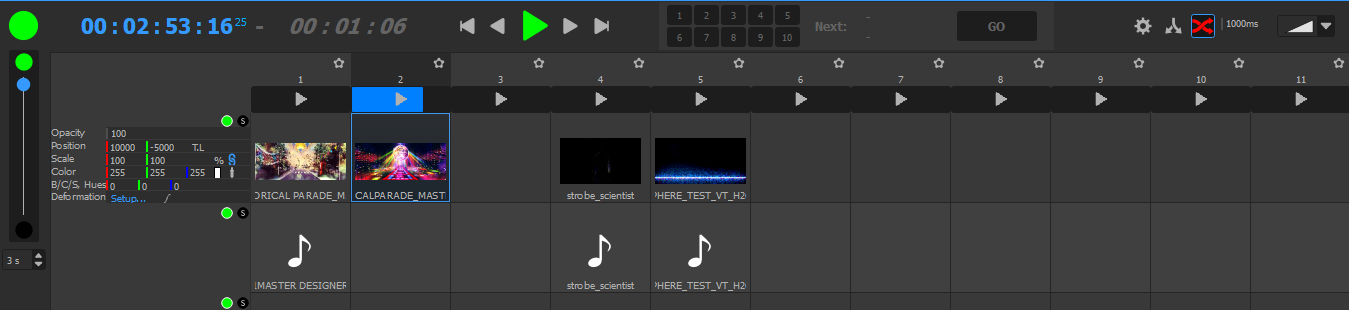
In addition to timelines, Onlyview has a system of "cue list" called Boards. The functionality is similar to timelines, but simpler and faster to use for most common shows.
In particular, Boards automatically handle the duration of each sequence in your show. This means that it is easy to re-order the sequences, or add a new sequence between two existing sequences; whereas timelines require more precise and manual handling.
Boards are "interleaved" with timelines: they are drawn together, one after the other, in the order defined by the user. It's common to show that mixes both: for instance, a timeline is great for the show control which might require precise timings, while a board will be used for the content to keep a maximum of flexibility.
Basic usage
Boards are made of sequences. A sequence contains several layers of media.
To play a sequence, just click on the Play button at the top of the desired sequence. The sequence's cues will become selectable and editable.
Normally, Onlyview automatically handles the duration of a sequence, and at the end of the sequence, it will skip to the next one.
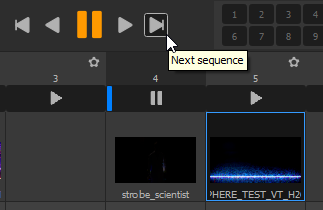
Basic previous/next sequence control can be accessed using the dedicated buttons:
Sequences duration
Onlyview computes the duration of a sequence using the following logic:
-
It searches amongst the layers for the first cue that:
-
Doesn't freeruns, otherwise the duration is not really meaningful
-
Have a real duration (ie a real movie, not a stream or a TextureArea)
-
-
If no such cue exists, the sequence is considered "infinite", and only the user can skip to the next one.
By default, the duration of a cue is the duration of the underlying movie. But this can be configured in the cue's settings:
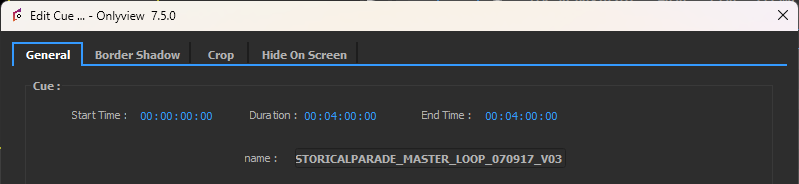
One of the extra features regarding to Timelines is that since Onlyview knows when the current sequence ends, it is able to tell how long is remaining (in this example, 5 seconds), which is useful during rehearsals.

Queue
Normally, when a sequence finishes, the next one starts.
However, you can temporarily override this behaviour. Right-click on a sequence, and select "Enqueue":
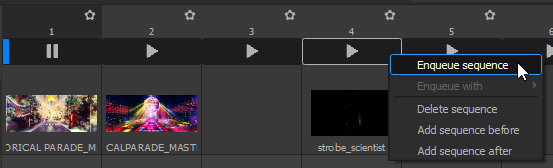
The top panel will then highlight which sequence is enqueued:

In this example, once sequence 1 will be finished, Onlyview will not play sequence 2 but sequence 4. You can also click on Go, which will make the enqueued sequence play immediately.
Once the new sequence is played, the queue is cleared. In other words, if you play sequence 1 again, Onlyview will not remember to play 4 next. If you want to alter the order indefinitely, you can drag&drop the columns instead.