Softedge
Onlyview usage
A softedge media is a procedurally-generated gradient that fades from fully attenuating to no effect across one border. It is used for edge blending: where two projectors overlap, a softedge cue darkens each projector's image progressively toward the seam, so that the two overlapping images sum to an even brightness instead of a visible bright band.
It is not backed by a file: the gradient is rendered on the fly, has infinite resolution, and can be scaled, rotated and deformed like any other cue.
In most cases, prefer the built-in output soft edges. Every screen output can blend its own edges directly, configured per output with the Output soft edges tool in the 2D preview. Those follow the output geometry automatically, blend at the output stage, and don't occupy a timeline layer — so they are the usual choice for overlapping projectors. Reach for the softedge media when you need a blend as content rather than as an output setting: for example inside a TextureArea, over an overlap that isn't tied to an output edge, or when the blend must be animated over time.
Media List
Add a softedge with the Add softedge button in the media list. The setup dialog opens on first add, and can be reopened later via the media setup button.
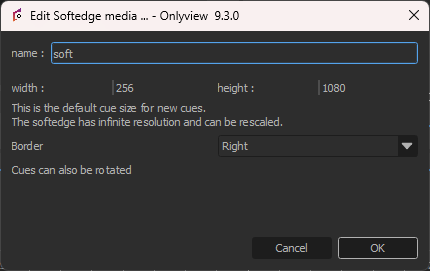
Name: A name that is meaningful to you.
Width / Height: The default cue size for new cues. The softedge has infinite resolution and can be rescaled freely, so this is only a starting size.
Border: Which edge fades out — Right, Left, Top or Bottom. This sets the direction of the gradient. Cues can also be rotated in the 2D preview for orientations between these.
Using the cue
Place the softedge cue over the overlap zone of two projectors, on a layer above the content it should attenuate, and orient its border toward the seam. It progressively darkens the image toward that border so the overlapping projectors blend smoothly.
Two per-cue parameters (in the cue's parameters, and animatable like any cue parameter) fine-tune the blend:
Gamma: The shape of the blend curve. Adjust it until the overlap looks uniform — this compensates for the projectors' response so the summed brightness stays flat across the seam.
Dithering: Adds a small amount of noise to the gradient to avoid visible banding in the ramp.