Parameters
Parameters
Every cue exposes the same set of parameters. The most commonly-used ones (opacity, position, rotation, scale, color, etc.) are directly accessible in the container, while the full list is available in the Cue setup dialog and the Cue view.
How you reach the quick parameters depends on the container:
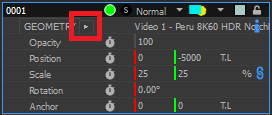
- On a Timeline, they are edited on the left header, which has 2 tabs. F1...F11 keyboard shortcuts make them quickly accessible (see the Timelines chapter)
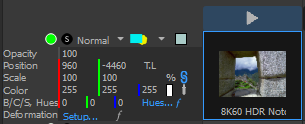
- On a Board, a simplified panel shows only the most common ones (see the Boards chapter).
Cue setup dialog
Double-clicking on a cue opens the Cue setup dialog. This dialog is the same from a Timeline and from a Board.
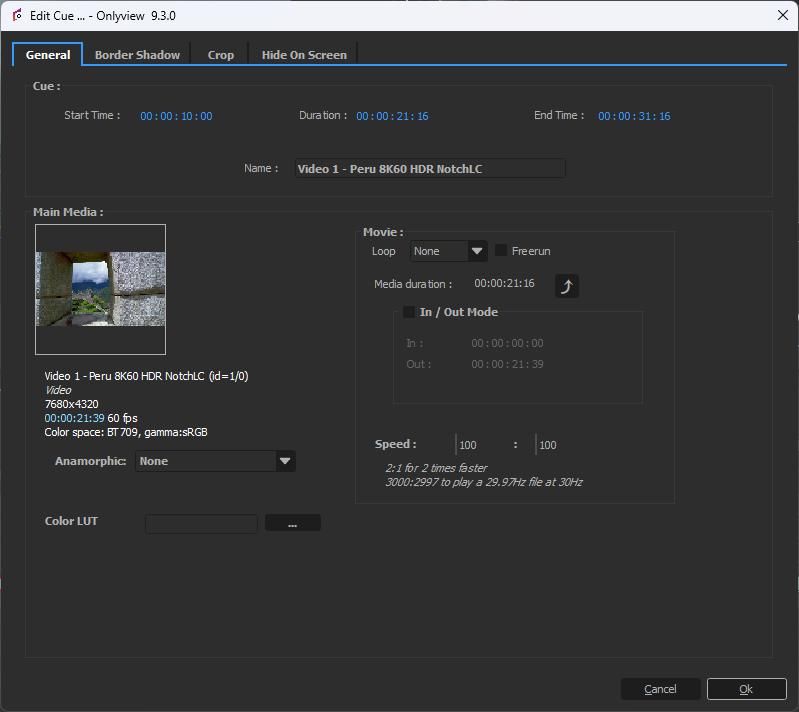
Editable parameters are:
-
Start time: the timecode at which the cue starts. Changing this value is equivalent to dragging the cue on the timeline.
-
Duration: how long will the cue last. Changing this value is equivalent to dragging one of the extremity of the cue on the timeline.
-
End time: the timecode at which the cue starts. When editing this value, the duration will remain constant, so the start time will be adjusted.
-
Name: The name of the cue shown in the container. Can be anything, but by default, contains the name of the media.
-
Anamorphic: Extra scaling factor to compensate for media with built-in vertical scaling.
-
Rewind: Allows to play back the movie in reverse. Only available with image sequences.
-
Loop and freerun: see the dedicated section below.
-
In/Out: cuts parts of the cue at the start and the end of the media.
-
Speed: Playback speed factor. By default, plays at 1x the media speed.
-
Border: an extra border on the media
-
Drop shadow: like the border, but only on one side
-
Crop: crops the edges of the cue
-
Vector Masks: complex animated masks using Bézier curves -- see the dedicated section below.
-
Hide On Screen: This feature is similar to the Selective Upload for media, but on a cue-by-cue basis and with different functionality. "Force Hide" completely disables the cue on specific Media Servers. "Force Show" forces the decoding of the media, even if the cue is not visible. While this is usually not needed, it can prevent performance hiccups if a cue suddenly moves on a new Media Server, for instance due to tracking.
Note: This is different from media-level Selective Upload, which controls whether media files are downloaded to Media Servers, while cue-level Hide On Screen controls whether individual cues are rendered on specific Media Servers.
Some media types have extra parameters:
- On audio cues, tracks of the input media can be routed to different output channels.