Layers
Layers
Media cues are organized in layers. Layers are shown from top to bottom, so a cue placed in layer 1 can be hidden by a cue on layer 2.
Adding and removing layers
By default, new timelines have 40 layers, but you can add more, or delete existing ones.

Collapse / expand
Each layer can be individually expanded: it will take more space vertically. To toggle between collapsed and expanded mode, click on the left part of the layer:
 -
-

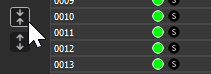
All layers can also be expanded/collapsed at once using the dedicated buttons:
Expanded layers can either be "compressed" and show a single parameter, or fully expanded. To show a single parameter, select a cue, and press the function key of the desired parameter : F1 for opacity, F2 for position, etc.
To fully re-expand the layer, click on the left part :

On/off and Solo
Each layer can be individually turned on or off using the green button. Layers can also be solo'ed using the "s" button. Only solo layers are visible. Note that multiple layers can be solo at the same time.