Creating a Scene
Creating a scene
This section will briefly explain the basic steps of creating your first 3D-based show. Each feature will be explained in more details in the next sections.
FBX preparation
Prepare your 3D scene in a 3D modeling package. Examples include Sketchup, Cinema4D, 3DsMax, etc. Then, export your scene in FBX. Ideally, use meter units during the export, as this will simplify the process later.
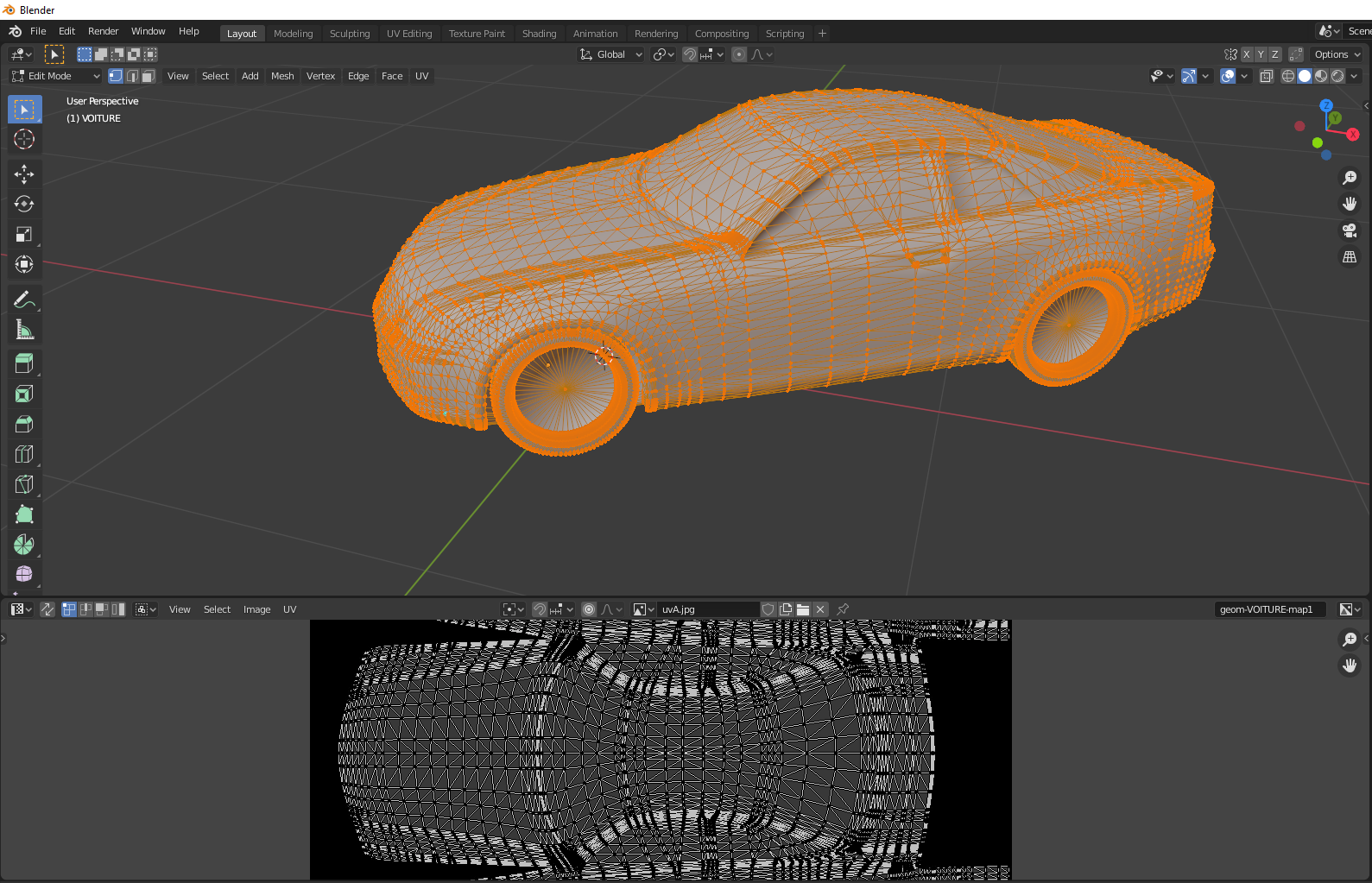
You can also create simple shapes directly in Onlyview.
FBX import
Import the FBX in Onlyview, like any other media: Drag&drop it into the MediaList, or click Add Media.
Onlyview scene creation
Create a 3D scene in Onlyview, which will contain the FBX and any other content. The easiest way is to drag&drop the FBX from the MediaList to the timeline.
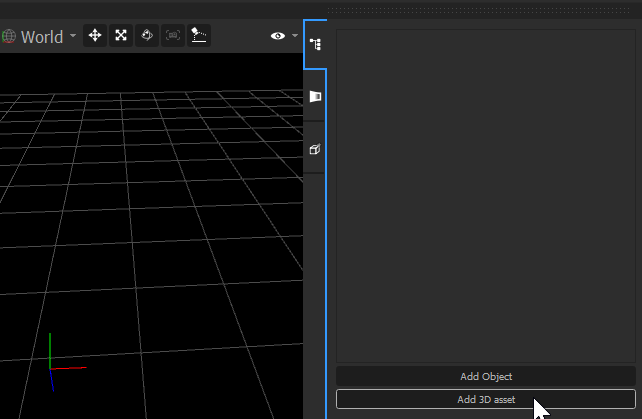
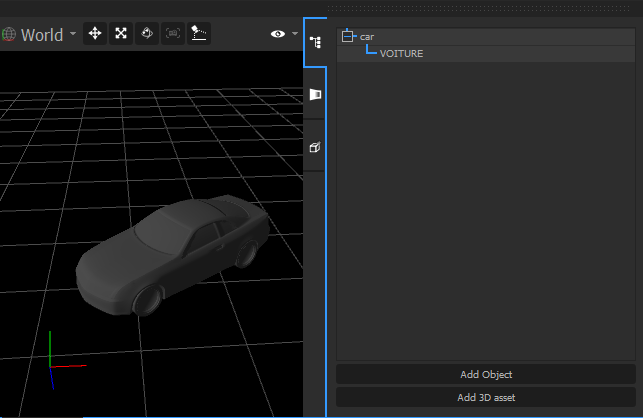
Creation of the Videoprojectors
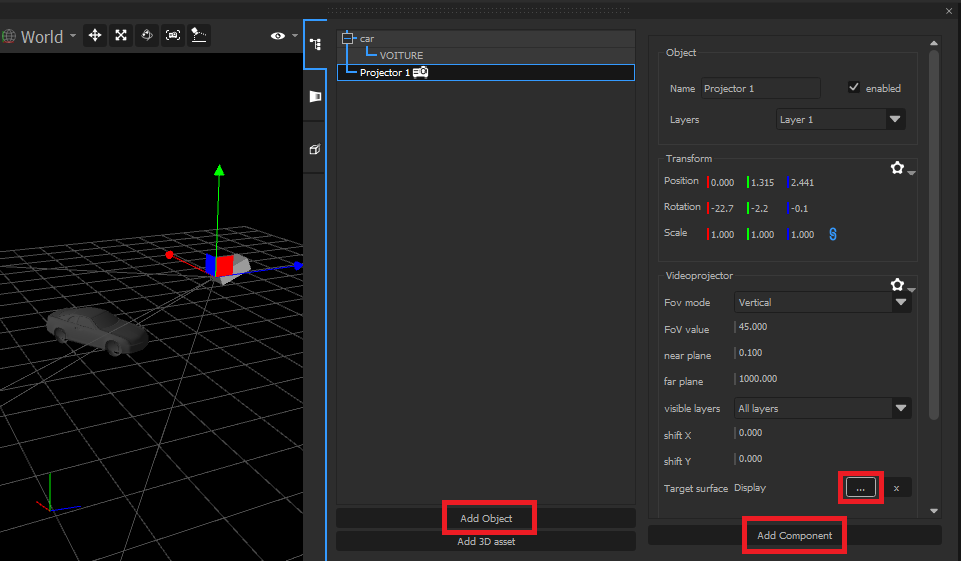
You need Videoprojectors to "capture" the scene on the Media Servers. To create a Videoprojector, click "Add Object", then "Add component", and select "Videoprojector". The object can be manipulated in the 3D preview; position it approximately where it is in reality.
You must then configure the projector to select which Media Server should render this view. In the inspector, click on the [...] button of the Target Surface. You can then select the Media Server, or if you have a multi-output setup, which part. Alternatively, you can also output on a TextureArea, but you must then make sure that the TextureArea is visible on the desired Media Server by creating a cue.
If you have cameras in the FBX, they will also be imported as videoprojectors.
Creation of the material
The Media Servers are now rendering the scene, but since there is no light, it's probably completely black, so you don't see anything. You need to configure the material of the mesh so that it emits light.
Create a TextureArea, called for instance "3d texture" and put a media in it. Click on the 3D object, and in its inspector, click on the [...] button of the Emissive field, and select your new TextureArea. This will have two effects:
-
In Producer's 3D preview, the 3D mesh will be textured with the TextureArea's content.
-
On Media Server, the 3D mesh will appear, also with the textured media.
Manual calibration
Since you positioned the Videoprojector approximately, the projected image will not perfectly match the real building or shape. You need to calibrate the Videoprojector's position and lens so that Onlyview knows the real characteristics of your projector. Go in Manual Calibration mode, then click on a vertex of the scene. This will create a small cross on Producer, and a big black and white cross on the Media Server. Using the right click, start dragging the vertex to where it should really be in real world.
After a few points, the projector will snap into place, and the whole image should be projected correctly on the building.