Interacting
Interacting with boards
Boards are very similar to timelines, and most concepts apply directly.
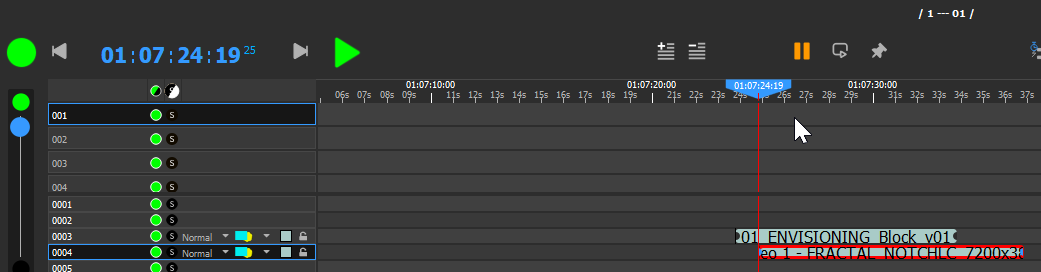
Just like timelines, each board has:
-
An on/off button, to completely hide the whole board.
-
A GrandMaster, on the left. Clicking on the black and green buttons will make the grandmaster automatically fade in a user-configurable time (by default, 3 seconds).
-
A play/pause button
-
A current timecode
-
A locator that can be dragged using the mouse, or controlled using keyboard shortcuts.
Board setup
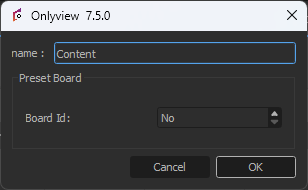
The name of each board is configurable.
Preset boards are explained in a dedicated section.
Boards and timelines
New boards can be created in the Content window, Objects tab.
Timelines and Boards are drawn in a specific order, customized in the Setup dialog:

So, it is possible to draw a Board between two Timelines, or vice-versa, depending on your show's requirements.
Dual Locator
Just like Timelines, Boards handle the Dual Locator. See the corresponding section in the Timelines chapter.
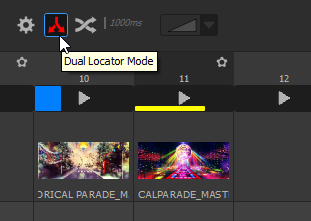
In this example, the running Media Servers will keep playing sequence 10, but the user can preview and edit sequence 11.
Auto-crossfade
The auto-crossfade of Boards has exactly the same basis than the Timelines. Please refer to the related chapter for an explanation of the different capabilities and modes.
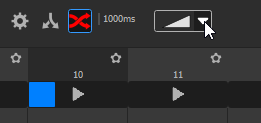
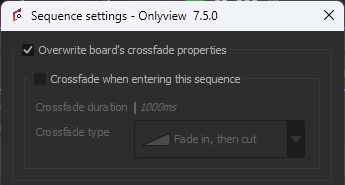
However, Boards have extra features: each sequence can optionally have a specific "override" which specifies a different behaviour when entering the sequence. To access the setting, click on the settings button of the sequence:
In the sequence settings, when "Overwrite" is checked, you can either:
-
Check "Crossfade", in which case there will always be a crossfade when entering it (and this crossfade can fade-out the exiting sequence, even if the timeline setting is set to "no crossfade". You can also customize the crossfade parameters.
-
Uncheck "Crossfade", in which case there will be no crossfade, even if the "auto-crossfade" parameter of the Board is enabled.