Basic Usage
Basic usage
New shows have a default, empty UserScreen.
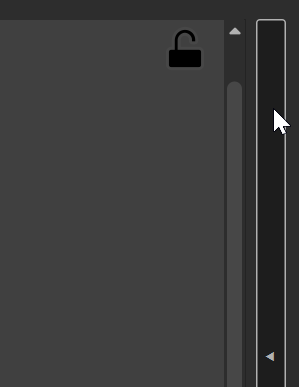
By default, a UserScreen is locked: you can use it, but not edit it.
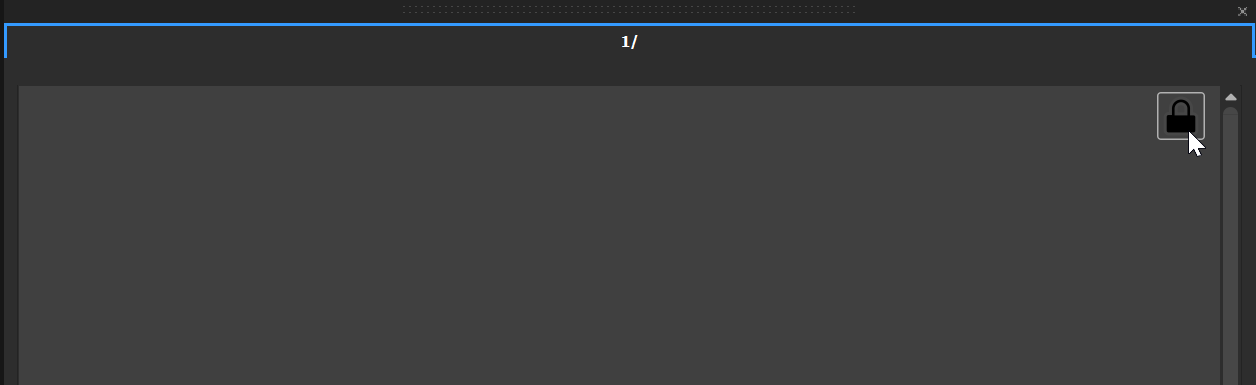
Once unlocked, you can drag&drop the various widgets.
Remember to re-lock it afterwards; the widgets can't be used when the UserScreen is in "edition" mode.
The QuickKey panel
This widget exposes keys that triggers the Show's QuickKeys. To be configured, re-lock the UserScreen.
On each QuickKey, you can drag&drop any of the items that you can drag on the CommandLayer; they are available in the OBJECTS tab.
-
Timelines
-
Producer
-
Specific Media Servers
-
Devices
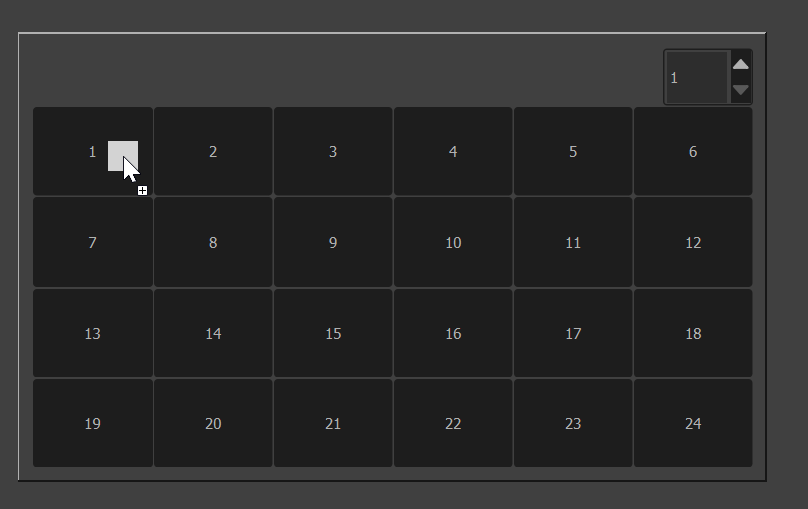
This will create a configurable action that will be executed when clicking on the QuickKey.
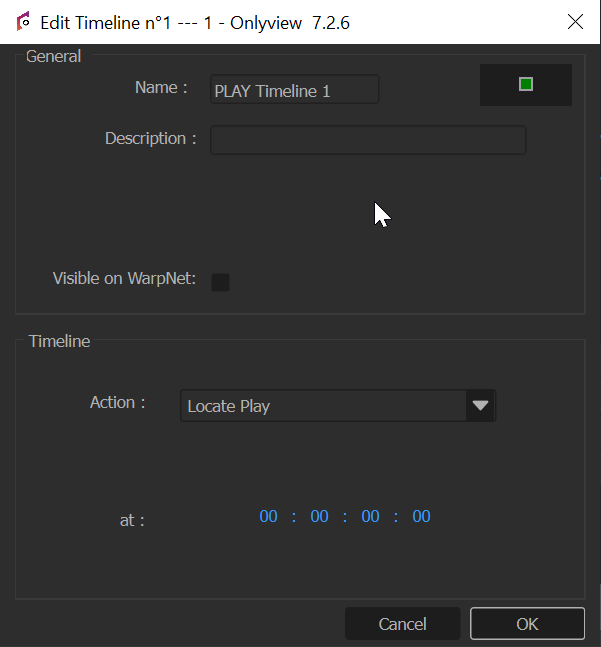
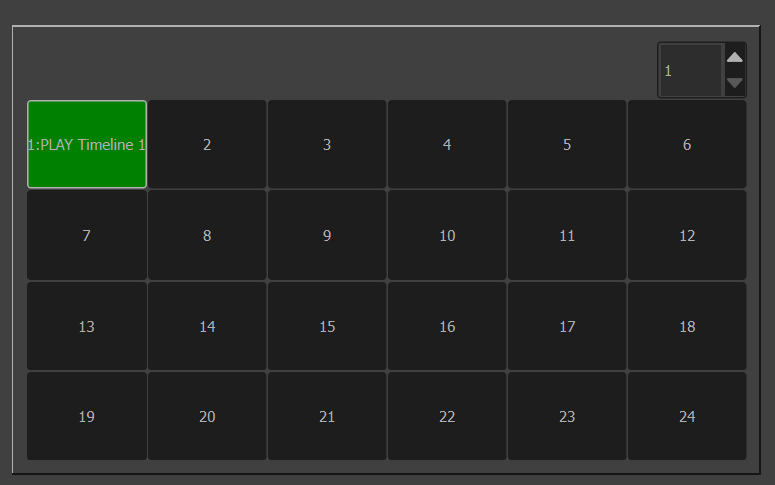
A QuickKey can also execute or edit nodes in the ActionGraph; Right-click on the desired ActionGraph Node, and select "Create QuickKey".
Devices
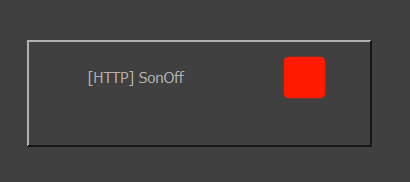
Most devices expose a UserScreen widget. In the OBJECTS tab, select (or create) a device, and drag&drop it in the UserScreen (it needs to be unlocked).
For instance, the HTTP device can show that it lost its connection:
Widgets
The widgets in the left panel can be dragged too:
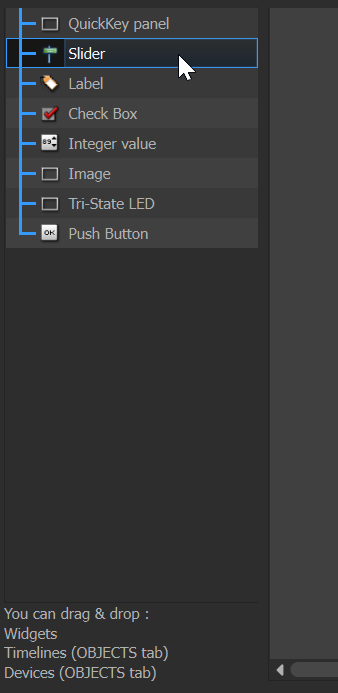
All these widgets can be interacted with from the ActionGraph. For instance, you can detect presses on a Push Button, and trigger some behaviour accordingly.
Inspector
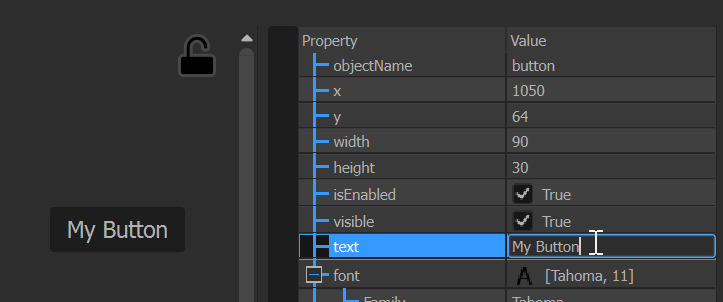
All the UserScreen Widgets can be inspected and edited using the right panel, when in edition mode:
Multiple UserScreens and Pages
A show can contain several UserScreens; and each UserScreen can contain multiple Pages. This hierarchy is visible in the OBJECTS tab, and can be edited there:
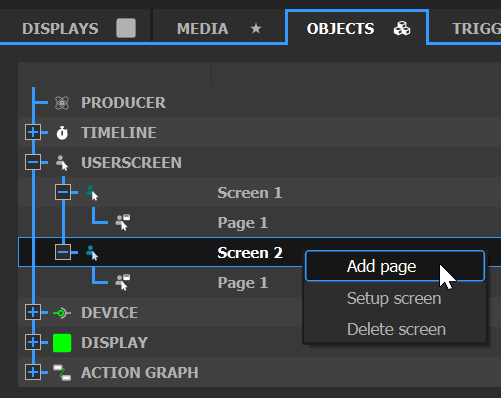
All the Pages are visible as tabs in the UserScreen window.