Command Cues
Command Cues
Command Cues are a way of controlling the show. Using Command Cues, you can encode pauses, jumps, and other actions that should happen at specific timecodes.
All actions that are configurable using Command Cues can also be triggered using QuickKeys. Use Command Cues to trigger the action automatically when playing a timeline; use QuickKeys to trigger the action manually, using the mouse.
Playback control
Simple playback control Command Cues are accessible directly on the timeline window:
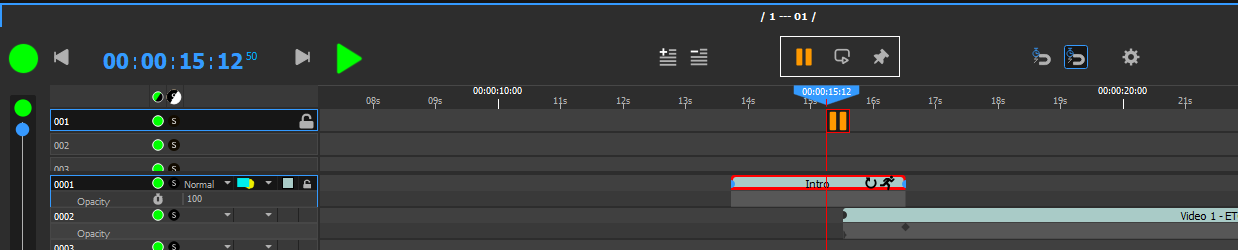
Command Cues are inserted in the top part of the timeline, in the Command Layers.
Available cues are:
-
Pause: Pauses the timeline (Shift-P)
-
Loop: Jumps to another timecode of the same timeline (Shift-J)
-
Marker: Does not do anything, just a marker on which you can add a name. Helps navigating the timeline (Shift-P)
Loops have two parameters, which are accessed using double-click:
-
Time: The timecode where the cue is placed at.
-
Loop To: The timecode where the timeline should jump when playing the cue.
Producer control
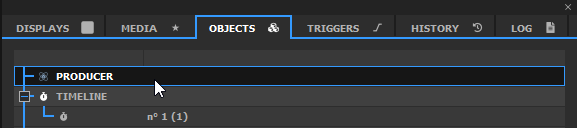
You can also encode actions that control Producer itself. In the OBJECTS tab, the first item is PRODUCER. This item can be drag&dropped on the timeline.
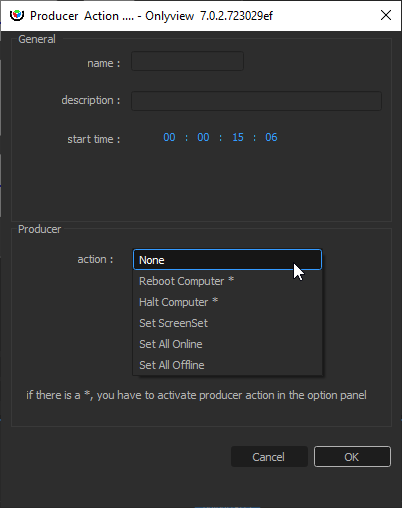
Available actions are:
-
Reboot Computer: Reboots the Producer computer
-
Halt Computer: Shutdowns the Producer computer
-
Set ScreenSet: Media Servers can have multiple configurations. You can switch between them.
-
Set All Online: Puts all Media Servers Online, like Ctrl-O
-
Set All Offline: Disconnects from all Media Servers.
For Reboot and Halt to be effective, navigate to File->Options, and in the General tab, tick "Allow dangerous Producer actions". Otherwise, these actions will be ignored. Before shutdown, Producer will warn you, and will give you 10 seconds to abort. If the procedure is not aborted, Producer will close without saving any changes to the project, and shutdown/reboot the computer.
Media Server control
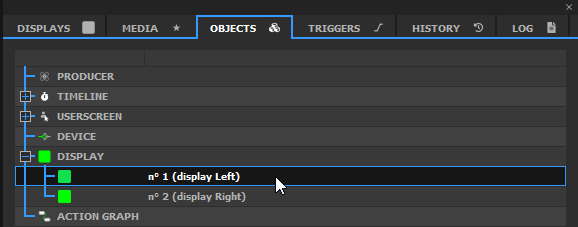
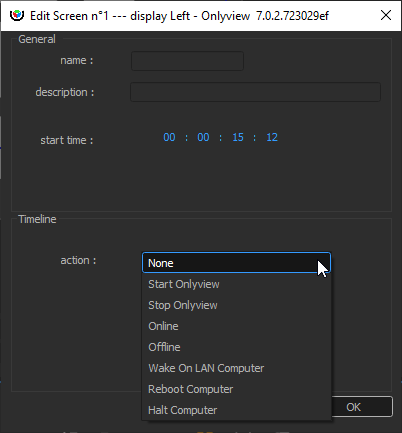
Individual Media Servers can also be controlled. Just like Producer actions, this is done by drag&dropping the Media Server in a Command Layer:
-
Start Onlyview: Ask watchdog.exe to start display.exe
-
Stop Onlyview: Ask watchdog.exe to stop display.exe
-
Online: Put this particular Media Server online
-
Offline: Disconnects from this Media Server
-
Wake On LAN: Sends a WOL packet to the Media Server computer. The BIOS must be configured to accept this; the Media Server's MAC address must be exact in the Edit Media Server dialog (an easy way to do this is to Online the Media Server; this will update the MAC address). This command is usually followed by a 2-min gap in the timeline, followed by Start Onlyview and Online commands.
-
Reboot Computer/Halt Computer: Reboots/Shutdowns the Media Server computer.
Action Graph controls
Nodes of Action Graphs can be inserted on Command Layers. Right-click on a node to access the feature:
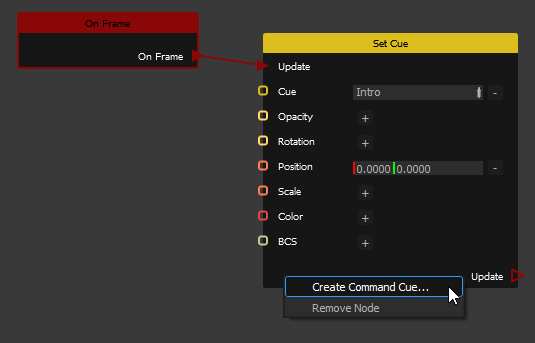
By editing the new cue, you can trigger changes in any editable value. In this example, a media is moved 100 pixels to the right:

Devices controls
Some devices can also be dropped on the timeline, in particular the timecode devices. See the Device chapter for more details.