Unreal (nDisplay SharedMemory)
Onlyview usage
Onlyview can receive the real-time output of an Unreal Engine project as a media, using Unreal's nDisplay system and its Shared Memory Media Output. Unreal renders on each Media Server and shares the resulting texture with Onlyview through shared memory; Onlyview then uses it like any other media (position it, deform it, capture it in a TextureArea…).
Unreal Engine and the Unreal project run on the Media Servers alongside Onlyview. This integration is Windows-only.
Media List
Add an Unreal SharedMemory media with the Add Media button, and open its setup dialog.
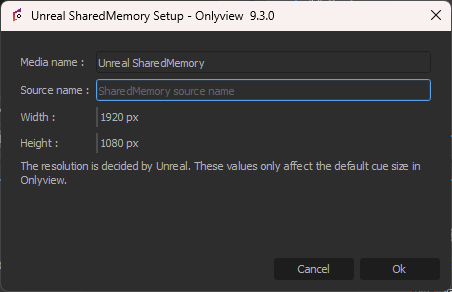
Media name: A name that is meaningful to you.
Source name: The shared-memory source to read. This must match the Unique Name
set on the Shared Memory Media Output in Unreal (see below). Using the same name on
every server — for example unreal — lets each Display open the same source without
having to configure several medias.
Width / Height: The default cue size in Onlyview. The actual resolution is decided by Unreal, so these values only set the size of new cues.
Once the media is created, place it in a cue and press Ctrl-O to update the mediaservers.
Setting up the Unreal project
nDisplay configuration
In Unreal's content drawer, right-click → nDisplay → nDisplay Config.
- In the cluster, add the hosts (the physical machines), one node per host (one Unreal instance per server), and the viewports each node needs.
- In the RootComponent, create the Screen objects (the physical screens, or the projection matrices you want to render), then assign them to the viewports (in the viewport: Projection Policy → Screen).
- Save, compile, close, then drag & drop the config into the scene.
Shared Memory output
On each node (or viewport, as needed), add a Media Output of type Shared Memory Media Output.
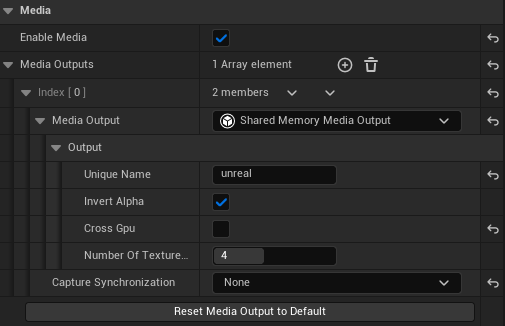
- Unique Name: The source name Onlyview will read. It only needs to be unique per
server, so the same name (e.g.
unreal) can be reused across all outputs. - Cross Gpu must be left unchecked, otherwise the shared-memory interop will not work.
On the Onlyview side, create an Unreal SharedMemory media with the same Source name, add its cue, and press Ctrl-O.
Testing locally
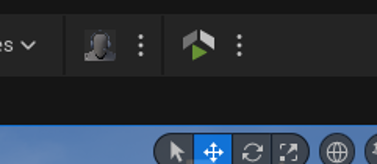
Install the nDisplay Launch plugin. The Launch button it adds to the Unreal toolbar lets
you start the project in nDisplay mode for quick local tests.
Running on the Media Servers
Distributed rendering is orchestrated with Epic's Switchboard:
- On each server, start SwitchboardListener (found in the Unreal Engine
Engine/Binaries/Win64folder). - On the master, start Switchboard and add an nDisplay device, then launch the cluster from there.
Triggering synchronized events
Sending plain OSC commands to the individual nodes is not frame-synchronized across the cluster. To change content in sync on every server, use Unreal Cluster Events.
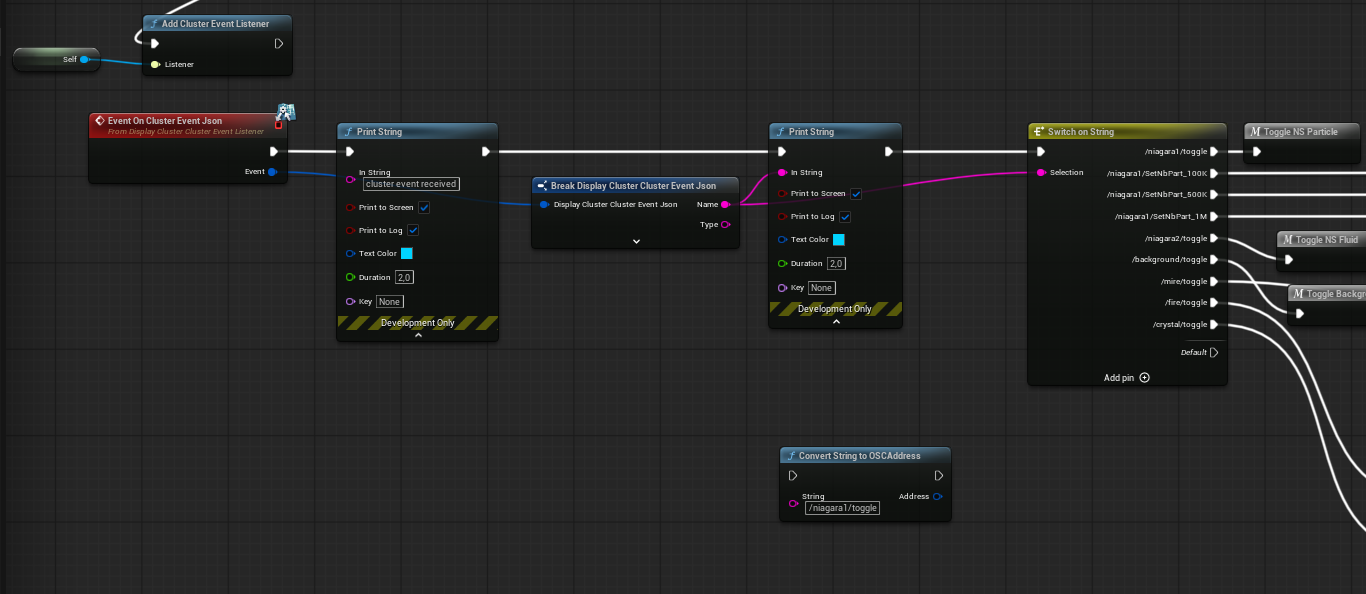
A common pattern is to convert incoming OSC messages into Cluster Events on the primary node, then have every node react to those events.
Emit — on the primary node, receive the OSC message and emit it as a JSON Cluster Event:

React — add the DisplayClusterClusterEventListener interface

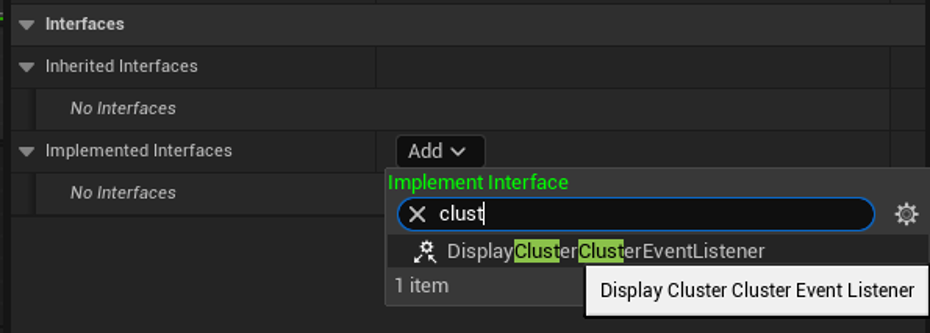
, then handle the event and route it to the desired action (here, a Switch on String toggles the matching effect):