Outputs
Audio outputs
Introduction
Onlyview can play audio files on various devices: - ASIO. This is the recommended method, as it allows for low-latency, multi-channel support, but it requires support from your audio manufacturer. - The usual Windows mixers: WASAPI, MME, DirectSound - ALSA on Linux (Onlyview Nano)
Configuring an audio output
Adding an audio output needs to be done on a specific server. Multiple servers can each have multiple audio outputs:
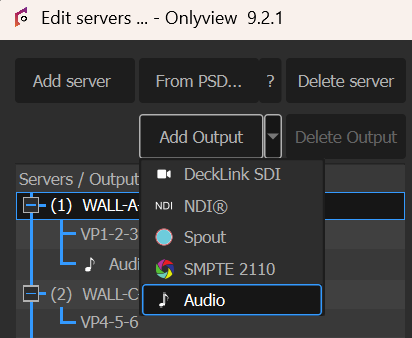
You need to force the API (device type), which device to use, the sample rate, and the desired channel count. The server needs to be Online to be able to select the device.
If the hardware changes (for instance, you add an extra audio card), Onlyview will try to find the correct card using its name.
Audio patches (routing)
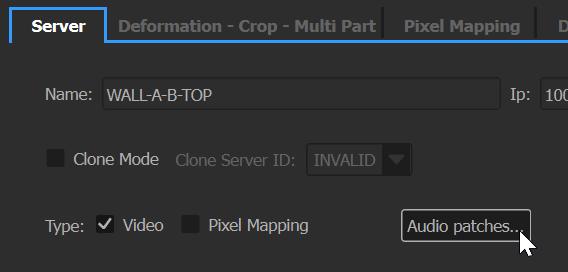
Audio patching is done in two steps:
- First, configure the show's virtual channels.
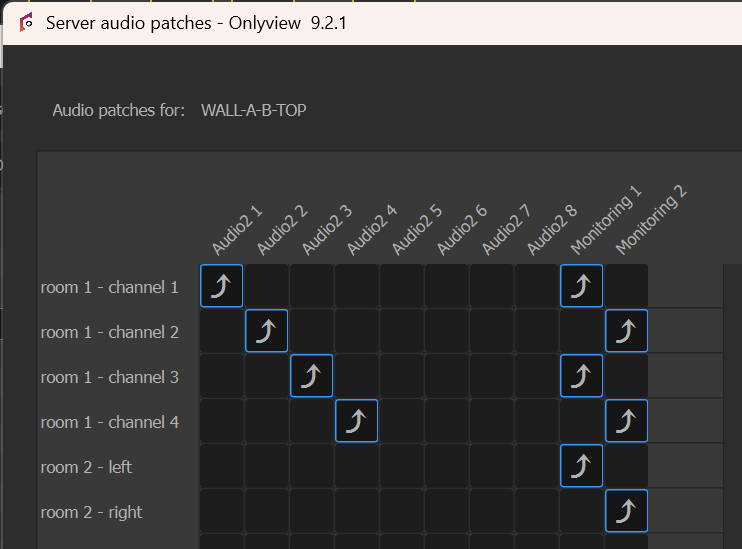
Each virtual channel can be given an explicit name by double-clicking on the left header:
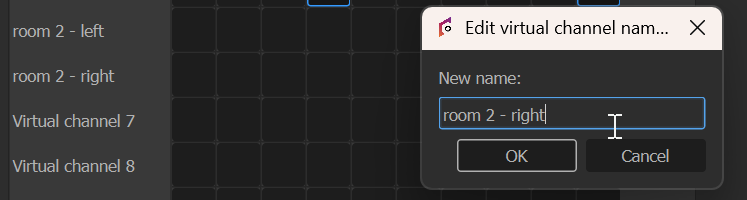
The goal is to create a meaningful list of virtual channels (whatever fits your show best), and then patch each of these virtual channel to which hardware will play it. A virtual channel can be played by multiple hardware channels (useful to play the same content on various places), and a single hardware channel can play multiple virtual channels (useful for monitoring all the signals at once, for instance).
The number of virtual channels is configurable via File -> Show options:
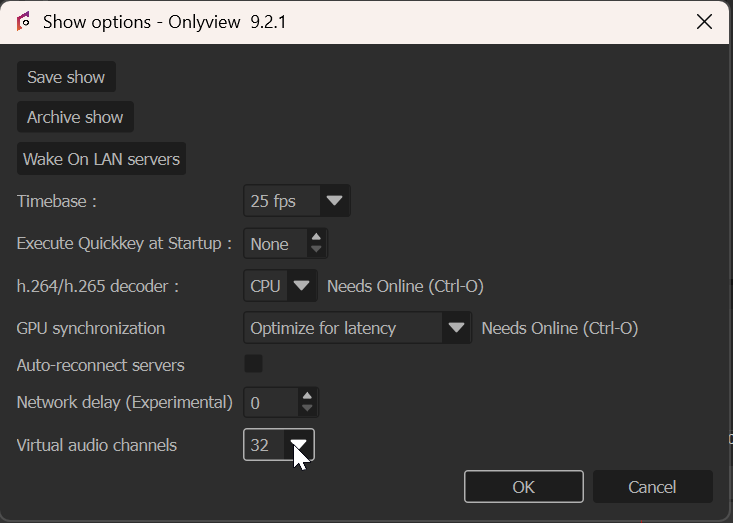
- Second, configure on which virtual channels the cues should play:
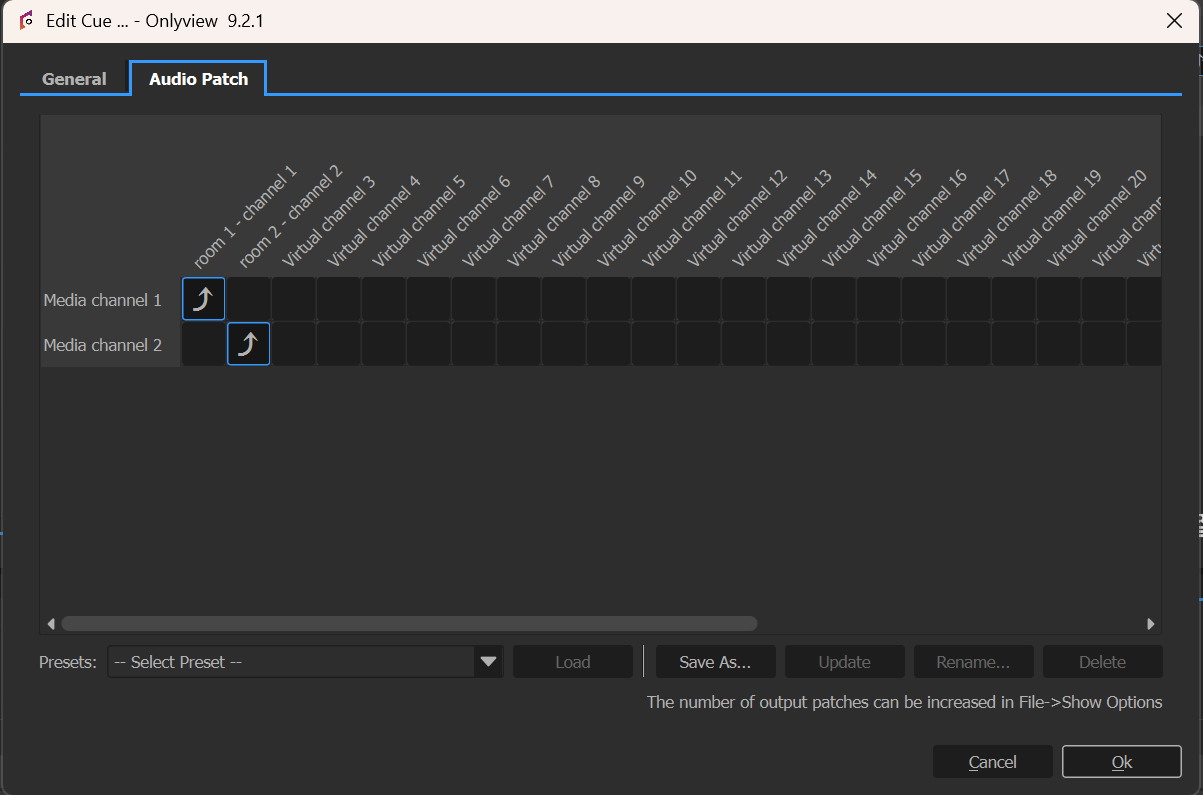
On this simple example, the two channels of this cue will play in "room 1"; and "room 1" is played by the WALL-A-B-TOP server.
Patching presets
In the Edit Cue dialog, you can configure presets, to quickly apply common configurations.
Monitoring window
The monitoring dock is accessible via the Windows menu:
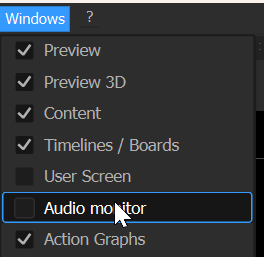
This window shows the audio levels VU meters (RMS + peak) for each channel. This is a live feedback from the servers.
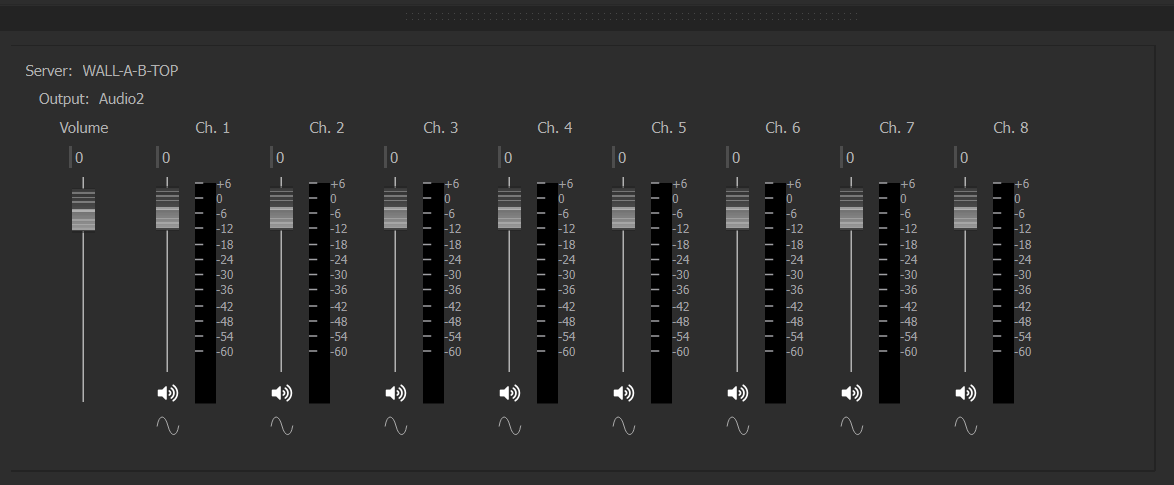
There are three volume levels:
- per audio card
- per hardware channel
- And the level of each cue can also be set using the fade parameter
On top of that, there are buttons to mute a specific channel, and to generate a 1000Hz tone for cabling/diagnostics.
Most of these settings can be controlled via the ActionGraph.
Producer audio preview
Producer can play the show's audio using the following button: