Decklink SDI input
Onlyview usage
Onlyview can use Decklink acquisition cards to input SDI signal, and use it as a live media.
Media List
The basic usage is to click on the Add Decklink Media button:

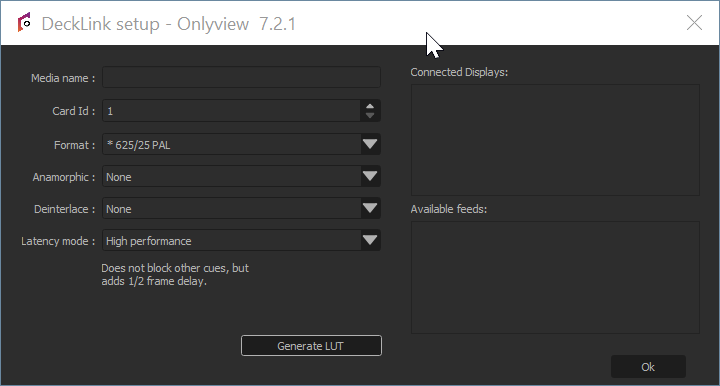
Media name: A name that is meaningful to you.
Card Id: There can be multiple Decklink card on a computer, each with multiple ports, which can be configured individually using the Decklink tool. So unfortunately, there is no good way for us to know which ID corresponds to which port, so you often need to test them all...
Source: Depending on the model, Decklink cards can input SDI only, or HDMI, Optical SDI...
Format: This is needed to initialize the cue's dimensions, and to check that the input signal corresponds to the required format.
Anamorphic: The cue can be rescaled vertically to take anamorphic scaling into account.
Latency mode:
-
High performance: This is the default. When rendering the frame, Media Server just draws whatever image arrived last.
-
Low latency: Media Server waits a few milliseconds until a new image arrives. The advantage is less latency; the drawback is that frames take longer to render. And if you are not genlocked, the frame duration will vary at each reboot. You can monitor the frame duration using the CPU mire.
Card patching per Media Server
The Card ID is also impacted by DisplaySetup:
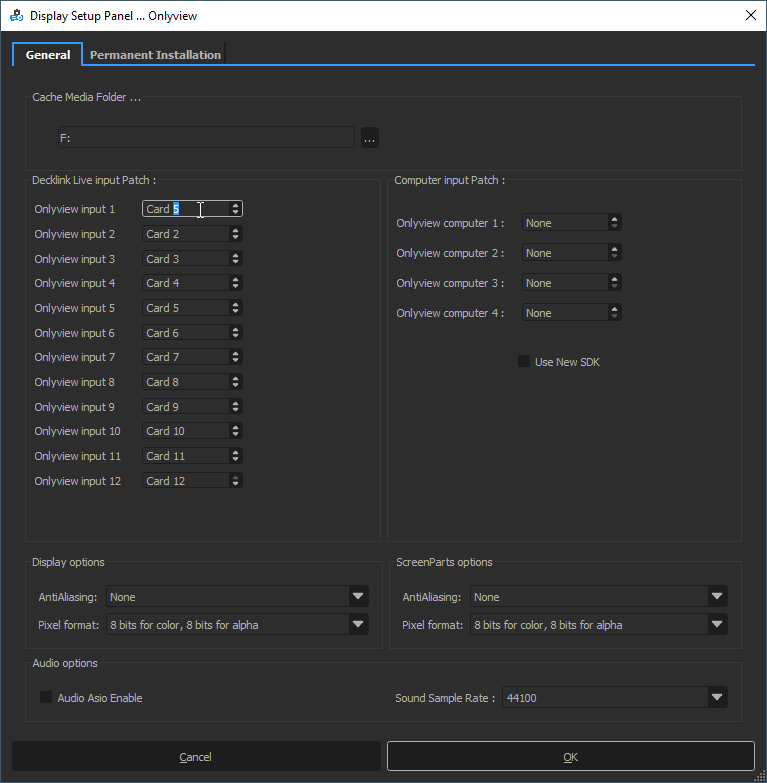
Since all Media Servers are not necessarily wired in the exact same way, "Decklink Live input Patch" can add exception for specific machines. For instance, in the screenshot above, trying to use Card #1 will in fact use Card #5 on this Media Server.
See also
Decklink cards can also be used the other way around, to output the stage — see Decklink output.