TextureArea
Onlyview usage
TextureAreas capture a part of the stage; and this capture can be re-used at a different place.
They are similar to Compositions in other software.
Strictly speaking a TextureArea is not a media — it produces no content of its own — but it appears in the media list and is used exactly like one, so it is documented here.
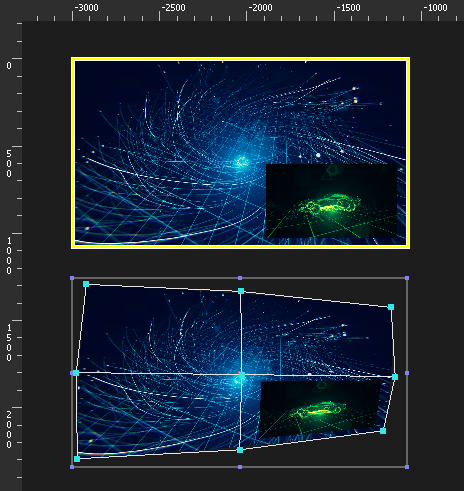
In this example, a TextureArea captures 2 medias that are overlayed. The capture zone is delimited by the yellow rectangle.
The TextureArea can now be used as a regular Cue (below). Its content will behave as a normal media: deforming the cue will now deform the blue video and the green video at the same time.
It is common practice to render all the medias into a TextureArea, and not directly into the Media Servers. This has several advantages:
-
This separates the "content" part of the Show from the "calibration" part: The media just go in the TextureArea, without taking anything else into account; and the deformations/calibration/colorimetry is done once, elsewhere.
-
In a 2D workflow, it makes it easy to create deformations by cutting small parts of the TextureArea, and mapping them independently:
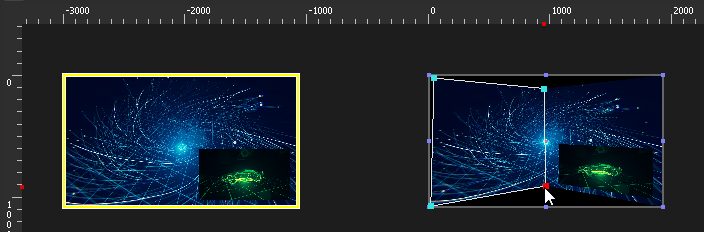
- In a 3D workflow, TextureAreas are required to show content on a 3D mesh.
Media List
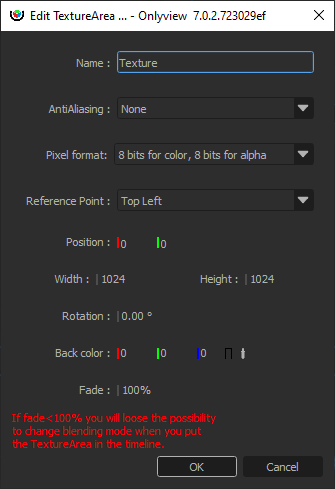
Name: A name that is meaningful to you.
AntiAliasing: How many samples will be stored for each pixel. Note that antialiasing is important when receiving a deformed cue:
-
When rendering a FullHD media in a FullHD TextureArea without deformation, antialiasing is useless -- there is already a 1:1 match between pixels.
-
Rendering a x8 perfectly antialiased TextureArea into a non-antialiased screen will still produce hard edges.
So antialiasing should usually be set on the "receiving" TextureArea.
Pixel format: The pixel format impacts the quality and the memory/performance of rendering in the TextureArea, and displaying the TextureArea cues.
-
8 bits for color, 8 bits for alpha: This is the default, which provides the usual 256 colors per channel, and 256 levels of transparency.
-
10 bits for color, 2 bits for alpha: Used when working with opaque 10-bit media
-
12 bits for color, 12 bits for alpha: Used either when working in 12 bits, or when the previous mode does not handle alpha well enough.
-
16 bits for color, 16 bits for alpha: Usually overkill.
Note that when using a 10-bit TextureArea or above, it's important that the next surface in the pipeline is 10-bit too, otherwise this extra precision will be lost in an 8-bit buffer. In particular, see DisplaySetup pixel format settings.
Reference point: Which corner the position sets. The rotation is expressed with respect to this point.
Position: Position of the TextureArea, in Stage coordinates.
Width / Height: Size of the capture zone, in pixels.
Rotation: Rotation of the TextureArea, in degrees.
Back color: Background color of the TextureArea. Opaque black by default.
Fade: Opacity of the background. Fully opaque by default.