ActionGraphs
Introduction
ActionGraphs are Onlyview's way to create new behaviours that are tailored to your show.
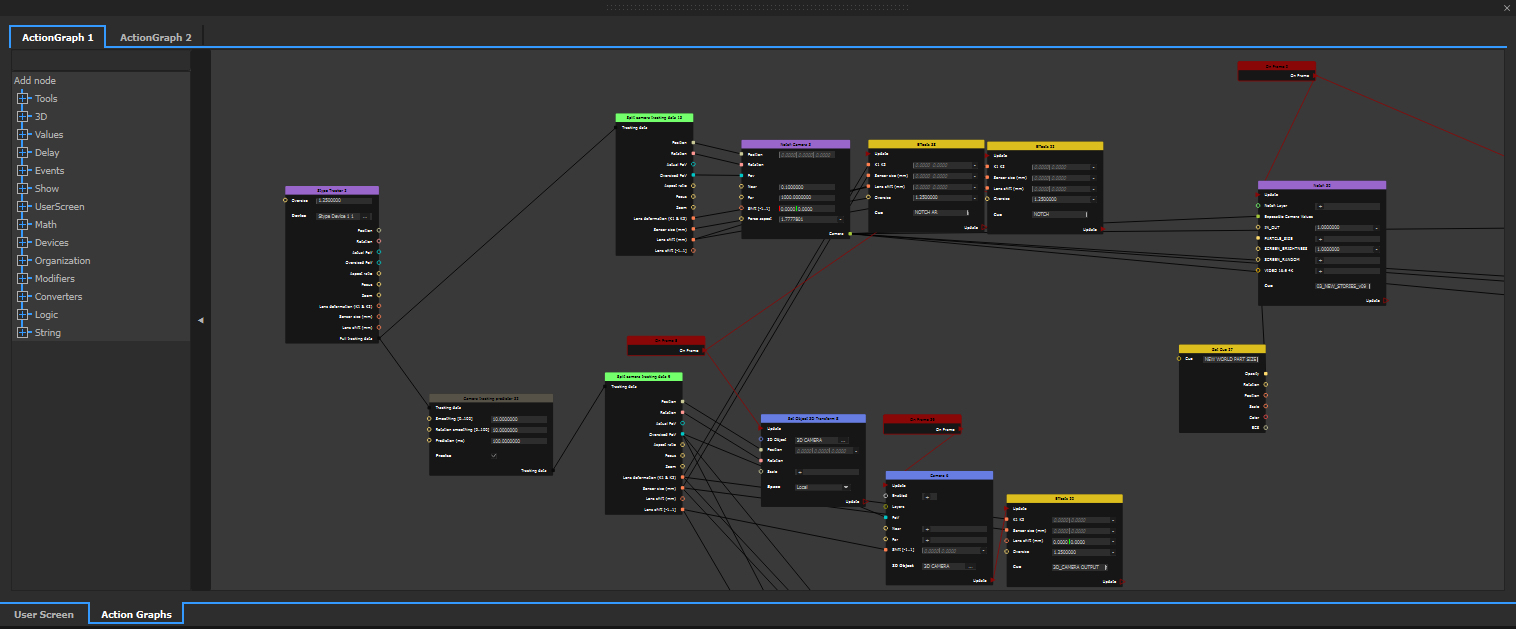
Using ActionGraphs, you can for instance:
-
Connect real-time tracking data to 3D objects that will follow what happens on stage
-
Trigger events when receiving network commands
-
Control other equipment
-
Create animations and other dynamic, reactive effects
-
Filter or delay noisy sensor data, implement custom mathematical functions
Creating an ActionGraph
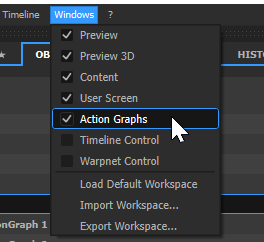
All new shows have a default, empty ActionGraph. The ActionGraph window is accessible from the top menu:
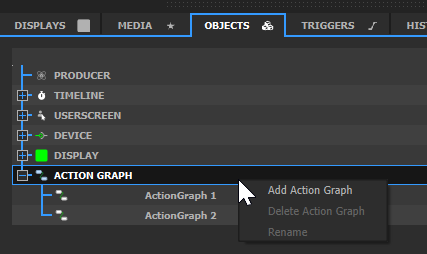
To create a new ActionGraph, go in the OBJECTS tab, and right-click on the ACTIONGRAPH item.
Events
For any node to run, it needs to be triggered by an event. There are a few basic events like "OnFrame", which is triggered every frame, or "OnTime", which is triggered at a certain hour
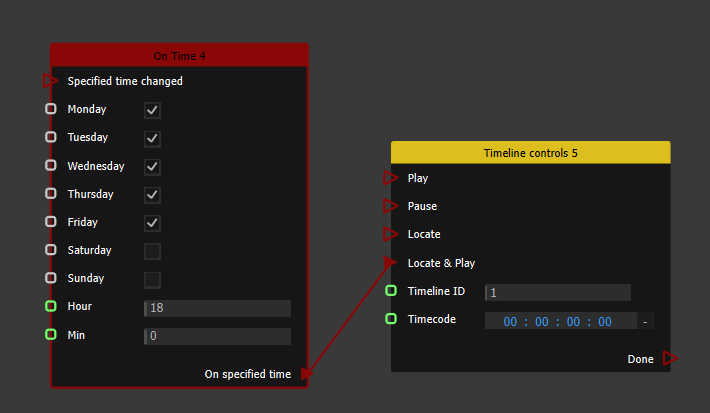
In this example, the OnTime event will trigger a Locate&Play on Timeline 1 every day at 6pm, except on week-ends.
Some nodes can expose events too. For instance, we can control the opacity of a cue each time we receive an OSC value:
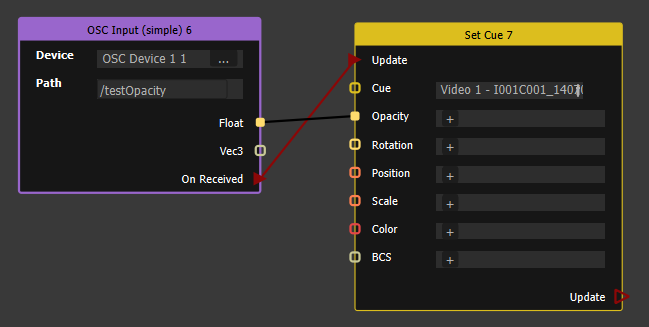
Events are always red. A node that is not connected to any event is shown in dark, to highlight the fact that it will never run:
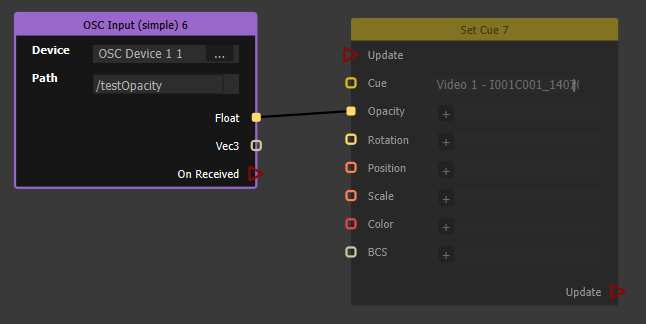
Here, we want to read the OSC value; but the "Update" event of the "Set Cue" node is never triggered, so nothing happens.
Data
Nodes have input and output data. For instance, the LFO (Low Frequency Oscillator) node has a frequency and amplitude inputs, and outputs an oscillating signal:
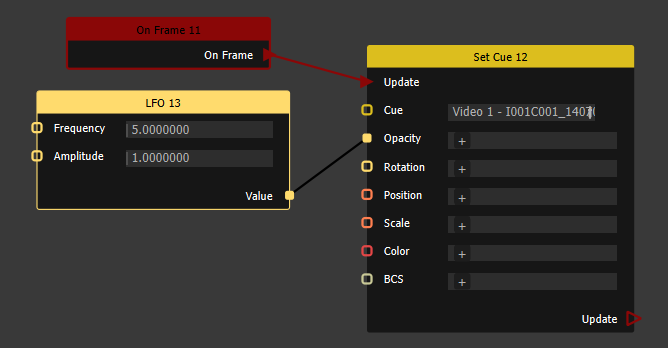
The light yellow color indicates real numbers ("floats"). The cue's position is orange, which is a 2D vector.
You can plug most outputs into most inputs, and Onlyview will automatically do the conversion. But sometimes it's not possible and creating the connection will not be possible :
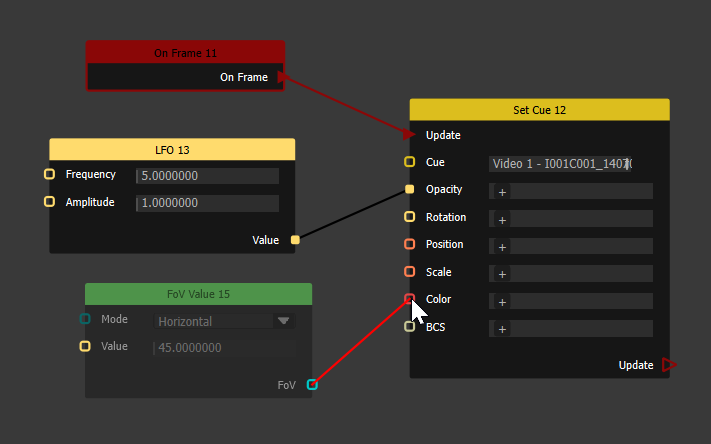
Attempting to plug a "Field of View" into a "Color" is not possible.
Common cases
To trigger a LocatePlay when receiving a specific UDP message:
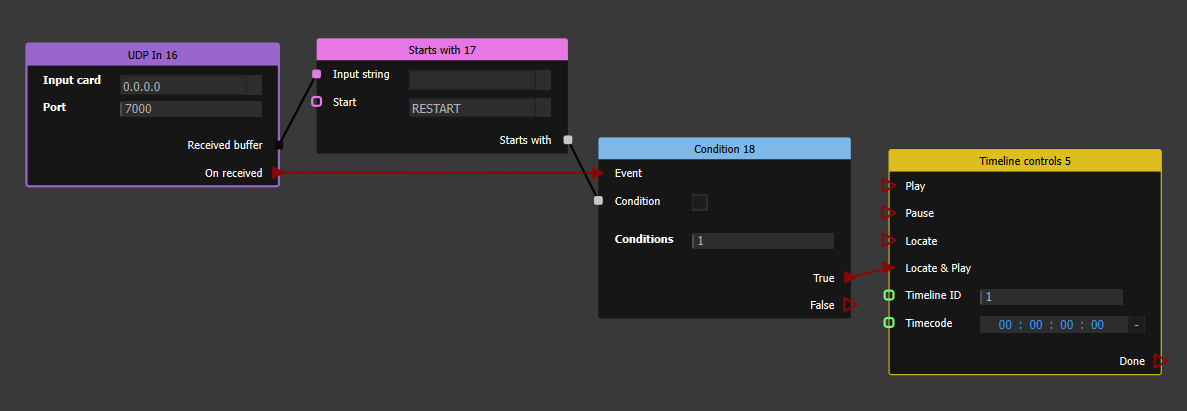
Here, we listen on all network cards (0.0.0.0), port 7000. When receiving a message, we test if it begins with the string "RESTART"; if so, timeline 1 starts playing from the start (timecode 00:00:00:00)
To track a camera using a Stype:
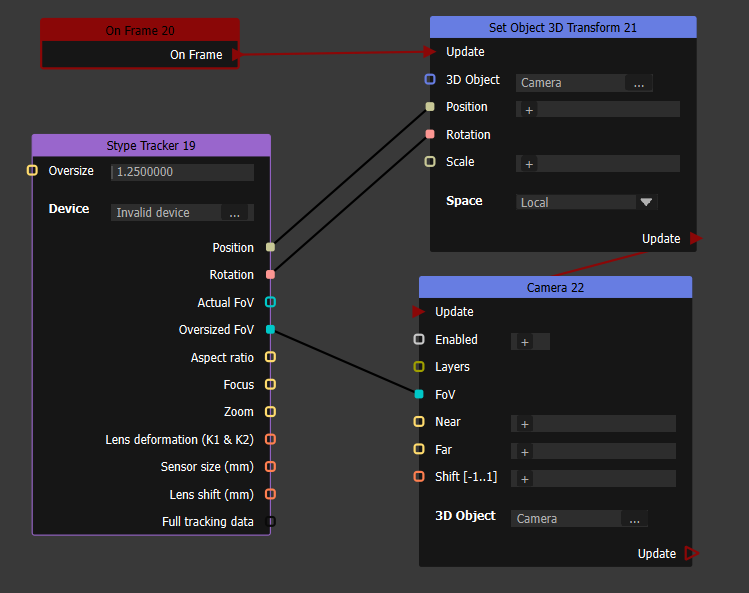
Each frame, we read the data from the Stype device, and feed:
-
The position and location in the Camera 3D object
-
The FoV (zoom) in the Camera component.
This simplified setup does not include the lens shift and the lens deformation.
To send an UDP packet when pressing on a QuickKey:
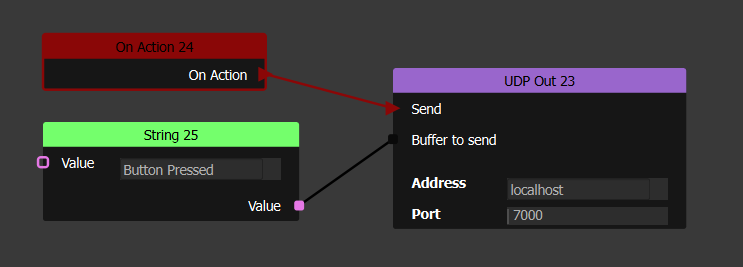
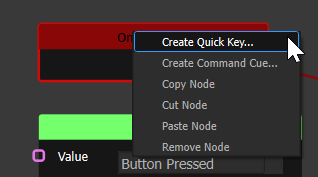
Then right-click on the OnAction, and create a QuickKey to trigger this node: