Autonomous Mode
Running a show autonomously
Powering the main computer
The main computer will typically be auto-started each morning by one of two means:
-
Configuring the BIOS to auto-start at a given hour
-
Configuring an external device like an IPX 400 to turn the power on at a given hour, and configuring the BIOS to auto-start on power on (which should be done anyway to reboot after a power failure).
Starting Producer
Producer needs to be auto-started when Windows boots. This setup currently needs to be done manually. Press Ctrl-Shift-Esc to open the Windows' Task Manager, go in the startup tasks tab, create a new one, and navigate to \"C:\Program Files\Onlyview\ov_producer.exe\"
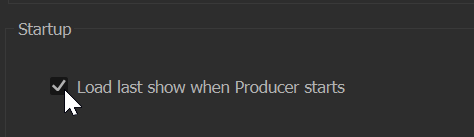
In Producer Options (File -> Producer Options), you also need to check "Load last show when Producer starts", otherwise it will remain on the startup screen.
Powering the Media Servers
The Media Servers can be turned on either with the same mechanism, or via WakeOnLan (which must be enabled in each BIOS).
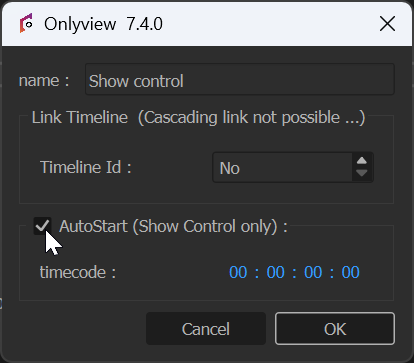
Create a new timeline dedicated to the show control, and make it auto-start :
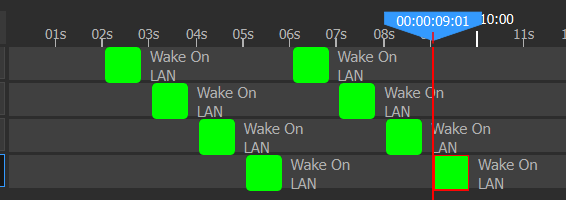
Then, from the OBJECTS tab, drag&drop each Media Server in a Command layer, and select Wake On LAN. It is recommended to spread all the commands to avoid power consumption spikes.
Powering the projectors
Create a PJLink device for each projector, then add "Set Power On" CommandCues.
Automatically starting Media Servers
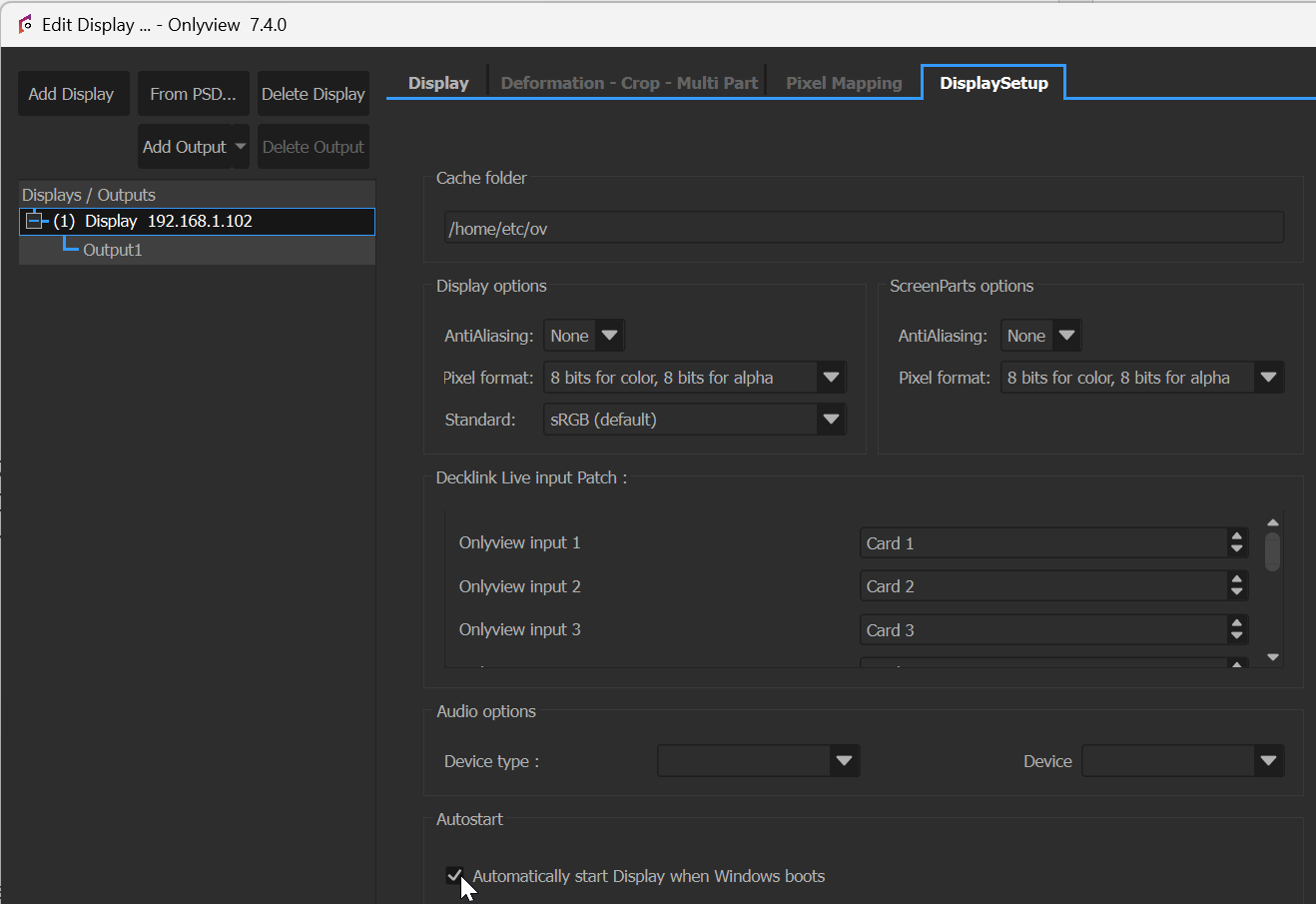
Onlyview's installer configures Windows to automatically start Watchdog during boot. In turn, Watchdog can auto-start the Media Server. You can configure this in DisplaySetup; either directly on the computer via displaysetup.exe, or via Producer. Double-click on a Media Server to open the Edit Media Server popup, select the desired Media Server, go in the DisplaySetup tab, and click "Automatically start Media Server when Windows boots".
Connecting to the Media Servers
From the OBJECTS tab, drag the PRODUCER item on a Command layer, and create a "Set All Online" cue :
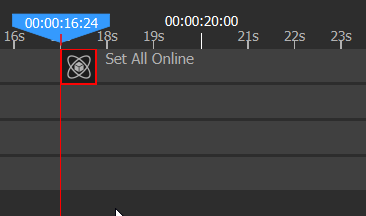
Start the show at a fixed hour
There are two main ways to handle this. You can either use a Clock device, or the ActionGraph. The ActionGraph method is more flexible, and will be used in the rest of this document, but this section explains both.
Clock device
-
Create a Clock device
-
From the OBJECTS tab, drag & drop your ShowControl timeline into itself to create a new CommandCue
-
Selection action "Lock Tc", and select your Clock device.
This way, when booting:
-
Producer will auto-start your show control timeline
-
This timeline will auto-lock to the clock
-
It will thus automatically locate to the current time
-
You can then add LocatePlay CommandCues at 8am, for instance.
ActionGraph
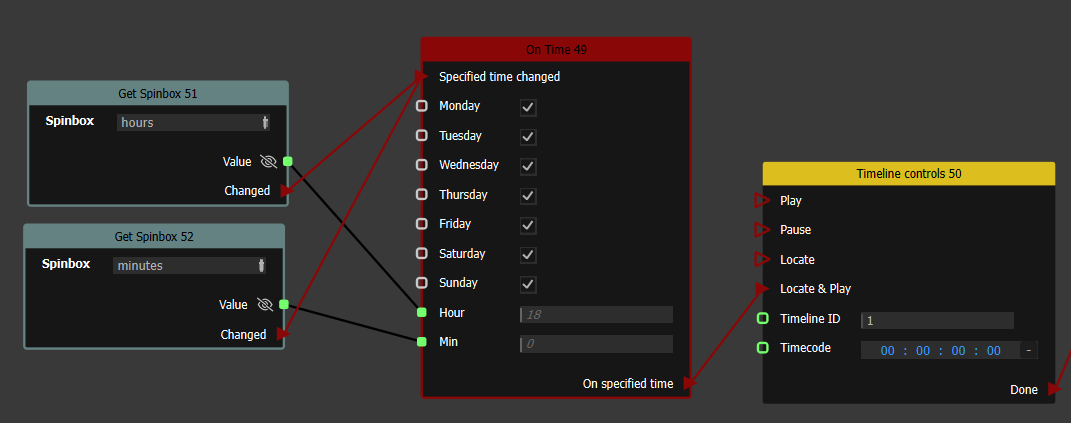
Create an "On Time" node, and connect it to a "Timeline controls" node, in which you can start a timeline at a given timecode.
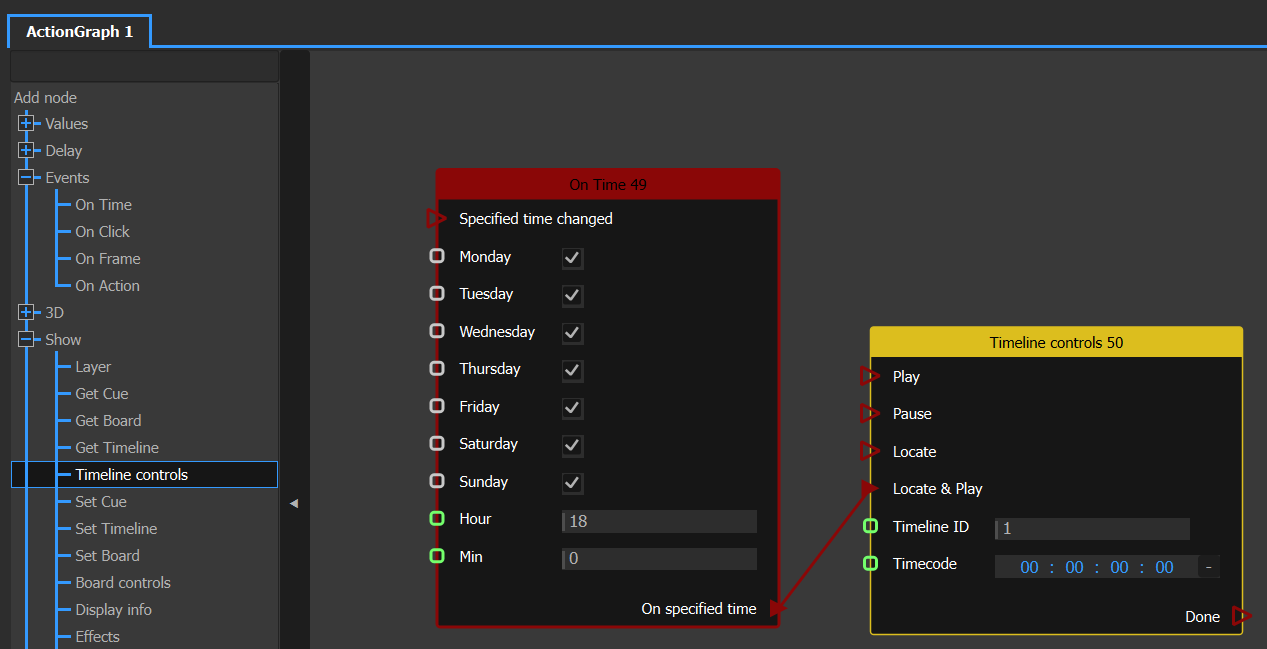
You can also have different hours for different days by adding a second On Time node.
Make the start time configurable from the WebPanel
In a UserScreen, add two Integer Value widgets
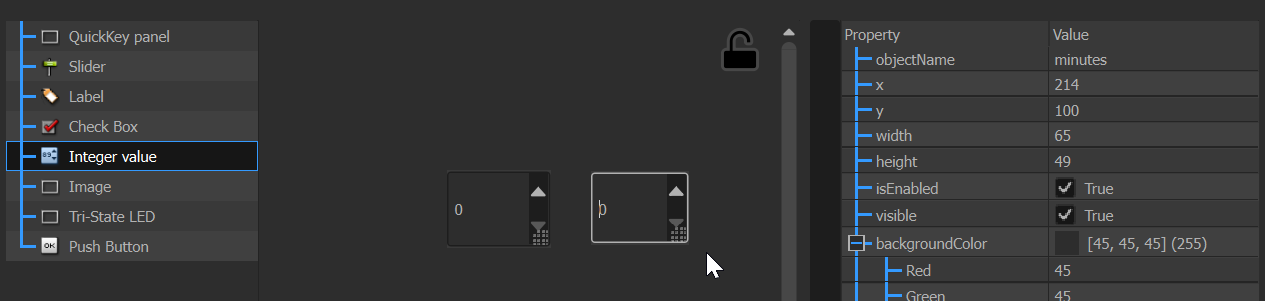
(don't forget to re-lock the UserScreen afterwards)

In the ActionGraph, add 2 "Get Spinbox" nodes. Pick each widget : press on the small picker, then drag it over the desired widget in the userscreen
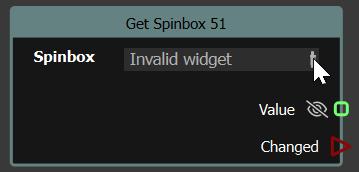
Connect "Value" to "Hour" and "Minute" respectively
Connect "Changed" to "Specified time changed"; this way, each click on the spinbox will update the timer.
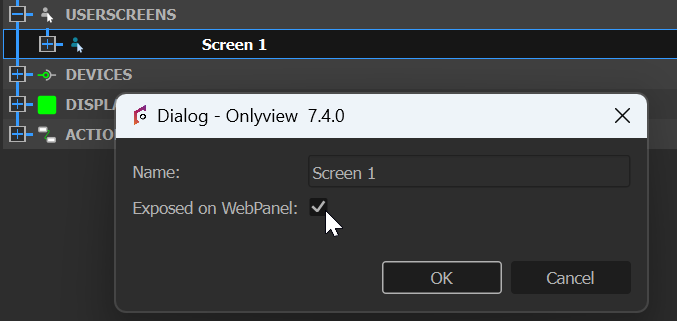
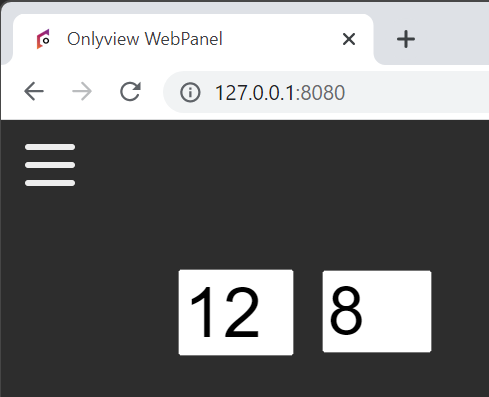
If needed, you can make this interface accessible via the WebPanel.
Controlling external equipment
Onlyview can control, and be controlled by, many protocols. Please refer to the Devices section.