Hardware installation
Cameras
OnlyView uses Lucid Vision, OptiTrack or Allied Vision ethernet cameras.
You will need several cameras, arranged so that each part of the scene is seen by a minimum of two cameras; ideally all with the same resolution. Usually, putting the cameras at the same position than the projector is a good first-guess, but keep in mind that the cameras must be sufficiently spaced so that the depth perception can be precise enough.
Cameras must have overlapping fields of view covering common parts of the scene. Each camera generates approximately 1GB of data per capture.
The cameras are PoE, so you will need a PoE switch with a sufficient total power budget (5W per camera). A PoE injector is also a valid alternative to a switch for smaller setups.
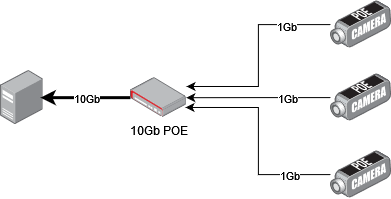
The cameras are Gigabit-ethernet. When connecting multiple cameras on a single switch, you must use a 10-Gigabit switch, and Producer must have a 10Gb connection to this switch:
The cameras expect a DHCP in the network, so that they can get their IP addresses. If you are using manual addresses, you need to configure each camera using Arena Config.
Download Arena SDK from the Lucid downloads hub and follow the documentation for Windows in ArenaView to correctly setup the Windows environment.
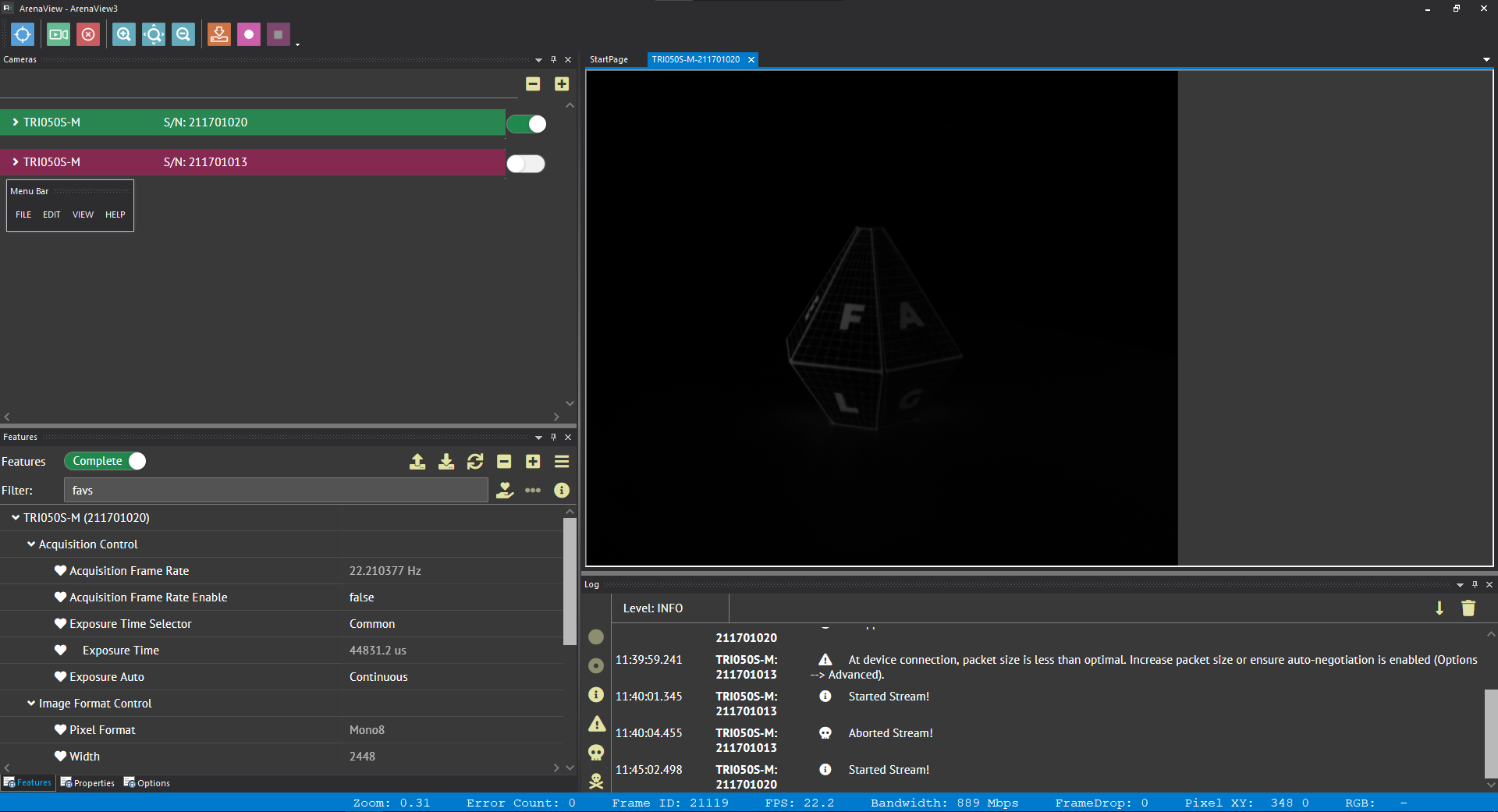
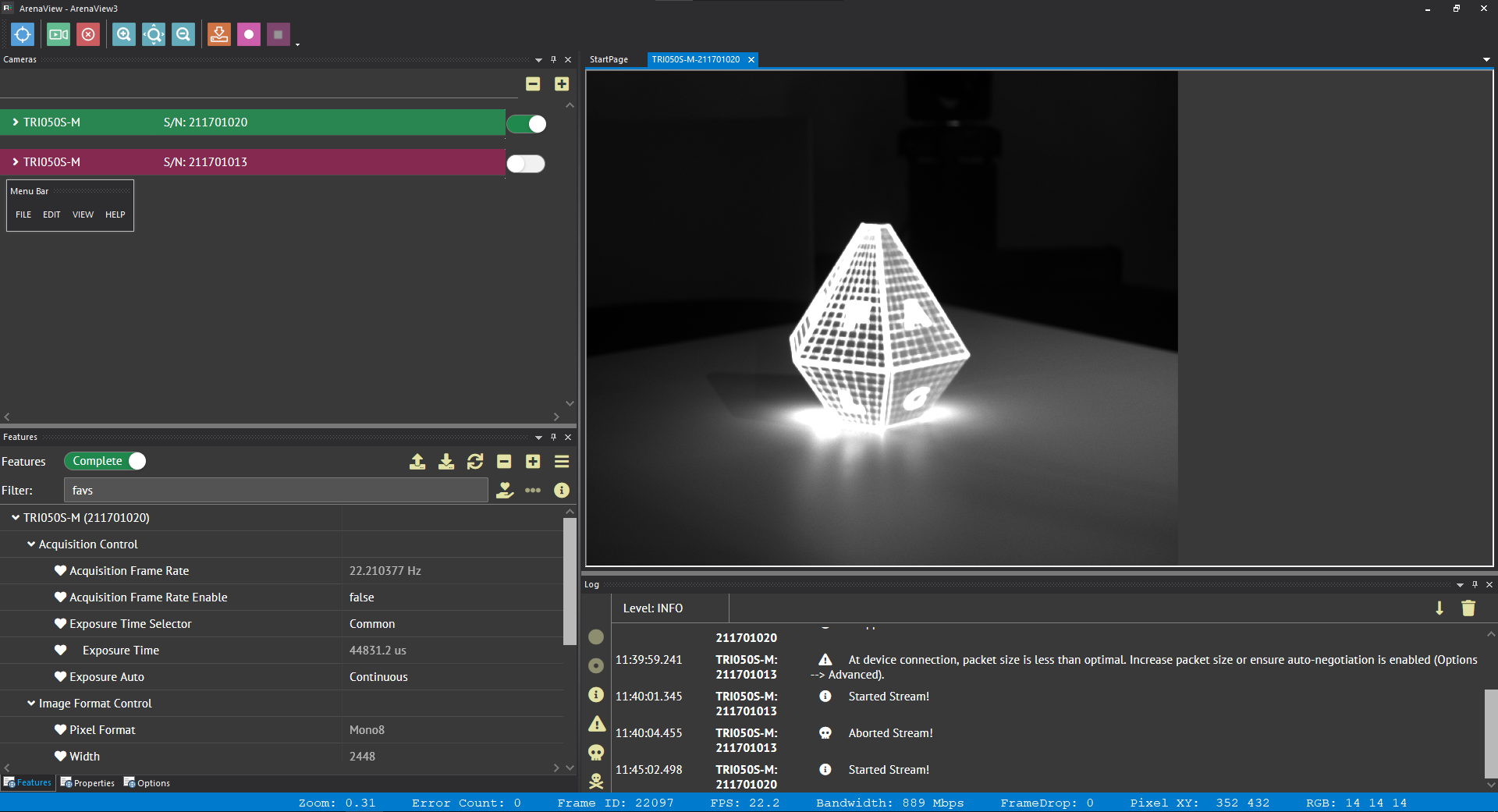
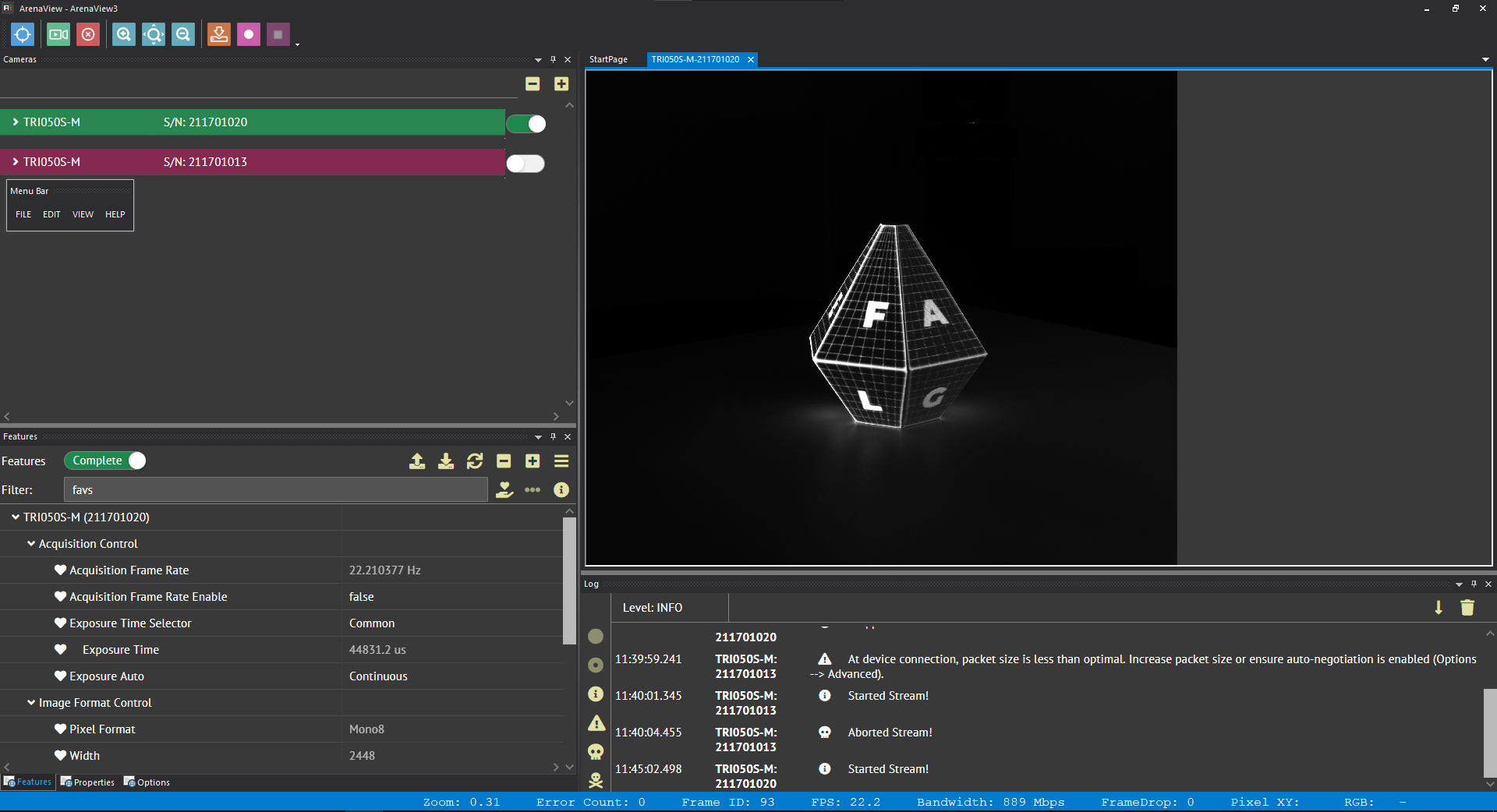
In ArenaView, you can open a camera, and start streaming its content to check that it's correctly positioned.
Aim for the object or the desired zone, precisely set the focus, adjust the diaphragm and the exposure time (see the "Step 2 -- Find matches" section for more info).
Opening the diaphragm increases exposure but reduces depth of field — find the right balance so the entire scene stays sharp.