Standalone Mode
Standalone Media Servers
During a normal show, the Media Servers are controlled by Producer. However, for fixed installations, Onlyview can also operate in "standalone" mode, without a dedicated Producer.
One of the Media Servers operates as the Cluster Master -- it acts as the Producer. The other Media Servers work as usual.
Initial setup
First, the show needs to be built normally, with Producer. Once it is ok, make sure to do an Online (Ctrl-O). This will save the show on each Media Server, in the cache folder, for later access (usually: D:/cacheV3/{ShowName}/show.xml)
Then, configure one of the Media Servers as the Producer replacement: In the Edit Media Server dialog, go in the DisplaySetup tab :
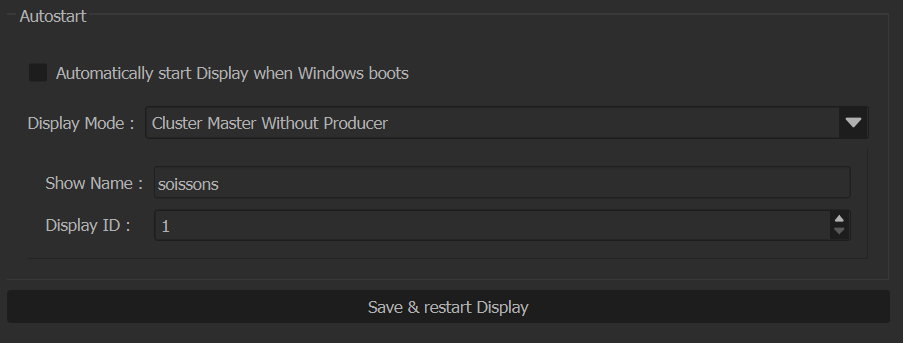
Select "Cluster Master Without Producer".
The show name must be the name of your .olv file, but without the extension. For instance, if your show is "soissons.olv", enter "soissons". If you're unsure, this is the folder name in the cache folder (D:/cacheV3/).
Media Server ID corresponds to which Media Server the cluster master is, in the Media Server List. It is usually 1.
During normal operations, you will probably want to check "Automatically start Media Server when Windows boots".
These settings can also be configured directly on the Media Server, using Display Setup, in the Permanent Installation tab.
Running the show
Once these settings are applied, Producer can be closed. When starting, the Cluster Master will:
-
Automatically put all the Media Servers Online
-
Start the timelines which are configured to auto-start:
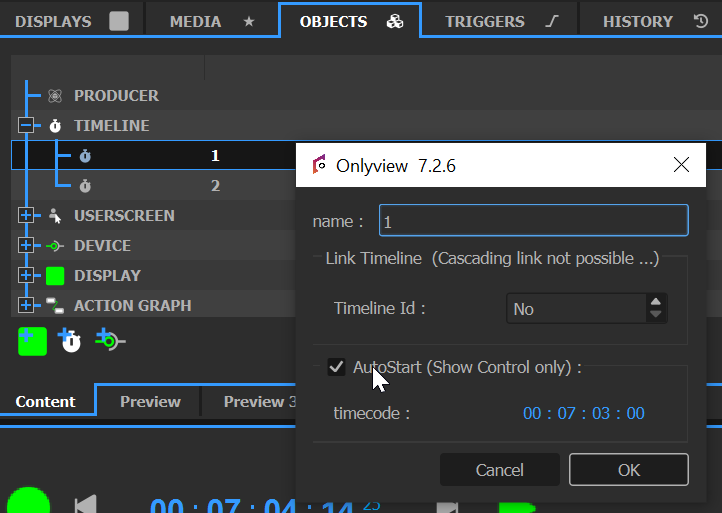
You can now configure an auto-boot in the computer's BIOS, or use a third-party system to Wake On Lan. All the servers will boot, start Media Server, and the Cluster Master will put them Online.
Updating the show
If you need to update the show at some point, you can re-connect a Producer in the network.
You can keep the Cluster Master as-is -- no need to reconfigure it in a Normal Media Server.
Once your changes are done, you need to do a last Ctrl-O, so that all the Media Servers have their own up-to-date show. Make sure that all Media Servers are shown in green, otherwise some Media Servers will not play the correct content.
Solo
If you have a simple show with just one Media Server and no Producer,
A Media Server can also be configured in Solo mode; in this case, the show should only contain one Media Server, and the Solo Media Server will run alone, without making any network communication.
Troubleshooting
The changes are not propagated from Producer
When the Cluster Master does an Online, it assumes that all the other Media Servers have an up-to-date copy of the show, and of all the media -- it is Producer's job to upload all these files. So at startup, the Cluster Master does NOT re-upload the show.
The consequence is that you absolutely need to do a Ctrl-O on all Media Servers before using the Cluster Master mode. Just doing a Ctrl-S in Producer as usual is not enough.
The Media Servers don't play anything after a reboot
When the Cluster Master starts, it immediately does an Online. So at that point, all the other Media Servers must already be up-and-running (showing black).
The best way to handle this is to enable the "Auto-reconnect" feature in the show options (File -> Show options).
You can also make the Cluster Master boot one or two minutes later. This way, when it starts, all the normal Media Servers will be ready, and the Online will succeed.
The Media Servers are not in sync with the Cluster Master
When starting the Cluster Master, the Media Servers may show content, but not at the correct timecode. The system can take up to 10 seconds to synchronize.