PowerPoint
Overview
The PowerPoint device lets Onlyview drive a slideshow running on another computer — Microsoft PowerPoint on Windows, or Keynote on macOS. Onlyview can advance and go back through the slides from a timeline, a QuickKey, a UserScreen button or an ActionGraph.
The presentation itself is never opened by Onlyview. Instead, a small helper application runs on the presentation computer and reproduces the Right and Left arrow key presses that PowerPoint uses to change slide. The link works both ways: if someone presses Left or Right directly on the presentation computer, Onlyview is notified and can react in an ActionGraph.
The remote helper application
The helper must be installed and running on the computer that shows the presentation — usually not the Onlyview machine.
- Where to get it: it is installed together with Onlyview Producer, in the Onlyview installation folder. Take
OV_PPT_Remote.exefor a Windows presentation computer, orOV_PPT_Remote_arm.app.zipfor an Apple Silicon Mac. - How to start it: copy the file to the presentation computer and run it. There is nothing to install and nothing to configure — it starts listening immediately. For a permanent installation, add it to the machine's startup items so it comes back after a reboot.
- First run: the helper opens a network port, so Windows Firewall shows its "Allow access" dialog the first time. You must allow it, on the network profile the show network uses (usually Private). If the request is dismissed or refused, Onlyview will never manage to connect.
- On macOS: the helper simulates keystrokes, so macOS asks you to grant it Accessibility permission (System Settings → Privacy & Security → Accessibility). The helper closes immediately if the permission is not granted; grant it, then start the helper again.
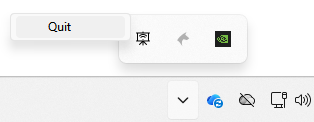
- Once running: the helper has no window. It appears as an icon in the notification area (the menu bar on macOS), named OnlyView PowerPoint Remote. The icon is greyed out while nothing is connected, and lights up as soon as Onlyview connects — a quick way to check the link from the presentation computer. Right-click the icon and choose Quit to stop it.
- Network: the helper accepts connections on TCP port 9000. The Producer must be able to reach the presentation computer on that port: same network or a route between the two, and no firewall in between blocking it. The port is fixed and cannot be changed.
Warning
The helper accepts any connection: there is no password and no pairing step. Anyone able to reach port 9000 on the presentation computer can change the slides. Keep the presentation computer on the show network only.
Info
The helper sends plain Right / Left arrow key presses to whichever window has the keyboard focus on the presentation computer. PowerPoint must be in the foreground and in slideshow mode for the commands to have any effect.
Setup
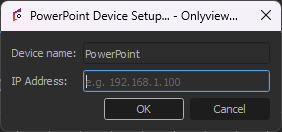
- Device name: A descriptive name for the presentation (e.g. "Lobby slides"). It is the name shown on the device widget.
- IP Address: The address of the computer running PowerPoint and the helper application, for example
192.168.1.100.
Onlyview connects from the Producer as soon as the device is configured, and keeps retrying every few seconds until the helper answers.
Actions
Drop the device on a Command Layer of a timeline to create a Command Cue, or attach it to a QuickKey. Double-click the cue to choose the Action:
- Next Slide: Advance one slide (or one animation step).
- Previous Slide: Go back one slide.
Info
These two actions are the only ones available. There is no "go to slide number", and no command to start or end the slideshow — start the presentation manually on the presentation computer (F5 in PowerPoint) before the show begins.
Device Widget
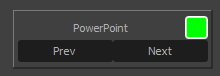
The device can be dropped on a UserScreen: unlock the UserScreen, drag the device from the Content dock onto it, then lock it again. The widget shows:
- The device name.
- A connection indicator, lit while the helper is reachable and dark when it is not.
- Prev and Next buttons, which change the slide immediately when clicked.
ActionGraph Node
PowerPoint
Sends slide commands, and reports slide changes made by hand on the presentation computer. Available under Devices/PowerPoint in the ActionGraph node palette.
Properties:
- Device: The PowerPoint device to control.
Input Events:
- Send Next: Advance one slide.
- Send Previous: Go back one slide.
Output Events:
- User pressed Next remotely: Fired when someone presses the Right arrow key on the presentation computer.
- User pressed Previous remotely: Fired when someone presses the Left arrow key on the presentation computer.
Info
The two output events report any Left or Right arrow key press on the presentation computer, whatever application has the focus at that moment. Slide changes commanded by Onlyview itself do not fire them, so they can safely be used to keep a timeline in step with a presenter driving the slides manually.