Nodes Reference
Nodes reference
This page lists the ActionGraph nodes, grouped by the categories you see in the node palette. Device-specific nodes are gathered under Devices, and the Followspot pipeline has its own page.
Throughout this reference, italic names refer to a node's inputs, outputs, properties or events.
Values
These nodes hold, store and reshape data so it can be entered once and re-used in many places.
Constant values
Each of these nodes carries a single value that you enter by hand (or feed in from another node) and expose on its Value output, so it can be wired to several places at once.
- String / Float Value / Integer Value / FoV Value / 2D Vector / 3D Vector / Boolean Value — enter a value of the matching type and output it. The value can also be driven by an incoming connection instead of typed in.
- Timecode Value — outputs a fixed timecode that you set on the node.
Set Value / Get Value
These act like named variables in a programming language: Set Value writes a value into a show-wide variable, and Get Value reads it back somewhere else in the same show. Both share a Type property (the data type) and a Name property (the variable name); match them so the two nodes address the same variable. Supported types are Boolean, Integer, Float, 2D Vector, 3D Vector and Quaternion.
- Set Value — Properties: Type, Name. Inputs: Value (of the chosen type). Events: Event (in) writes the current input into the variable, then fires Next (out). If no name is set, nothing is stored.
- Get Value — Properties: Type, Name. Outputs: Value. Outputs the stored value; the output is invalid until the named variable has been written at least once.
Value Selector
Chooses one value from several inputs, according to an index. Typical use: several trackers or sources feed the node and an Index picks which one to pass through.
- Properties: Type (data type of the inputs/output) and Nb inputs (how many values to choose between).
- Inputs: Index plus one Value input per choice (Value 0, Value 1, …).
- Outputs: Value — the input selected by Index (0-based). Works with Boolean, Integer, Float, 2D/3D Vector, Quaternion, FoV and camera tracking data.
Split 3D Vector
- Split 3D Vector — splits a vector into its components. Input: Value (3D Vector). Outputs: X, Y, Z (floats). You can also feed it a 2D Vector to extract its two components.
Split / Make camera tracking data
Camera tracking data is a compound value bundling everything about a tracked camera. These two nodes are opposites: Split camera tracking data breaks the bundle into its individual fields, and Make camera tracking data rebuilds a bundle from separate inputs. A common pattern is to split, adjust or filter one field (for example the position), then make a new bundle from the result.
- Split camera tracking data — Input: Tracking data. Outputs: Position (3D Vector), Rotation (Quaternion), Actual FoV, Oversized FoV, Aspect ratio, Focus, Zoom, Lens deformation (K1 & K2), Sensor size (mm), Lens shift (mm) and Lens shift [-1..1]. The oversized FoV and the normalised lens shift are derived from the raw fields (the millimetre lens shift suits the AR LensDeformer effect, while the [-1..1] form suits an XR 3D decal shift).
- Make camera tracking data — Inputs: Oversize (default 1.25), Position, Rotation, Actual FoV, Aspect ratio, Focus, Zoom, Lens deformation (K1 & K2), Sensor size (mm), Lens shift (mm). Output: Tracking data. The output is always valid, even when some inputs are missing, which makes it easy to test before the tracking device is physically connected.
Counter
ActionGraph equivalent of a for loop: it holds an integer that steps through an inclusive range on demand. It starts at From, and each Next event advances it by one towards To; when it passes To it wraps back to From. If To is lower than From it counts downwards instead. When the value reaches To it also fires on iteration end, so you can trigger something at the end of every pass through the range.
- Inputs: From (default 1) and To (default 10) — the inclusive range bounds.
- Outputs: Value — the current integer (equal to From before the first Next).
- Events:
- Reset (in) — sets Value back to From and fires on Reset.
- Next (in) — advances Value by one step (wrapping at the far bound) and fires on Next; also fires on iteration end when the value reaches To.
Show
These nodes read and drive the running show: its Timelines, Boards, Cues, audio outputs and the machines the show runs on.
A show is organised in Timelines, which contain Layers, which contain Cues. Boards are a grid variant of the same idea: each board has media layers (rows) and sequences (columns), and the intersection of a layer and the current sequence holds a cue. Most Show nodes take a numeric ID or index as their first input(s) to select what they act on. Unless stated otherwise, IDs and indices shown in the interface are 1-based (Layer 1, Sequence 1, Output 1, …).
The Set… nodes only apply a value when its input is connected (an unconnected input is left untouched), and fire their Next output event once the change is applied. The Get… nodes recompute their outputs on demand and mark them invalid when the target cannot be found.
Timeline nodes
Get Timeline
Reads the main properties of a timeline.
Inputs
- Timeline ID — the timeline to read (default 1).
Outputs
- On — whether the timeline is on.
- Grandmaster — the timeline's grandmaster level.
- Timecode — the timeline's current timecode.
Set Timeline
Writes the main properties of a timeline. Each property is applied only if its input is connected.
Inputs
- Timeline ID — the timeline to modify (default 1).
- On — turn the timeline on/off.
- Grandmaster — set the grandmaster level.
- Timecode — locate the timeline to this timecode.
Events
- Update (input) — applies the connected values.
- Next (output) — fires once the update is done.
Timeline controls
Triggers transport (play/pause/locate) events on a timeline.
Inputs
- Timeline ID — the timeline to control (default 1).
- Timecode — target timecode for the Locate events.
Events
- Play / Pause (input) — start or pause playback.
- Locate (input) — jump to Timecode and stay paused.
- Locate & Play (input) — jump to Timecode and play. Locate events use a crossfadable locate.
- Next (output) — fires after the control is applied.
Timeline markers
Jumps a timeline to the next or previous marker cue (a command cue carrying a Marker action). Useful to step through cue points during a show.
Inputs
- Timeline ID — the timeline to control (default 1).
- Filter — optional text; only markers whose name contains this text are considered. Leave empty to consider all markers.
- Command layer — restrict the search to a single command layer; leave at 0 (or unconnected) to search all command layers.
- Play on locate — if true, playback resumes after jumping; otherwise the timeline stays paused (default false).
Events
- Next marker / Previous marker (input) — jump to the nearest matching marker in that direction. Stops at the ends: if there is no marker further in that direction, nothing happens.
- Next (output) — fires after a successful jump.
Get Timeline Layer
Reads whether a media layer of a timeline is on (i.e. not blind).
Inputs
- Timeline ID — the timeline (default 1).
- Layer index — the media layer (default 1).
Outputs
- On — true when the layer is visible, false when it is blind.
Set Timeline Layer
Turns a timeline's media layer on or off ("blind").
Inputs
- Timeline ID — the timeline (default 1).
- Layer index — the media layer (default 1).
- On — true to show the layer, false to blind it.
Events
- Update (input) — applies the change.
- Next (output) — fires once applied.
Get Timeline Cue by Layer
Outputs the cue currently playing on a timeline's media layer at the timeline's current timecode. Connect the resulting Current cue to a Get Cue params / Set Cue params or Effects node.
Inputs
- Timeline ID — the timeline (default 1).
- Layer index — the media layer (default 1).
Outputs
- Current cue — the cue under the playhead on that layer (invalid if there is none).
Board nodes
Get Board
Reads the main properties of a board.
Inputs
- Board ID — the board to read (default 1).
Outputs
- On — whether the board is on.
- Grandmaster — the board's grandmaster level.
- Sequence — the current sequence (column) number.
- Timecode — the board's current timecode.
Set Board
Writes the main properties of a board. Each property is applied only if its input is connected.
Inputs
- Board ID — the board to modify (default 1).
- On — turn the board on/off.
- Grandmaster — set the grandmaster level.
Events
- Update (input) — applies the connected values.
- Next (output) — fires once applied.
Board controls
Triggers transport and sequence changes on a board.
Inputs
- Board ID — the board to control (default 1).
- Sequence — the target sequence number, used by Start Sequence.
Events
- Play / Pause (input) — start or pause playback.
- Start Sequence (input) — crossfade to the sequence given by the Sequence input.
- Next Sequence / Previous Sequence (input) — move to the enqueued/next or previous sequence.
- Next (output) — fires after the control is applied.
Get Board Layer
Reads whether a board's media layer is on (i.e. not blind).
Inputs
- Board ID — the board (default 1).
- Layer index — the media layer (default 1).
Outputs
- On — true when the layer is visible, false when it is blind.
Set Board Layer
Turns a board's media layer on or off ("blind").
Inputs
- Board ID — the board (default 1).
- Layer index — the media layer (default 1).
- On — true to show the layer, false to blind it.
Events
- Update (input) — applies the change.
- Next (output) — fires once applied.
Get Board Cue by Layer
Outputs the cue on a board's media layer in the current sequence (column). Connect the resulting Current cue to a Get Cue params / Set Cue params or Effects node.
Inputs
- Board ID — the board (default 1).
- Layer index — the media layer (default 1).
Outputs
- Current cue — the cue at that layer/sequence intersection (invalid if there is none).
Get Board sequence
Reads the properties of one sequence (column) of a board.
Inputs
- Board ID — the board (default 1).
- Sequence index — the sequence to read (default 1).
Outputs
- Duration — the sequence duration (only valid for sequences with a normal, finite duration).
- Name — the sequence name.
- Use custom crossfade — whether the sequence overrides the board's crossfade settings.
- crossfade - — auto-crossfade on/off (valid only when Use custom crossfade is on).
- duration - — crossfade duration in milliseconds (valid only when Use custom crossfade is on).
- look - — the crossfade look (valid only when Use custom crossfade is on).
- Preset column — the preset column applied by this sequence.
- QuickKey executed on start — the QuickKey fired when this sequence starts.
Set Board sequence
Writes the properties of one sequence (column) of a board. Each property is applied only if its input is connected.
Inputs
- Board ID — the board (default 1).
- Sequence index — the sequence to modify (default 1).
- Name — new sequence name.
- Use custom crossfade — override the board crossfade for this sequence.
-
-
- crossfade* — auto-crossfade on/off.
-
-
-
- duration* — crossfade duration in milliseconds.
-
-
-
- look* — crossfade look.
-
- Preset column — preset column applied by this sequence.
- QuickKey executed on start — QuickKey fired when the sequence starts.
Events
- Update (input) — applies the connected values.
- Next (output) — fires once applied.
Get Board queue
Reports whether a board has a sequence waiting in its queue. See the Boards random queue page.
Inputs
- Board ID — the board (default 1).
Outputs
- Has enqueued sequence — true when a sequence is queued.
Set Board queue
Enqueues or clears the next sequence of a board. See the Boards random queue page.
Inputs
- Board ID — the board (default 1).
- Enqueue sequence — the sequence to queue (default 1).
- Enqueue preset — optional preset column to apply with the queued sequence.
Events
- Set (input) — enqueues the given sequence (and preset).
- Clear (input) — clears the queue.
- Next (output) — fires after the change.
Cue nodes
Cue nodes act on a specific cue, supplied as a Cue input — typically fed from a Get Timeline Cue by Layer or Get Board Cue by Layer node.
Get Cue params
Reads the main animatable parameters of a cue at its current position.
Inputs
- Cue — the cue to read.
Outputs
- Opacity — fade / opacity value.
- Rotation — rotation angle.
- Position — 2D position.
- Scale — 2D scale.
- Color — colour.
- BCS — brightness, contrast and saturation (colour grading) as a Vec3.
Each output is only valid if the cue actually has that parameter.
Set Cue params
Writes the main animatable parameters of a cue. Each parameter is applied only if its input is connected.
Inputs
- Cue — the cue to modify.
- Opacity — fade / opacity value (default 100).
- Rotation — rotation angle.
- Position — 2D position (default 0, 0).
- Scale — 2D scale (default 100, 100).
- Color — colour.
- BCS — brightness, contrast and saturation as a Vec3.
Events
- Update (input) — applies the connected values.
- Next (output) — fires once applied.
Effects
Sets the parameters of a cue's Effect. Effects are accessible by Ctrl+Double-click on a cue.
The target cue is chosen through the node's Cue property. The node then exposes one input per parameter of that cue's effect (named after each parameter and typed as Float, Vec2 or Vec3 as appropriate); if the cue has no effect, the node has no parameter inputs.
Properties
- Cue — the cue whose effect is driven.
Events
- Update (input) — writes the connected values to the effect.
- Next (output) — fires once applied.
Audio nodes
Audio nodes address a specific audio channel or output by Server ID, Output ID and, where relevant, Channel ID (all 1-based). They act on the audio configuration of the given media server's output — see the Audio page.
Get audio output volume
Reads the master volume of a server's audio output.
Inputs
- Server ID — the media server (default 1).
- Output ID — the audio output (default 1).
Outputs
- Volume (dB) — the output's volume in dB.
Set audio output volume
Sets the master volume of a server's audio output.
Inputs
- Server ID — the media server (default 1).
- Output ID — the audio output (default 1).
- Volume (dB) — the volume to set, in dB.
Events
- Update (input) — applies the volume.
- Next (output) — fires once applied.
Get audio channel state
Reads the volume and mute state of a single channel of an audio output.
Inputs
- Server ID — the media server (default 1).
- Output ID — the audio output (default 1).
- Channel ID — the channel (default 1).
Outputs
- Volume (dB) — the channel's volume in dB.
- Mute — whether the channel is muted.
Set audio channel state
Sets the volume and/or mute state of a single channel of an audio output. Each value is applied only if its input is connected.
Inputs
- Server ID — the media server (default 1).
- Output ID — the audio output (default 1).
- Channel ID — the channel (default 1).
- Volume (dB) — the channel volume, in dB.
- Mute — mute/unmute the channel.
Events
- Update (input) — applies the connected values.
- Next (output) — fires once applied.
Machine info & actions
Mediaserver info
Tells whether the ActionGraph is currently running on Producer or on one of the Media Servers, and if so which one.
Outputs
- Is Producer — true when running on Producer.
- Mediaserver ID — the current media server's ID.
Mediaserver actions
Executes an action on a media server (display). The action targets the server given by the Server ID property. These actions are only effective when the graph runs on Producer.
Properties
- Server ID — the target media server.
Events
- Start Onlyview / Stop Onlyview (input) — start or stop the Onlyview application on the server.
- Online / Offline (input) — set the display online or offline.
- Wake On LAN (input) — send a Wake-on-LAN packet to the machine.
- Reboot computer / Shutdown computer (input) — reboot or shut down the machine.
- Next (output) — fires after the action is dispatched.
Producer actions
Executes a global action on Producer. Only effective when the graph runs on Producer.
Properties
- 3D Scene — the 3D scene media targeted by Autocalibrate 3D scene.
Events
- Reboot Computer / Halt Computer (input) — reboot or halt the Producer machine.
- Set All Online / Set All Offline (input) — set all displays online or offline.
- Autocalibrate 3D scene (input) — trigger autocalibration of the selected 3D scene.
- Next (output) — fires after the action is dispatched.
Miscellaneous
- Show Clock (ms) — Outputs the current show clock as an integer (milliseconds), synchronized across all machines, increasing continuously from application startup; useful for time-based animations. Overflows after ~24 days of uptime.
- Log text — Writes the connected Text to Producer's LOG tab on the Log event, then fires Next. Useful for debugging.
3D
All these nodes are related to the 3D engine.
- 3D Object — accesses all the properties of a 3D object.
- Set Object 3D Enabled — enables/disables a 3D object. All the components of the object and of all its children are disabled: so meshes are not rendered, cameras output nothing, etc.
- Set / Get Object 3D Transform — gets or sets the position, rotation and scale of an object, either in local or world space.
- Decal — sets all the properties of the Decal component of a 3D object.
- Camera — sets all the properties of the Camera component of a 3D object.
Compute pivot
Computes a pivot transform from its child local and world coords. Tracking devices, like Stype, give tracking data relative to their own, local origin. But we need to be able to calibrate where this origin is, in world space. In other words, we need to precisely find where the Stype crane is.
One way to do that is to create a fake projector component, and calibrate it using the manual calibration tool. So, we can have the Stype camera position, in world space. Since we also have the camera position in local space (given from Stype), computing the location of the Stype origin is a simple math operation.
This controller takes the following objects:
- The calibrated camera. Its world-space position is correct (=calibrated manually).
- The tracked camera. Its local-space position is correct (=given by Stype).
- The Stype origin. This is what we want, it will be modified.
Beware, the camera calibration can't track a moving object (otherwise we wouldn't need Stype)! So this controller must be executed only once, before moving the camera again. It is typically connected to an On Click node.
Media
These nodes drive real-time media engines from the ActionGraph. See also the Media pages.
TouchEngine
TouchEngine: Sets the exposed parameters of a TouchEngine cue (.tox file).
Property — Cue: Select the TouchEngine cue to control. Once selected, the node's input
slots are automatically populated from the .tox file's exposed parameters.
Supported input types: Bool, Int, Float, String, Vec2, Vec3. Support for TextureArea inputs is planned for a future version.
Event — Update: When triggered, sends all current input values to the TouchEngine
instance. This event must be connected to an OnFrame event so that parameters are
sent every frame. Additional pulse-type parameters exposed in the .tox are also
available as event inputs.
Event output — Next: Fires after Update completes.
Notch
Notch: Sets the exposed parameters of a Notch cue (.dfxdll block). See also the
Notch media page.
Property — Cue: Select the Notch cue to control. Once selected, the node's input slots are automatically populated from the block's exposed parameters (reading them from the block can take a few seconds).
Supported input types: Float, Int, Bool, String, Color, Vec2, Vec3. Exposed Texture parameters accept a TextureArea, so Onlyview content can be composited inside the block. If the block exposes layers, a layer selector is also available. Exposed Nulls and Cameras are driven through the two dedicated nodes below.
Event — Update: When triggered, sends all current input values to the Notch instance. This event must be connected to an OnFrame event so that parameters are sent every frame.
Event output — Next: Fires after Update completes.
Pos + Rot: Bundles a Position (Vec3) and a Rotation (Quaternion) into a single "Null" value, to connect to a Notch node input that maps to an exposed Null.
Notch Camera: The same idea for an exposed Camera. In addition to Position and Rotation, it takes Fov, Near, Far, Shift and an optional forced aspect ratio, and outputs a Camera value.
Followspot
A followspot pipeline turns live tracking data into DMX for fixtures that automatically aim at a performer. Its nodes (Followspot From Tracking, Followspot Tuner, Followspot DMX Send) have their own page: see Followspot for the full pipeline and node reference.
Devices
Not all devices expose ActionGraph nodes; it's mostly devices related to 3D tracking that are accessible from the ActionGraph.
Network
UDP In, UDP Out: Receives/sends UDP packets directly in the ActionGraph, without any additional Device. You need to do your own processing, for instance using the String or Buffer nodes (e.g. Search Operation and Section).
HTTP
Http send: send HTTP requests to remote servers.
Http receive: Acts as an HTTP server. Waits for requests from remote HTTP clients.
Blender
Blender Tracker: Receives tracking data from Onlyview's Blender plugin.
OSC
OSC Output: sends OSC data.
OSC Input (simple): Receives simple messages with either a single float, or exactly 3 floats.
OSC Input (full): Receives any OSC message. Enter the expected path, then click "Update outputs". The node will update with the data contained in the message. Note that the OSC protocol does not contain the names of the fields; so Onlyview can't give meaningful names to the slots.
Art-Net
Art-Net: Gets the last received value on a specific Universe+Channel. Note that the ArtNet device directly supports triggering QuickKeys.
sACN
sACN: Gets the last received value on a specific Universe+Channel of an sACN device.
BlackTrax
BlackTrax: Receives BlackTrax tracking data.
FreeD
FreeD: Receives FreeD tracker data. Also, the lens characteristics (shift, deformation...) are edited directly in the node.
IpCoder
IpCoder: Receives the linear activation of the coding wheel.
Unreal Engine
Unreal value output / camera output / object output: Sends values to Onlyview's Unreal plugin, which must be installed and compiled in the Unreal Engine project.
LPM
LPM: Receives LPM tracking data.
OptiTrack
OptiTrack: Receives OptiTrack tracking data.
Stype
Stype Tracker: Receives Stype tracking data.
Delay
These nodes hold back a value (or an event) so that it arrives later than the rest of the graph. The typed variants delay a data value by a fixed number of frames; they are typically used to compensate for latency, or to align tracked data with other signals.
Delay (Int / Float / Vec2 / Vec3 / Quat / FoV) — delays the input value by a fixed number of frames. Each variant only differs by the data type it carries. The value on the Value input is pushed through an internal FIFO queue and re-emitted on the Delayed value output Delay (frames) frames later. The delay is set by the Delay (frames) property (an integer, clamped to 0–1000). While the queue is still filling up (during the first Delay (frames) frames after the delay is set), the output is invalid.
Delay (Vec3+Quat) — delays a paired position and rotation together, keeping them synchronised. Takes a Position (Vec3) and a Rotation (Quat) input and re-emits them on the Delayed position and Delayed rotation outputs after Delay (frames) frames. Both inputs must be valid for a value to be queued.
Delay (Notch camera) — delays a whole Notch exposed camera by Delay (frames) frames. The complete camera state (position, rotation, FoV, near/far planes, lens shift and aspect ratio) travels through the queue as one unit, from the Camera input to the Delayed camera output.
Delay (event)
Delays an event rather than a value, and unlike the typed variants above it delays by a duration in seconds, not frames. When it receives an event, it waits for the configured delay and then forwards it. This is meant for rare events (for example, "power up, wait one minute for the projectors to boot, then continue"), not for high-frequency signals.
Note: in the node palette this node is listed under Events (where its display name is simply Delay), but it belongs conceptually with the Delay family.
- Properties — Delay (seconds): how long to wait before forwarding the event (float, default 1 s).
- Events (in) — Input: start the delay. Receiving Input again while a delay is already running restarts the timer, so the earlier event is never forwarded. Cancel: abort a running delay (nothing is forwarded).
- Events (out) — Delayed output: triggered once the delay has elapsed.
Camera tracking predictor
Reduces the perceived latency of a camera-tracking feed by extrapolating where the camera will be a short time into the future. It computes the camera's linear and angular velocity from successive tracking samples and projects the position and rotation forward by the requested amount. Only position and rotation are predicted — all other fields (such as FoV and sensor size) are passed through unchanged. No prediction happens until at least two frames of tracking data have been received.
- Inputs
- Tracking data — the incoming camera-tracking data to predict from.
- Smoothing [0..100] — how heavily the measured positional velocity is smoothed before extrapolating; 0 is no smoothing, 100 is heavy smoothing (default 10). Smoothing uses an exponential moving average.
- Rotation smoothing [0..100] — the same, applied to the rotational velocity (default 10).
- Prediction (ms) — how far ahead to predict, in milliseconds (default 50).
- Outputs
- Tracking data — the predicted tracking data (a copy of the input with position and rotation advanced).
- Properties
- Precise — when enabled, the time elapsed since the last network packet was received is added to the prediction window, so the output compensates for that extra latency as well (default on).
Math
- Clamp Float — limits the input between a min and a max.
- Map Range Float — linearly maps an input range to an output range. For instance, if a device sends you a value between 0 and 1 (fully closed / fully opened), you can map that to a -90°…+90° rotation.
- Float Operation — adds / subtracts / … two numbers.
- Int Get Bits — selects bits from an integer value. Helps with bitfields.
- Vector 2D Operation / Vector 3D Operation — adds / subtracts / … two vectors.
- Vector 2D Distance / Vector 3D Distance — distance between 2 points.
- Vector 2D Dot / Vector 3D Dot — dot product (how similar the directions of two vectors are).
- Quaternion multiplication — combines 2 rotations. Rotation A is applied, then rotation B is applied on top.
- Quaternion-float multiplication — multiplies a rotation by N.
- Quaternion mix (interpolation) — interpolates between 2 rotations. When Mix factor is 0 it outputs Value A; when 1, Value B; when 0.5, a mix of A and B. The mix factor can also be outside [0,1], in which case it extrapolates.
- Quaternion inverse — inverse of a rotation.
- LFO — Low Frequency Oscillator, oscillates smoothly between -1 and 1 with time, at a given frequency.
- Seed — gives a random seed to apply to random nodes.
- Shuffler — shuffles a range of integers. Mainly used to play random Board sequences.
Logic
Nodes that evaluate boolean logic, compare values and route events depending on conditions.
- Boolean Operation — combines two boolean inputs (Value A, Value B) into a single boolean Value according to the selected Operation: And, Or, Not, Not And (NAND), Not Or (NOR), Equal (true when both inputs are equal, i.e. XNOR), Not Equal (XOR), Imply and Not Imply. Not is unary and uses only Value A; for the binary operations, if Value B is missing the output falls back to Value A.
- Buffer Comparison — compares two byte buffers (Value A, Value B) and outputs a boolean Value. The Operation property selects the criterion: Less than, Greater than, Equal to or Not equal to. Ordering comparisons are performed byte by byte (lexicographic order).
- Float Comparison — compares the two float inputs (Value A, Value B) with the criterion set in the Operation property (Less than, Greater than, Equal to, Not equal to) and outputs a boolean Value. Equality uses a tolerance so that values that are practically identical compare as equal.
- Int Comparison — the same as Float Comparison, but for integer numbers.
- String Comparison — compares two strings (Value A, Value B) with the selected Operation (Less than, Greater than, Equal to, Not equal to, where ordering follows alphabetical/lexicographic order) and outputs a boolean Value. The Case sensitive property (on by default) controls whether the comparison distinguishes upper- and lower-case characters.
Condition
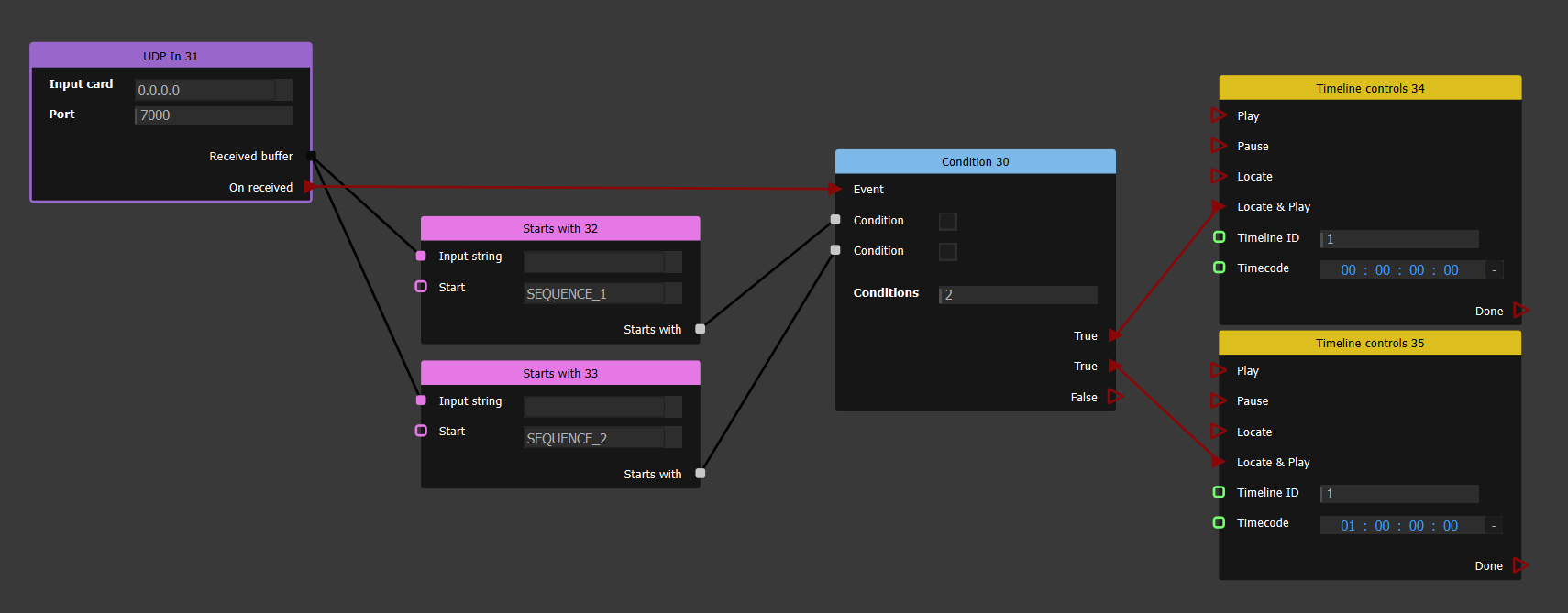
Fires one of several output events depending on which of its boolean inputs is true. This is the ActionGraph equivalent of an if / else-if / else chain — for example, firing event 1 or event 2 depending on whether a received buffer starts with SEQUENCE_1 or SEQUENCE_2.
When the input Event is received, the node evaluates the Condition inputs in order and fires the True output event that corresponds to the first condition that is true. If none of the conditions is true, the False output event is fired instead.
Properties
- Conditions — the number of condition inputs (and matching True output events). Defaults to 1.
Inputs
- Condition — one boolean input per condition, evaluated top to bottom.
Events
- Event (input) — triggers evaluation of the conditions.
- True (output) — one per condition; the output matching the first true condition is fired.
- False (output) — fired when no condition is true.
Events
Event nodes are the entry points of an ActionGraph: instead of computing a value, they wait for something to happen (a frame, a click, a time, a board change…) and then fire an output event that drives the rest of the graph. Every node in this category is an event node, so it has a triggerable output rather than a data output.
- On Frame — fires its On Frame event once every frame. Use it when you need continuous, per-frame updates; be mindful that anything downstream runs at the full frame rate.
- On Startup — fires once when the show starts. It runs on the Producer only (its output event is labelled On Startup (Producer only)), so use it to initialise state at launch rather than to drive per-machine behaviour.
- On Click — adds a push-button directly on the node in the ActionGraph; clicking it fires the On Click event. Mostly useful for testing and debugging a graph by hand. The click happens on the Producer and is synchronised to the Displays.
- On Action — fires its On Action event when triggered by a QuickKey or a Command Cue. Right-click the node to create the QuickKey (Create QuickKey) or the Command Cue (Create Command Cue) that will drive it.
- Delay (event) — see the Delay section; the event-only Delay is documented there.
On Time
Triggers at a given time of day, on the days of the week you choose. It fires every day the corresponding day is enabled, at the configured hour and minute. If you need a different time for each day, add several On Time nodes (for example one per day). Scheduling is handled by the Master, which then broadcasts the trigger to the Displays.
Inputs
- Monday … Sunday — one boolean per weekday (all enabled by default); the event only fires on days that are ticked.
- Hour — hour of day, 0–23 (default 18).
- Min — minute of the hour (default 0).
Events
- Specified time changed (input) — reschedules the timer; connect a node here if the time is computed dynamically.
- On specified time (output) — fired when the configured time is reached on an enabled day.
On Date-Time
Triggers once at a specific calendar date and time. Unlike On Time (which repeats every day at a time of day), On Date-Time targets a single absolute moment: once it has fired, it does not reschedule. If the configured date/time is already in the past, it never fires. Scheduling is handled by the Master, which broadcasts the trigger to the Displays.
Inputs
- Year — target year (default 2025).
- Month — target month, 1–12 (default 1).
- Day — target day of month (default 1).
- Hour — target hour, 0–23 (default 18).
- Min — target minute (default 0).
Events
- Specified date/time changed (input) — reschedules the timer; connect a node here if the date/time is computed dynamically.
- On specified date/time (output) — fired once when the target date and time is reached.
Periodic Event
Fires a Tick event at a fixed interval. It auto-starts by default; uncheck Auto-start to leave it stopped and start it on demand via the Restart input event. Restart also resets the interval if the timer is already running. At every tick it outputs the show clock so that all machines share the same timestamp. The timer runs on the Master and each tick is synchronised to the Displays.
Properties
- Period (s) — interval between ticks, in seconds (default 1). Values below 10 ms are rejected and stop the timer.
- Auto-start — when enabled (default), the timer starts automatically; when disabled, it stays stopped until a Restart event is received.
Outputs
- Show Clock (ms) — the show clock at the moment of the tick, in milliseconds, identical across all machines.
Events
- Restart (input) — (re)starts the timer, applying the current Period.
- Tick (output) — fired on every interval.
On enter Board sequence
Fires whenever a board starts (enters) a new sequence — for example on a manual sequence change, a Next/Previous, or an auto-follow. Set Board ID to the board you want to watch; only changes on that board trigger the node. The outputs report which sequence was left and which one started (both 1-based, matching the sequence numbering shown in the board).
Inputs
- Board ID — the board to watch (default 1).
Outputs
- Previous sequence — the sequence that was playing before the change.
- New sequence — the sequence that just started.
Events
- Sequence entered (output) — fired when the watched board enters a new sequence.
UserScreen
These nodes read or set the values of most widgets that you can add in a UserScreen. They come in Get / Set pairs, one pair per widget type. To choose which widget a node acts on, drag & drop the picking tool (in the inspector) onto the desired UserScreen widget.
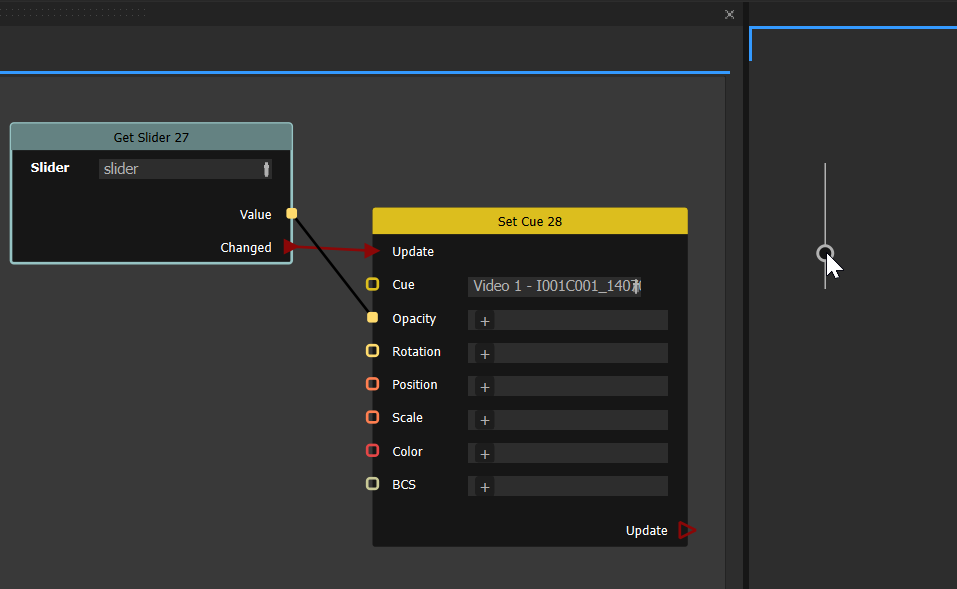
Get nodes expose the widget's current value(s) as output slots. For user-interactible widgets (Slider, Spinbox, Checkbox…), they also fire a Changed output event whenever the value is edited on screen, so you can react to user input in real time. Set nodes take the new value(s) on their input slots and write them to the widget when their Update input event fires, then forward a Next output event.
For example, you can wire a Slider's value to a media cue's opacity to let the user fade it live:
| Widget | Get — output slots (+ events) | Set — input slots |
|---|---|---|
| Slider | Value (float) — Changed | Value (float) |
| Spinbox | Value (int) — Changed | Value (int) |
| Label | Text (string) — Changed | Text (string) |
| Checkbox | Text (string), Checked (bool) — Changed | Text (string), Checked (bool) |
| PushButton | Text (string) — Changed, Pressed | Text (string) |
| Image | Path (string) — Changed | Path (string) |
| Tri-State Led | Is On (bool), Is OK (bool) — Changed | Is On (bool), Is OK (bool) |
| Status Indicator | Status — Changed | Status |
| Widget | Enable (bool), Visible (bool) | Enable (bool), Visible (bool) |
Notes:
- Get PushButton adds a Pressed event, fired each time the button is clicked, on top of the Changed (text) event.
- Get / Set Widget are the generic pair: they read or write the Enable and Visible state of any widget, and also accept a whole UserScreen page as their target. Unlike the other Get nodes, Get Widget has no Changed event — its outputs are polled rather than event-driven. On Set Widget both inputs are optional, so you can change enable or visibility independently.
Weekly Calendar
The Weekly Calendar node drives a schedule from a Weekly Calendar widget picked in its property. For every day of the week enabled in that widget, the widget defines a start time and a stop time; the node watches the clock and fires an event when each is reached. It is typically used to automatically start and stop a show on a recurring weekly schedule (an overnight range such as 22:00 → 02:00 is handled correctly, the stop rolling over to the next day).
Events
- On Start — fired when a day's scheduled start time is reached.
- On Stop — fired when a day's scheduled stop time is reached.
The timer runs on the Producer only; when an event fires it is broadcast to the Displays over the network, so all machines act on the Producer's clock. Changes to the schedule, as well as daylight-saving or manual clock changes, are detected automatically and reschedule the next event. The node has no input or output value slots.
Buffer
A Buffer is a block of raw bytes — arbitrary binary data with no assumed encoding. Buffers typically arrive from the network: the UDP In node hands you the raw payload of each packet, and HTTP receive payloads are buffers too. The nodes in this category let you inspect and manipulate that raw byte data — measure it, extract fields, search it, cut sections out of it and stitch buffers together.
Many of these operations mirror the ones in the String category, and Onlyview converts automatically between Buffer and String where a connection requires it, so you can freely mix the two: for example decode a UDP payload as text with String nodes, or treat a string as raw bytes with the Buffer nodes.
- Length — outputs the size of a buffer in bytes on Length (Int), plus an IsEmpty (Bool) output that is true when the buffer contains zero bytes.
- Concatenation — joins up to five buffers end to end. Inputs Buffer 1 to Buffer 5 are appended in order (unconnected or invalid inputs are skipped) into a single Output buffer.
Buffer Get Int
Reads a group of consecutive bytes from a buffer and interprets them as a single unsigned integer — handy for decoding numeric fields out of a binary protocol.
Inputs
- Input buffer — the buffer to read from.
Properties
- startByte — zero-based index of the first byte to read (must be ≥ 0).
- byteCount — how many bytes to read, from 1 to 4. Values outside that range produce no output.
- littleEndian — when off (the default), the bytes are read most-significant first (big-endian); when on, least-significant first (little-endian).
Outputs
- Value — the decoded integer. Bytes read past the end of the buffer are treated as 0.
Replace
Replaces every occurrence of one byte sequence with another inside a buffer.
Inputs
- Input buffer — the buffer to search.
- From — the byte sequence to look for.
- To — the byte sequence to substitute in its place.
Outputs
- Value — the resulting buffer. All three inputs must be valid, otherwise no output is produced.
Search Operation
Runs a chosen search over two buffers, looking for Buffer B within Buffer A. The single output adapts its name and type to the selected operation.
Inputs
- Buffer A — the buffer being searched.
- Buffer B — the byte sequence to look for.
Properties
- Operation — one of:
- Starts With / Ends With / Contains — output Value (Bool).
- Index Of / Last Index Of — output Index (Int), the position of the first / last match, or -1 if not found.
- Count — output Count (Int), the number of non-overlapping occurrences.
Outputs
- Value / Index / Count — see above; the slot changes automatically when you change the operation.
Section
Extracts a contiguous slice of a buffer, mirroring the String Section node.
Inputs
- Input buffer — the buffer to cut from.
- start — zero-based index of the first byte of the slice.
- count — number of bytes to take. This input is optional; when left unconnected the slice runs from start to the end of the buffer.
Outputs
- Section — the extracted buffer.
String
Nodes for building, inspecting and transforming text. Unless stated otherwise, an output is only marked valid once its required string inputs carry valid values.
- Length — takes an Input string and outputs its character count as Length (Int) together with IsEmpty (Bool), which is true when the string is empty.
- Replace — replaces every occurrence of the From substring with the To substring inside Input string, and outputs the result as Value. All matches are replaced, not just the first.
- Section — returns a part of the input string: starting at the start character index and spanning up to count characters, output as Section. The count input is optional; leave it unconnected to run from start to the end of the string.
- Concatenation — joins up to five inputs (String 1 … String 5) end to end into a single Output string. Empty or unconnected inputs are skipped, and the output is valid as soon as at least one input is valid.
- Trim — removes leading and trailing whitespace from Input String and outputs the cleaned text as Value.
Search Operation
Runs a search of String B within String A and reports the result. This single node replaces the former dedicated "StartsWith" node — StartsWith is now just one of its modes.
The Operation property selects what is searched, and the output slot changes type to match the chosen mode:
- StartsWith — outputs Value (Bool): true if String A begins with String B.
- EndsWith — outputs Value (Bool): true if String A ends with String B.
- Contains — outputs Value (Bool): true if String A contains String B anywhere.
- IndexOf — outputs Index (Int): position of the first occurrence of String B (-1 if not found).
- LastIndexOf — outputs Index (Int): position of the last occurrence of String B (-1 if not found).
- Count — outputs Count (Int): number of times String B occurs in String A.
Inputs
- String A — the string being searched.
- String B — the string to look for.
Properties
- Operation — the search mode listed above.
- Case sensitive — when off, matching ignores letter case (on by default).
RegExp
Matches Input String against a regular expression (RegExp, Qt/PCRE syntax, defaulting to \w+) and exposes the captured groups as string outputs. The node shows a small label indicating whether the current pattern is valid, or the parse error otherwise.
Inputs
- Input String — the text to match against.
- RegExp — the regular-expression pattern.
Outputs
- Value (and further slots) — the captured groups of the first match. Output 0 is the full match; outputs 1, 2, … are capture groups 1, 2, … in order. Slots beyond the number of captures stay invalid.
Properties
- Nb outputs — how many capture slots to expose. Increase this to read additional capture groups; the minimum is 1.
Split String
Splits Input String on a Separator and outputs the resulting parts on separate slots.
Inputs
- Input String — the text to split.
- Separator — the delimiter to split on (defaults to
,).
Outputs
- Value (and further slots) — the parts in order. The first part goes to output 0, the second to output 1, and so on. Any parts beyond the available slots are discarded, and unused slots stay invalid.
Properties
- Nb outputs — how many part slots to expose (minimum 1). Set this to the number of fields you expect from the split.
Json
Parse JSon: Takes text as an input (often from an HTTP receive node), and returns a JSon node. You can't use the JSon data directly, you need a Get Child By Name node to find the data that interests you.
Get Child By Name: Finds subdata in a JSon object. You may need to have multiple nodes, one to access each layer of hierarchy in your JSon document. For instance, this graph logs the content of tag/lang.
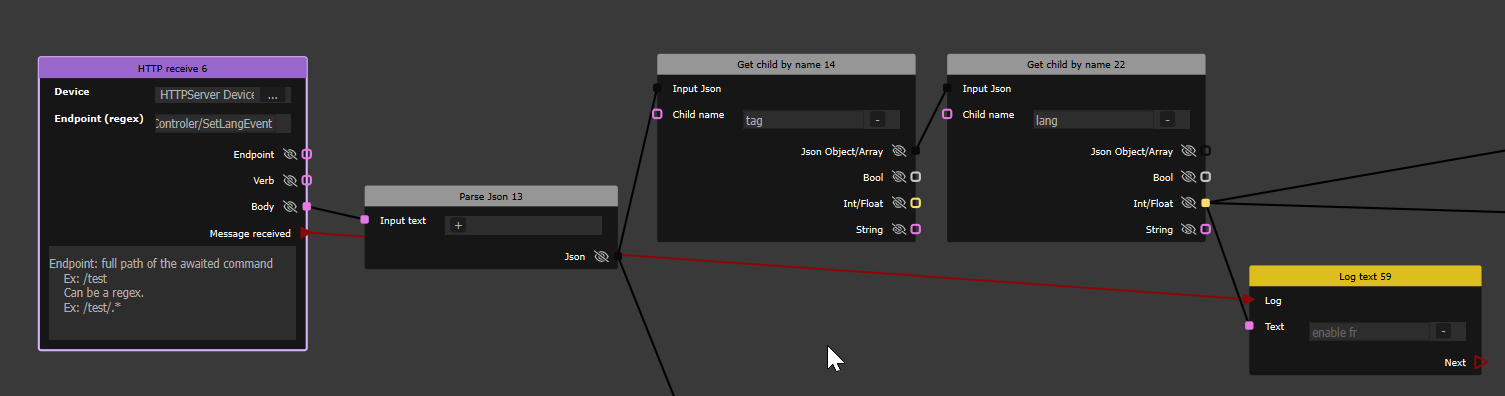
So, given the following JSon:
{
    "tag": {
        "lang": 1
    }
}
, it will print 1.
Debug Draw
These nodes draw temporary geometry overlays into the 3D preview, so you can visualise positions and directions while building an ActionGraph. Nothing is committed to the show; the overlay is redrawn each time the node's Update event fires and then disappears, so you normally drive these nodes from an OnFrame event to keep them visible.
Each node has a 3D Media input (an integer media id) that selects which 3D media the overlay is drawn into. The singular variant draws a single cube from one Position, while the plural variants take a list of positions/points (a Vec3s array) and draw one item per element — handy for visualising a whole set of computed locations at once.
Draw debug 3D cube
Draws a single cube of a given size at a point in space.
Inputs
- 3D Media — id of the 3D media to draw into.
- Position — the cube's centre (Vec3).
- Size — the cube's edge size (Float).
Events
- Update — recomputes and draws the cube. Wire this to an OnFrame event so the cube stays on screen.
- Next — forwarded after the cube is drawn.
Draw debug 3D cubes
Same as Draw debug 3D cube, but takes a list of positions and draws one cube of the same Size at each.
Inputs
- 3D Media — id of the 3D media to draw into.
- Positions — list of cube centres (Vec3s).
- Size — edge size applied to every cube (Float).
Events
- Update — recomputes and draws all cubes. Drive from an OnFrame event.
- Next — forwarded after the cubes are drawn.
Draw debug 3D rays
Draws a set of line segments, one per ray, each running from the ray's origin to its target.
Inputs
- 3D Media — id of the 3D media to draw into.
- Rays — the rays to draw (Rays3D), each defined by an origin and a target point.
Events
- Update — recomputes and draws the rays. Drive from an OnFrame event.
- Next — forwarded after the rays are drawn.
Draw debug 3D points
Draws a point marker at each position in a list.
Inputs
- 3D Media — id of the 3D media to draw into.
- Points — list of point positions (Vec3s).
Events
- Update — recomputes and draws the points. Drive from an OnFrame event.
- Next — forwarded after the points are drawn.
Organization
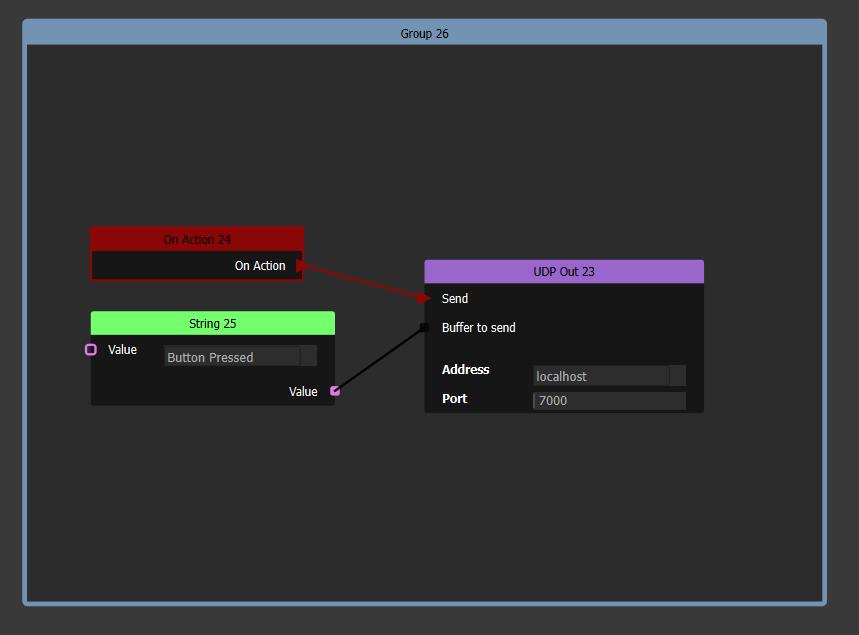
Group: Groups together several nodes as a single logical unit, for more clarity. In particular, moving the group moves all the nodes inside. The group can be renamed.
Comment: Simple text box for explaining the behaviour of the ActionGraph.