WarpNet
Introduction
WarpNet let multiple users deform content at the same time, from a lightweight laptop that can be taken on-stage.
Setup
Start Producer and open the show
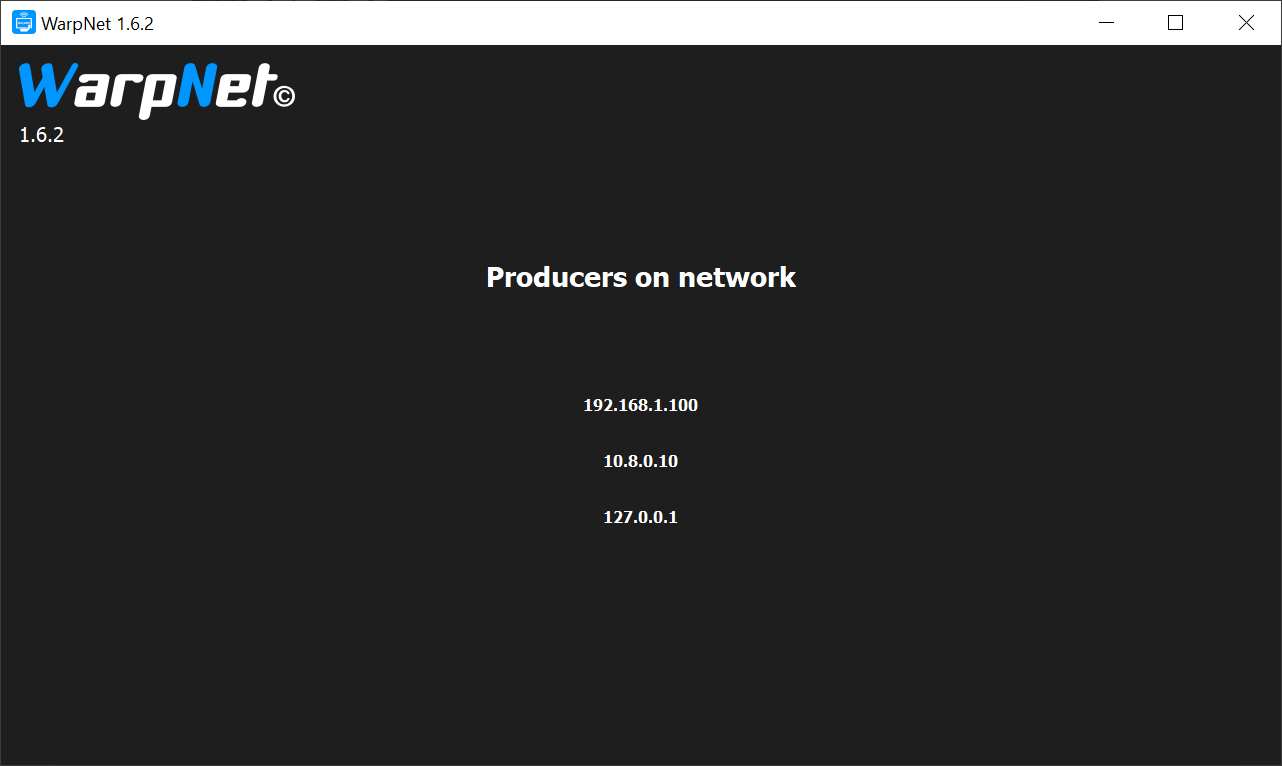
Start WarpNet. The running Producer should be automatically detected. If not, check your network. Select the correct IP.
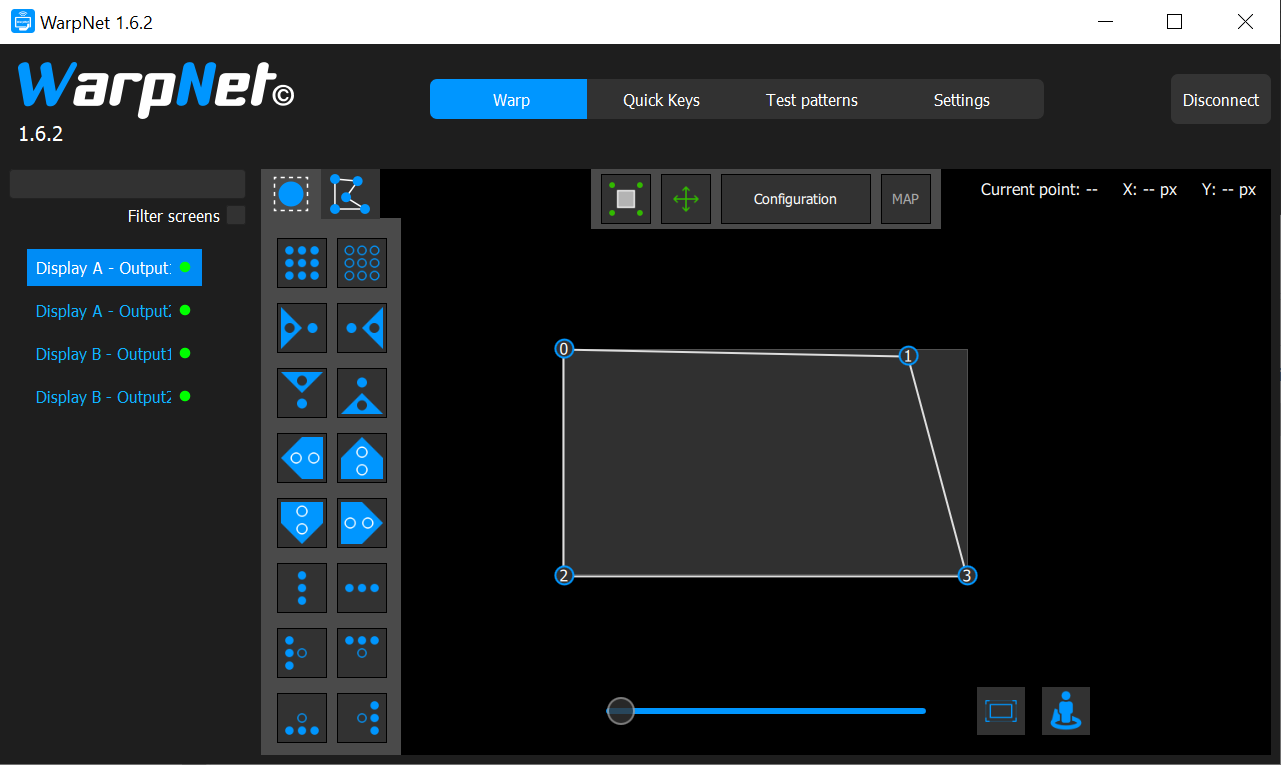
WarpNet lists all the Outputs of the show. Select one of them.
If this output doesn't have a deformation yet, click "Configuration" and add it. You can now select the deformation points using the mouse, and move them using either the mouse, or the usual keyboard shortcuts (see later sections for full reference).
Deforming cues
By default, media cues are not visible on WarpNet. The operator must explicitly make them available. On Producer, right-click on a cue, and select "Send to WarpNet":
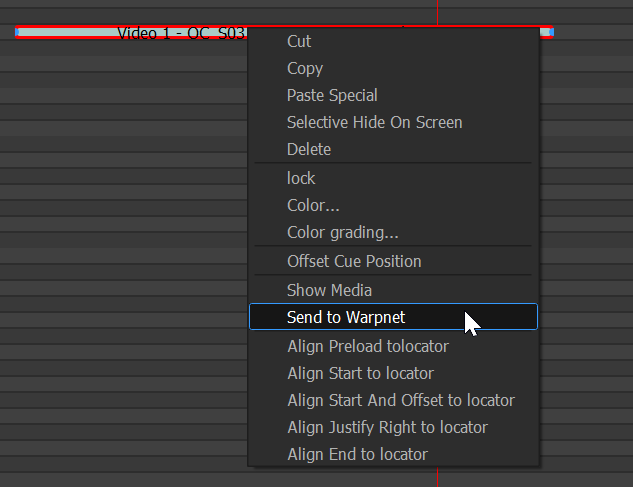
The cue can now be deformed normally on WarpNet.
The WarpNet Control window lists all the cues that are visible on WarpNet:
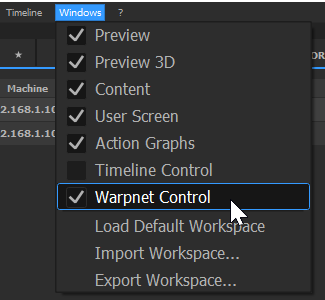
To remove a cue from WarpNet, right-click on it in the WarpNet control window, and select "Remove".
QuickKeys
WarpNet can also trigger QuickKeys, but this must be explicitly enabled by the OnlyView operator. Right-click on a QuickKey, select Edit, then check "Visible on WarpNet":
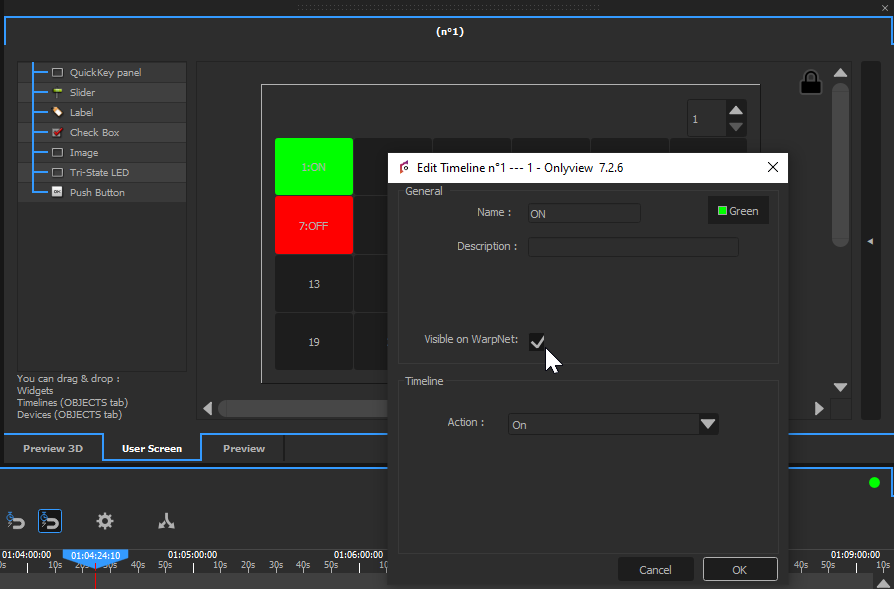
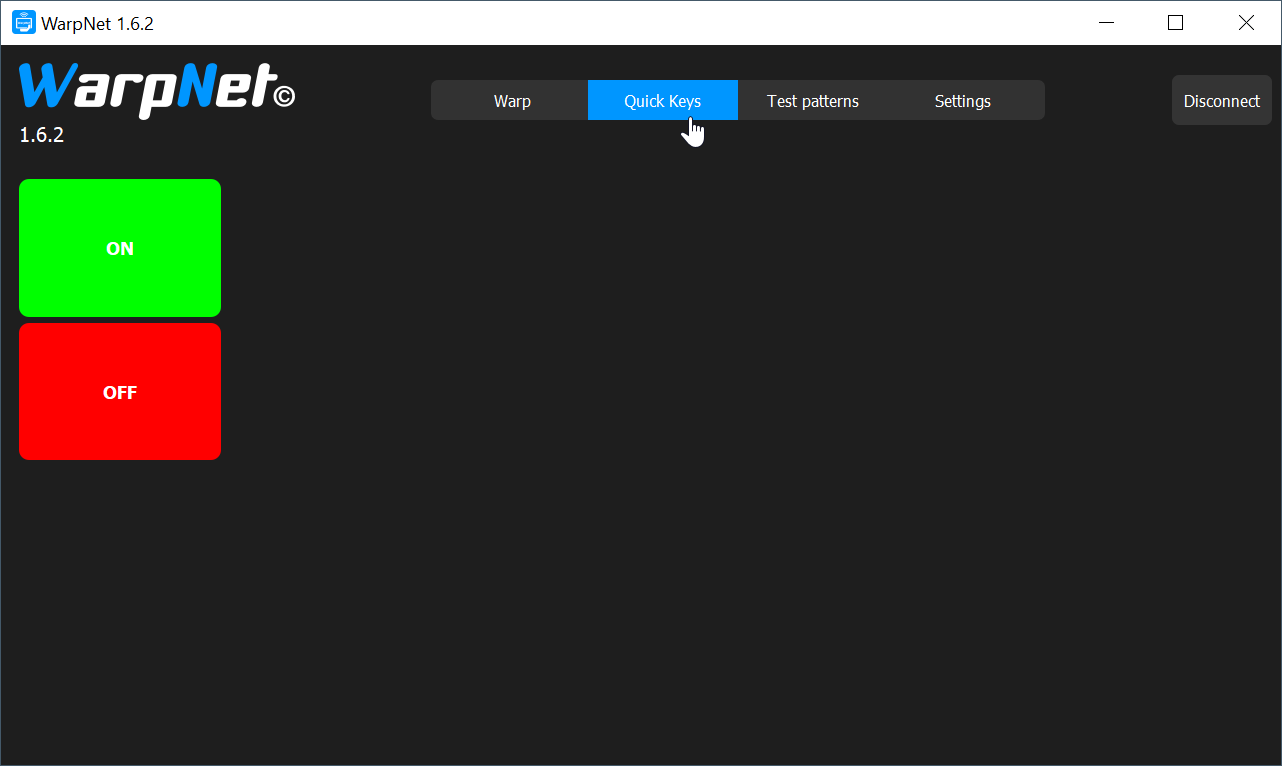
The desired QuickKeys will now appear on WarpNet, and all WarpNet operators will be able to trigger them.