Board Cues
Media cues
Board cues are exactly the same as any other cue: their parameters, looping, animation, effects and masks are all described in the Media Cues chapter. This section only lists what is specific to cues on a board.
Simplified parameters
The quick parameters panel is simplified to show only the most common parameters:
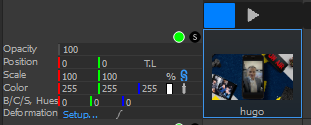
All other parameters can be accessed using "Right click -> Edit all cue parameters", which opens the same Cue view as with timeline cues.
Animation
Board cues can be animated just like timeline cues, but since a board has no inline timeline to draw keyframes on, animation must be done in the Cue view ("Edit all cue parameters"). See the Animation section of the Media Cues chapter.