Setup
Setup
Just like audio, pixelmapping needs to be enabled on specific Media Servers.
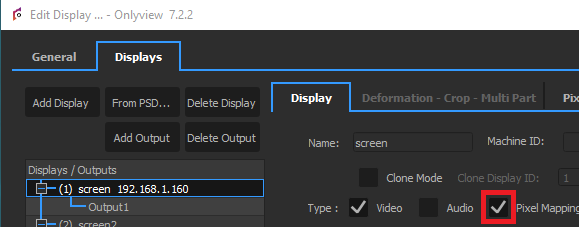
This will give you access to the PixelMapping tab.
Create an Output and fill its IP. This is the IP address of the network card that is installed inside the Media Server, and which will be used to send the pixelmapping data.
Inside this Output, create a Patch. There are three important parts in a Patch.
Fixtures
The first part of the patch is the fixture. As explained in the glossary, it represents how the DMX hardware expects its data. Click on "Setup", then add a new fixture.

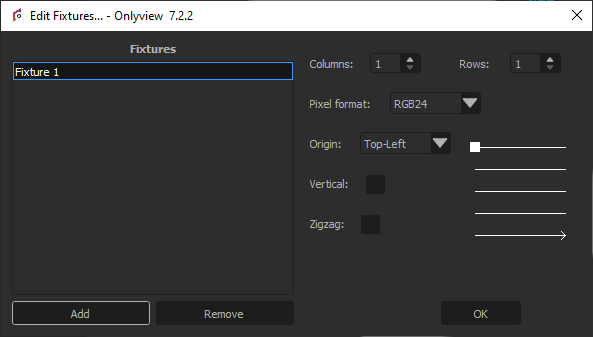
The number of columns and rows is usually straightforward.
The pixel format depends on the model and can be found in the hardware's documentation, but it is normally RGB.
The Origin, Vertical and ZigZag fields depend on how the panel is internally cabled. The schema on the right gives you an indication of how the physical layout.
Validate, then select which Fixture you want for a particular Patch.
Input
Input: A Patch can take its data from any screen of the Media Server, but also from TextureAreas.
Position/Resolution/Rotation: Selects a particular part of the input screen/TextureArea.
Color adjust: A simple multiplicative factor for the output color. For more control over the colorimetry, directly adjust the colorimetry of the cue.
Output
This part describes where to send the pixels' colors.
Net/SubNet/Universe: On which DMX universe the data will be sent. A single Output can use up to 1000 different Universes.
Channel: A single Universe contains 512 values, so many projectors can fit inside. This field represents the first channel to fill for this particular patch. For instance, if a fixture uses 6 bytes, the first patch can use Channel 1, and the second patch can use Channel 6, and so on, up to 512.