Setup
SMPTE 2110 setup
System requirement
Onlyview only supports SMPTE 2110 on Windows for now.
Your PCIe bar size directly impact the maximum size of a frame. Make sure to enable the resizable bar size option in your BIOS. Go to the NVidia control panel > Help > System information to make sure it is enabled.
Hardware requirements
Onlyview currently support only Mellanox ConnectX network cards. Tests have been made with the ConnectX-5 Adapter.
Make sure your GPU support RDMA GPUDirect.
Software requirements
Onlyview uses the Rivermax SDK that relies on the WINOF2 driver that must be installed first.
Our implementation takes advantage of the GPUDirect meaning CUDA Toolkit must also be installed.
License
Rivermax requires a license to run. Contact NVidia to obtain a license. Default licence location is C:\Program Files\Mellanox\Rivermax\lib\rivermax.lic You can also set the RIVERMAX_LICENSE_PATH environment variable to your license location (make sure the license path contains the filename).
PTP
On ConnectX card that does not provide PTP hardware timestamping on Windows (like ConnectX-5/6), the system clock is updated via software synchronization using ptpprov.
This can be achieved by following this guide.
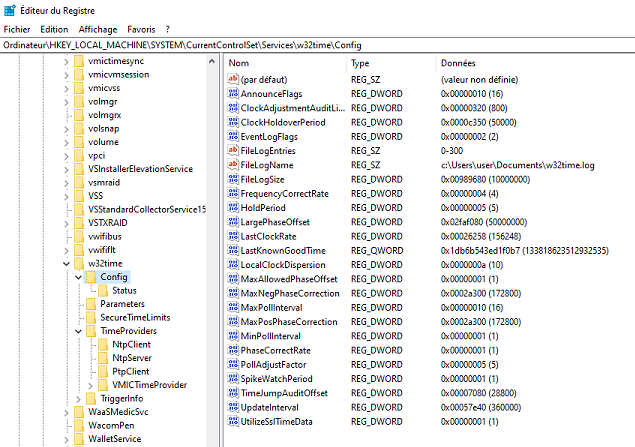
The resulting registery key should look like this.
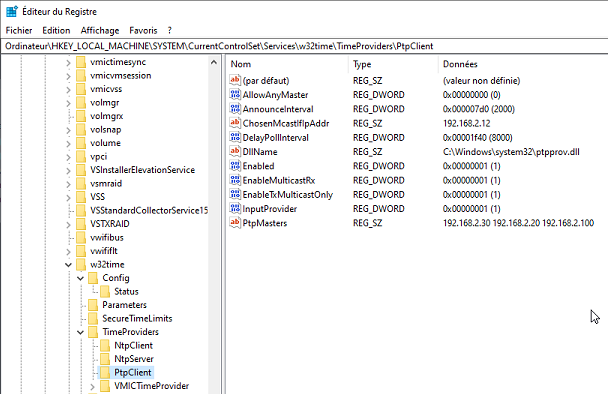
Your system may also require this keys:
ChosenMcastIfIpAddr <interface> //replace <interface> with your IP adress
EnableMulticastRx 1
Optionnal additional keys:
AllowAnyMaster 0
PtpMasters <masterIP> //replace <masterIP> with the master IP adress
EnableTxMulticastOnly 1
Make sure the AnnounceInterval matches the clock master parameter.